> ## Documentation Index
> Fetch the complete documentation index at: https://superwhisper.com/docs/llms.txt
> Use this file to discover all available pages before exploring further.
# History
> Review, search, and reprocess past dictations in Superwhisper's History. Find where recordings are stored and how to delete or report them.
Superwhisper saves every dictation as you speak: the audio, the transcription, and the AI result. Use History to review past dictations, retry failed ones, and diagnose unexpected results.
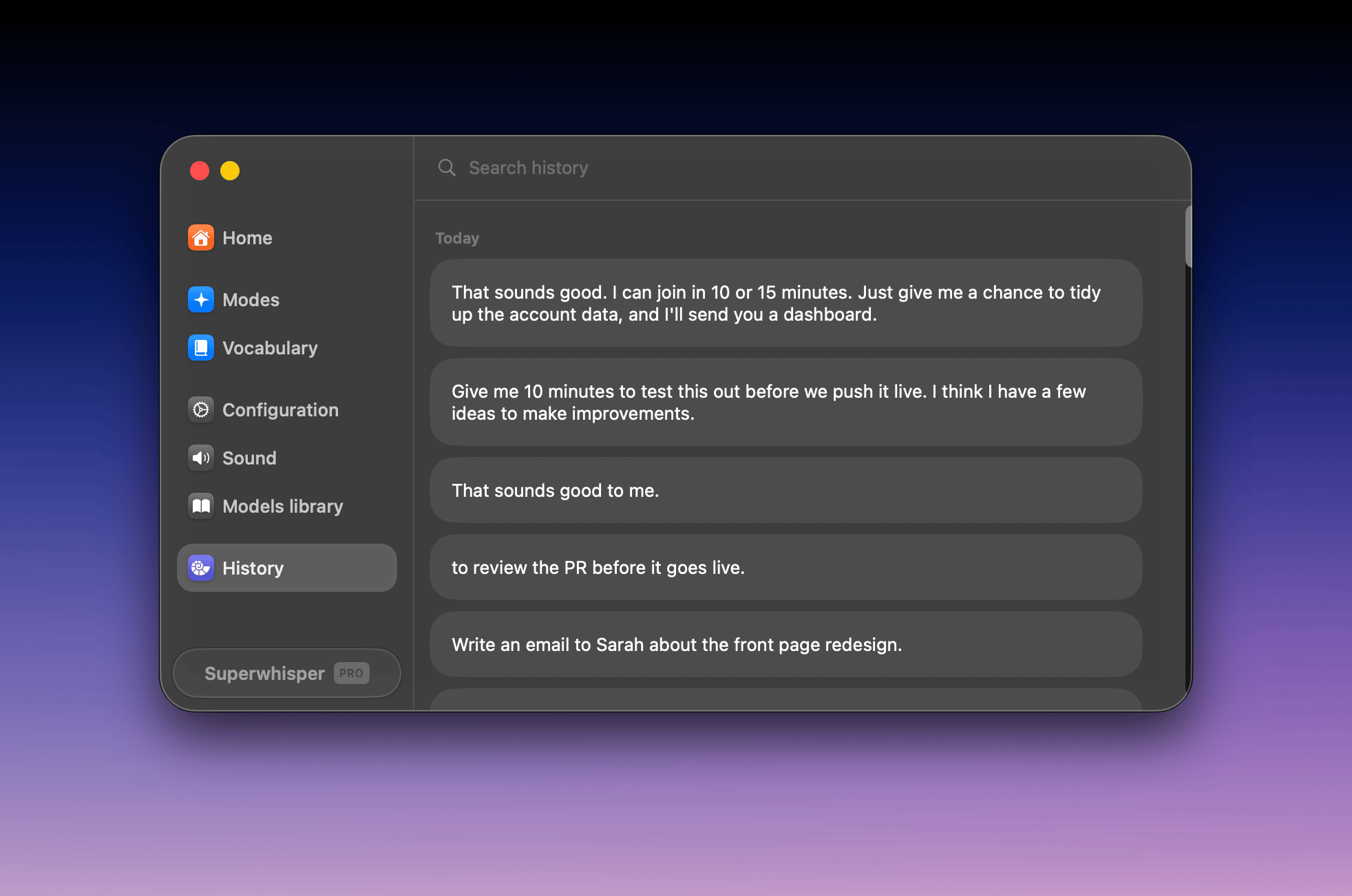 ## Open History
Open History from any of three places:
* The **History** tab in settings
* The **menu bar icon → History**
* Right-click the **mini recording window**
## Search recordings
The search field in the left sidebar filters your past dictations.
Search filters the original dictation only, not AI-processed results.
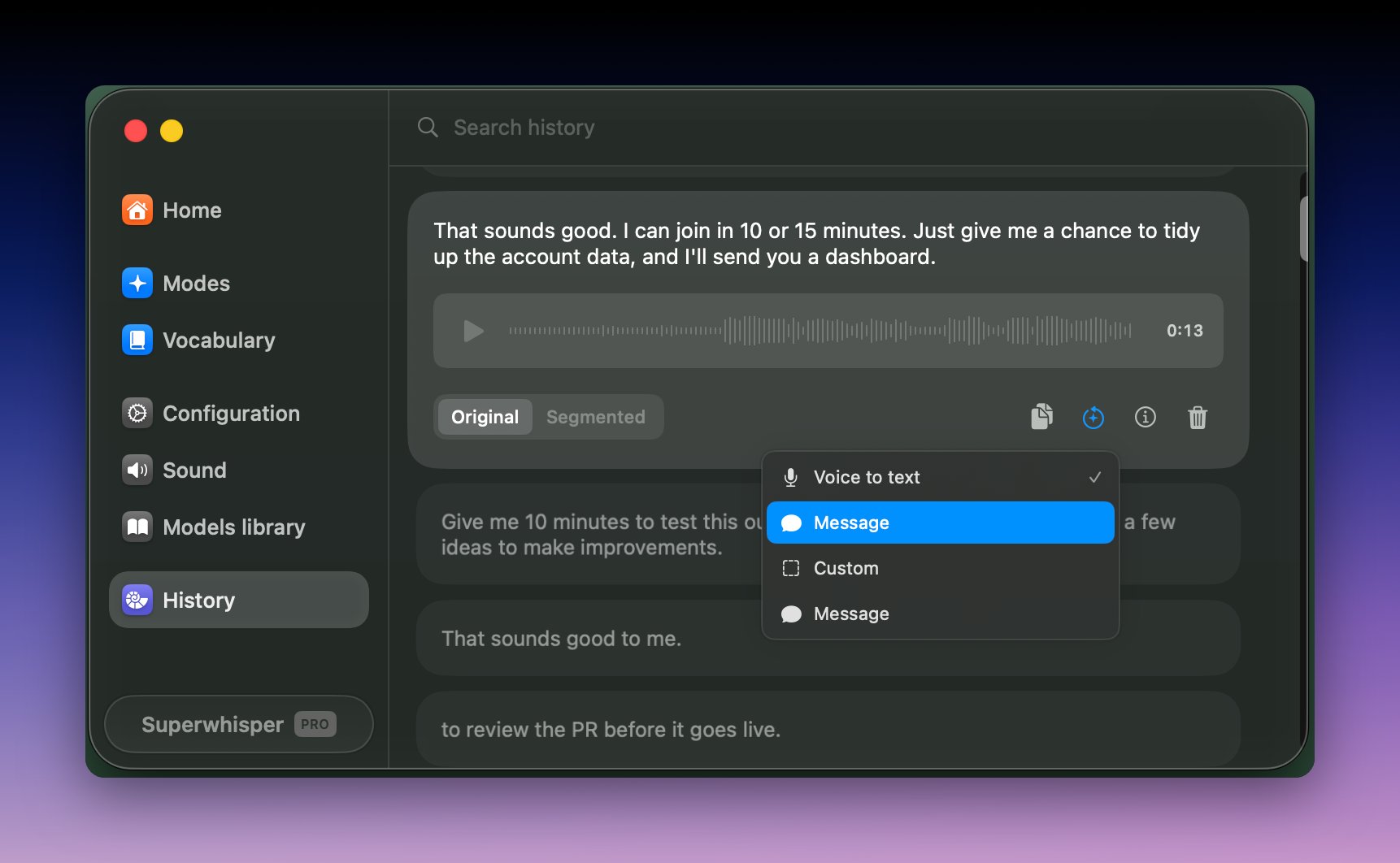
## Reprocess a dictation
Retry a failed transcription or run an old dictation through a different mode without re-recording:
1. Open the dictation in **History**
2. Click the **reprocess** icon below the recording
3. Pick the mode to process it with
## Open History
Open History from any of three places:
* The **History** tab in settings
* The **menu bar icon → History**
* Right-click the **mini recording window**
## Search recordings
The search field in the left sidebar filters your past dictations.
Search filters the original dictation only, not AI-processed results.
## Reprocess a dictation
Retry a failed transcription or run an old dictation through a different mode without re-recording:
1. Open the dictation in **History**
2. Click the **reprocess** icon below the recording
3. Pick the mode to process it with
 ## Dictation stats
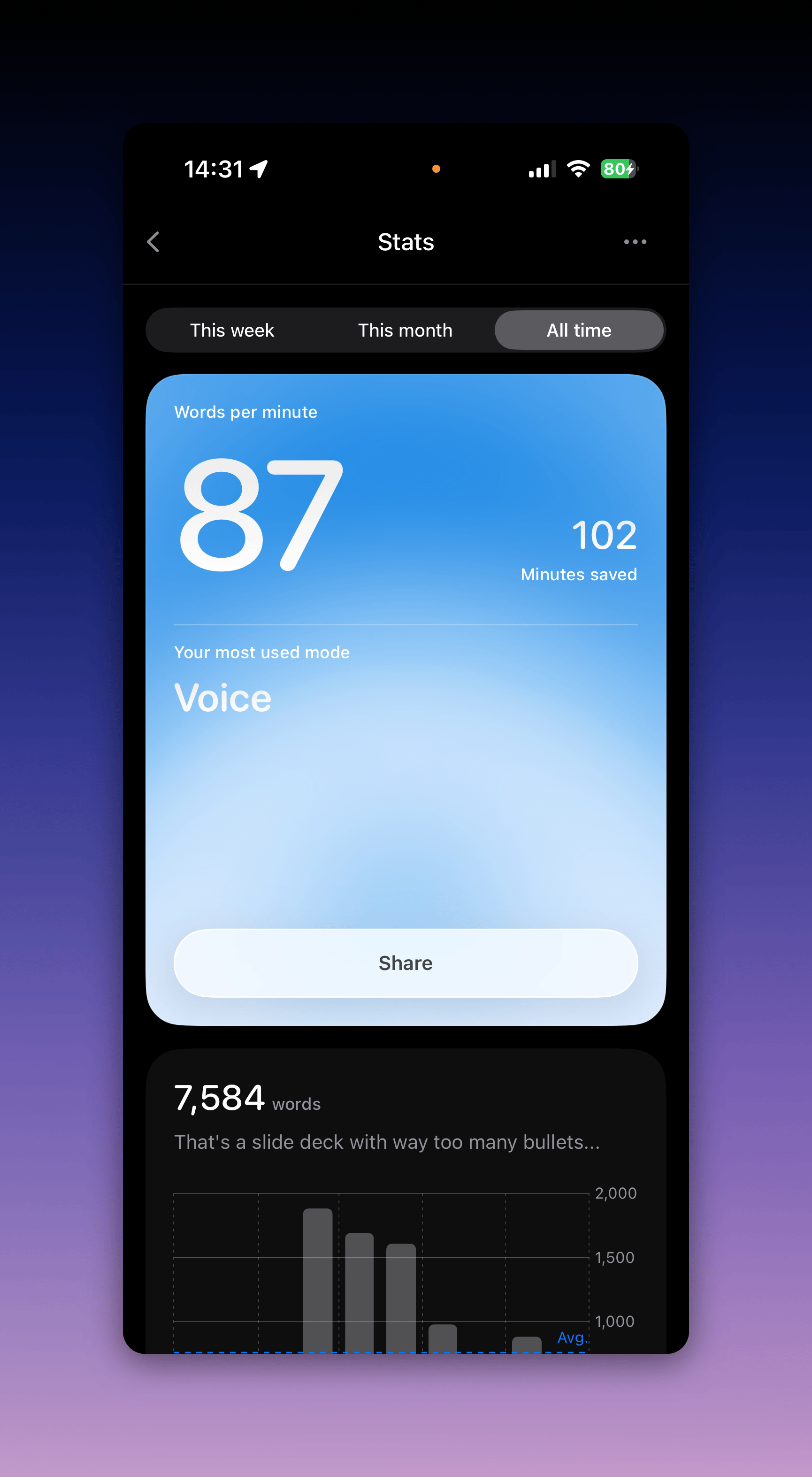
Superwhisper tracks summary statistics across your recordings: total dictations, total words, total recording time, and average words per minute. On iOS, open the app's Settings to see them. On a Mac, the [CLI](/docs/get-started/cli) prints them with `superwhisper stats`.
## Dictation stats
Superwhisper tracks summary statistics across your recordings: total dictations, total words, total recording time, and average words per minute. On iOS, open the app's Settings to see them. On a Mac, the [CLI](/docs/get-started/cli) prints them with `superwhisper stats`.
 ## Report an issue
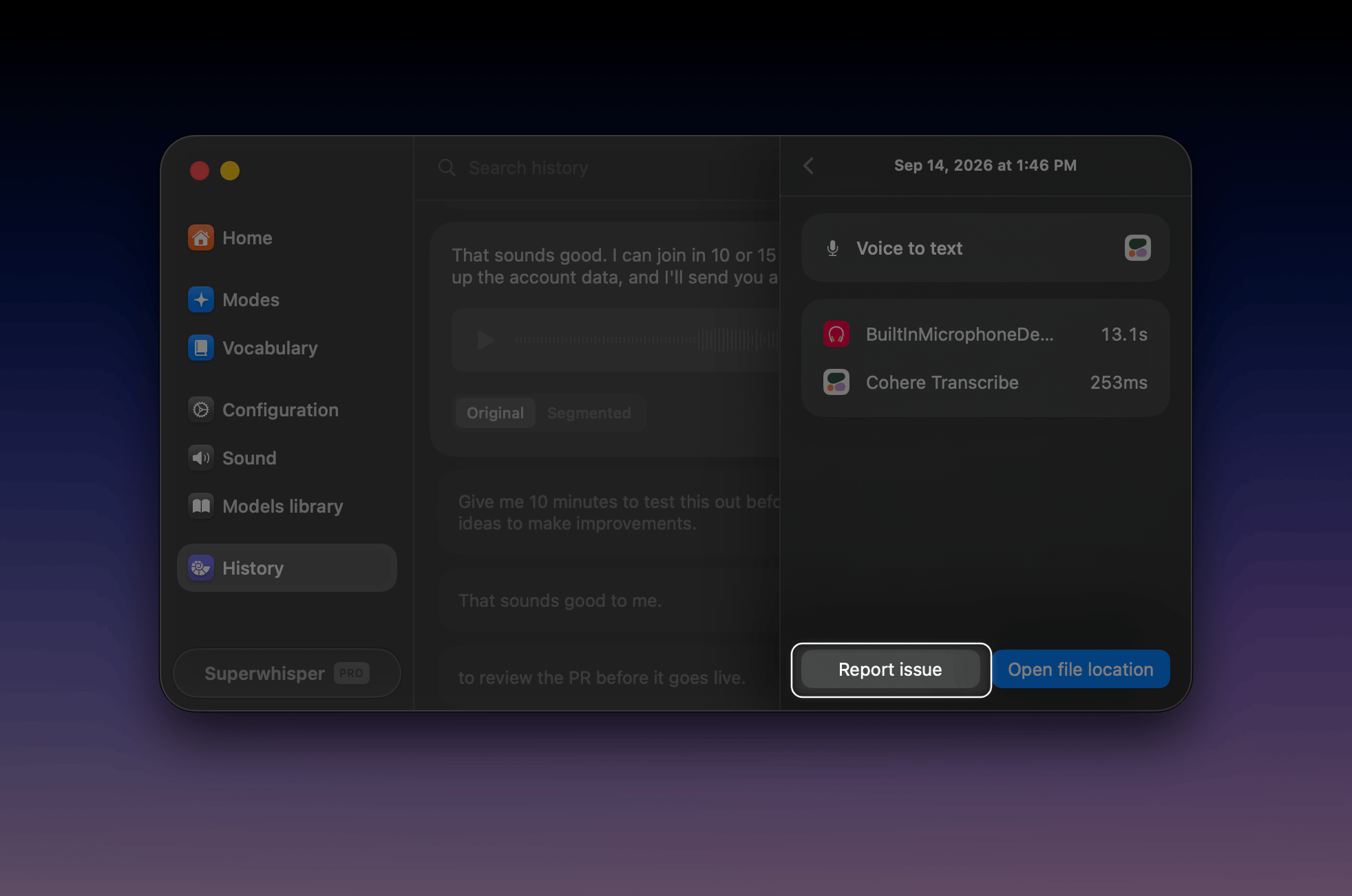
Report a problem directly from the recording it happened in:
1. Turn on **Error logging** in **Settings → Configuration**
2. Open the recording in History and click the **info** icon to show its details
3. Click **Report issue** in the details sidebar
## Report an issue
Report a problem directly from the recording it happened in:
1. Turn on **Error logging** in **Settings → Configuration**
2. Open the recording in History and click the **info** icon to show its details
3. Click **Report issue** in the details sidebar
 To report by email instead, send [support@superwhisper.com](mailto:support@superwhisper.com):
* What happened, and the steps to reproduce it
* Screenshots of your Configuration pane and the mode's settings (including the prompt, for custom modes)
* The recording folder: select the test recording in History, click the folder icon to reveal it in Finder, compress the folder, and attach it
You can also ask in [Discord](https://discord.gg/tF98XvJNvB), but email reaches the team fastest.
## Where recordings are stored
| Platform | Location |
| -------- | ----------------------------------------------------------------------------------------------------------------------------------------------------------------- |
| macOS | `~/superwhisper/recordings` (older installs: `~/Documents/superwhisper/recordings`; [custom locations](/docs/get-started/settings-advanced#app-folder-location) apply) |
| Windows | `%LOCALAPPDATA%\com.superwhisper.app` |
| iOS | Inside the app. Open History in the iOS app |
## Delete recordings
Superwhisper doesn't delete recordings on its own. Delete them periodically to manage disk space:
* **In the sidebar**: select recordings (hold Shift for several), right-click, **Delete**
* **In Finder**: select a dictation and click the folder icon to open the recordings folder, then delete files directly
On an Enterprise license, your organization can set an automatic [recording retention](/docs/enterprise/configuration#recording-retention) period.
There's no built-in scheduled cleanup yet. This cron job deletes recording folders older than one day, every midnight:
```
0 0 * * * /usr/bin/find "$HOME/superwhisper/recordings" -mindepth 1 -maxdepth 1 -type d -name "[0-9]*" -mmin +1440 -exec /bin/rm -rf {} \;
```
Add it with `crontab -e`. Adjust `-mmin +1440` (minutes) for a different age threshold, and the leading schedule fields for a different frequency. Preview what would be deleted first by running the `find` command with `-print` instead of `-exec ... \;`.
A wrong path in a cron job deletes the wrong files. If you moved your Superwhisper folder, update the path, and always run the preview first.
To report by email instead, send [support@superwhisper.com](mailto:support@superwhisper.com):
* What happened, and the steps to reproduce it
* Screenshots of your Configuration pane and the mode's settings (including the prompt, for custom modes)
* The recording folder: select the test recording in History, click the folder icon to reveal it in Finder, compress the folder, and attach it
You can also ask in [Discord](https://discord.gg/tF98XvJNvB), but email reaches the team fastest.
## Where recordings are stored
| Platform | Location |
| -------- | ----------------------------------------------------------------------------------------------------------------------------------------------------------------- |
| macOS | `~/superwhisper/recordings` (older installs: `~/Documents/superwhisper/recordings`; [custom locations](/docs/get-started/settings-advanced#app-folder-location) apply) |
| Windows | `%LOCALAPPDATA%\com.superwhisper.app` |
| iOS | Inside the app. Open History in the iOS app |
## Delete recordings
Superwhisper doesn't delete recordings on its own. Delete them periodically to manage disk space:
* **In the sidebar**: select recordings (hold Shift for several), right-click, **Delete**
* **In Finder**: select a dictation and click the folder icon to open the recordings folder, then delete files directly
On an Enterprise license, your organization can set an automatic [recording retention](/docs/enterprise/configuration#recording-retention) period.
There's no built-in scheduled cleanup yet. This cron job deletes recording folders older than one day, every midnight:
```
0 0 * * * /usr/bin/find "$HOME/superwhisper/recordings" -mindepth 1 -maxdepth 1 -type d -name "[0-9]*" -mmin +1440 -exec /bin/rm -rf {} \;
```
Add it with `crontab -e`. Adjust `-mmin +1440` (minutes) for a different age threshold, and the leading schedule fields for a different frequency. Preview what would be deleted first by running the `find` command with `-print` instead of `-exec ... \;`.
A wrong path in a cron job deletes the wrong files. If you moved your Superwhisper folder, update the path, and always run the preview first.