> ## Documentation Index
> Fetch the complete documentation index at: https://superwhisper.com/docs/llms.txt
> Use this file to discover all available pages before exploring further.
# Superwhisper on iOS
> Set up the Superwhisper keyboard on iPhone and iPad. Enable it in Settings, dictate into any app, and learn the iOS keyboard limits.
On iPhone and iPad, Superwhisper works as a **custom keyboard**: switch to it in any app, dictate, and it inserts your text where you're typing.
## Set up the keyboard
Download [Superwhisper from the App Store](https://apps.apple.com/us/app/superwhisper/id6471464415) and open it once.
Go to **iOS Settings → General → Keyboard → Keyboards → Add New Keyboard…** and select **Superwhisper**.
Tap the Superwhisper keyboard in the same list and turn on **Allow Full Access**. The keyboard needs this to transcribe audio and insert text.
## Dictate
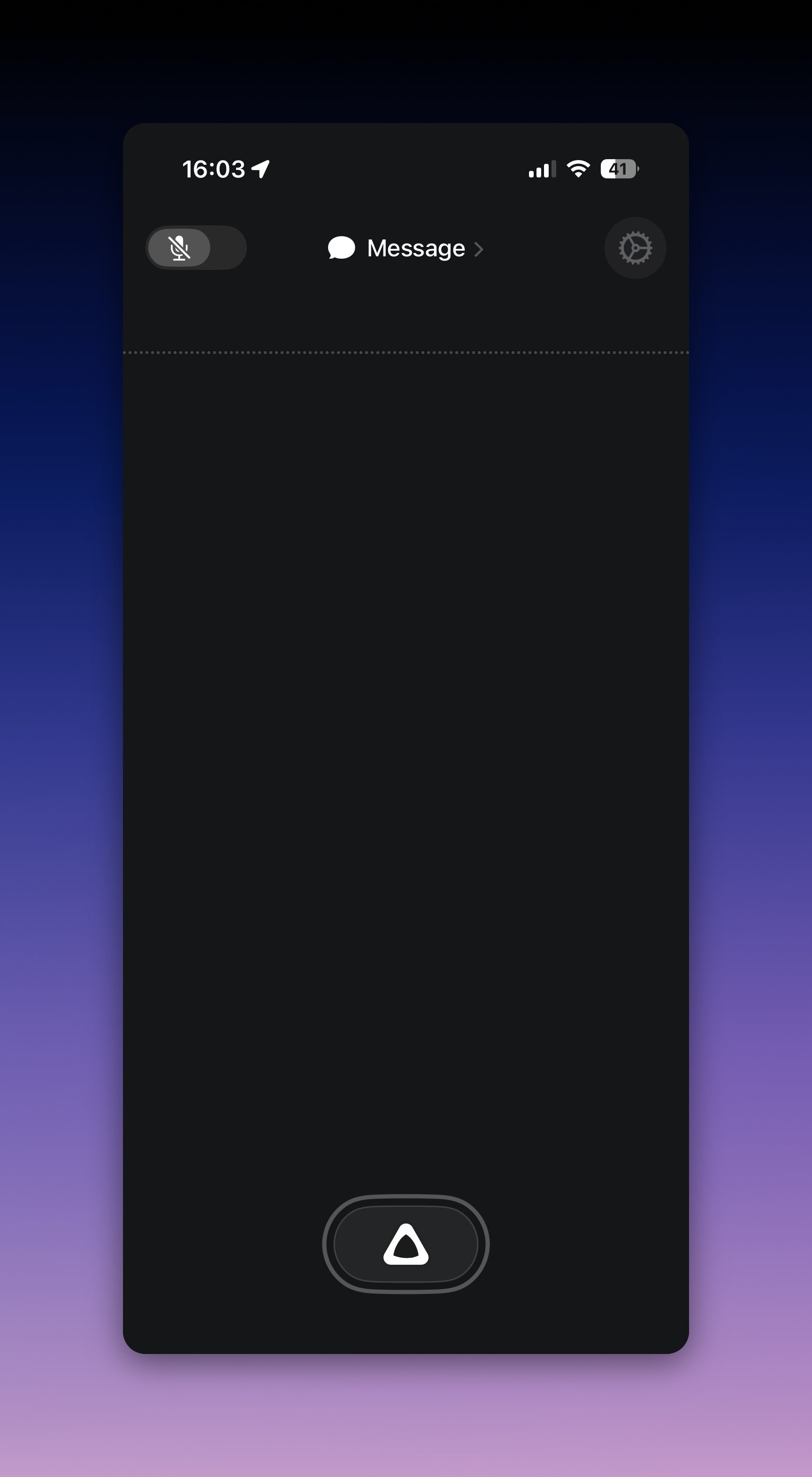
1. In any app, touch and hold the **globe key** and choose **Superwhisper**
2. Tap the record button and speak
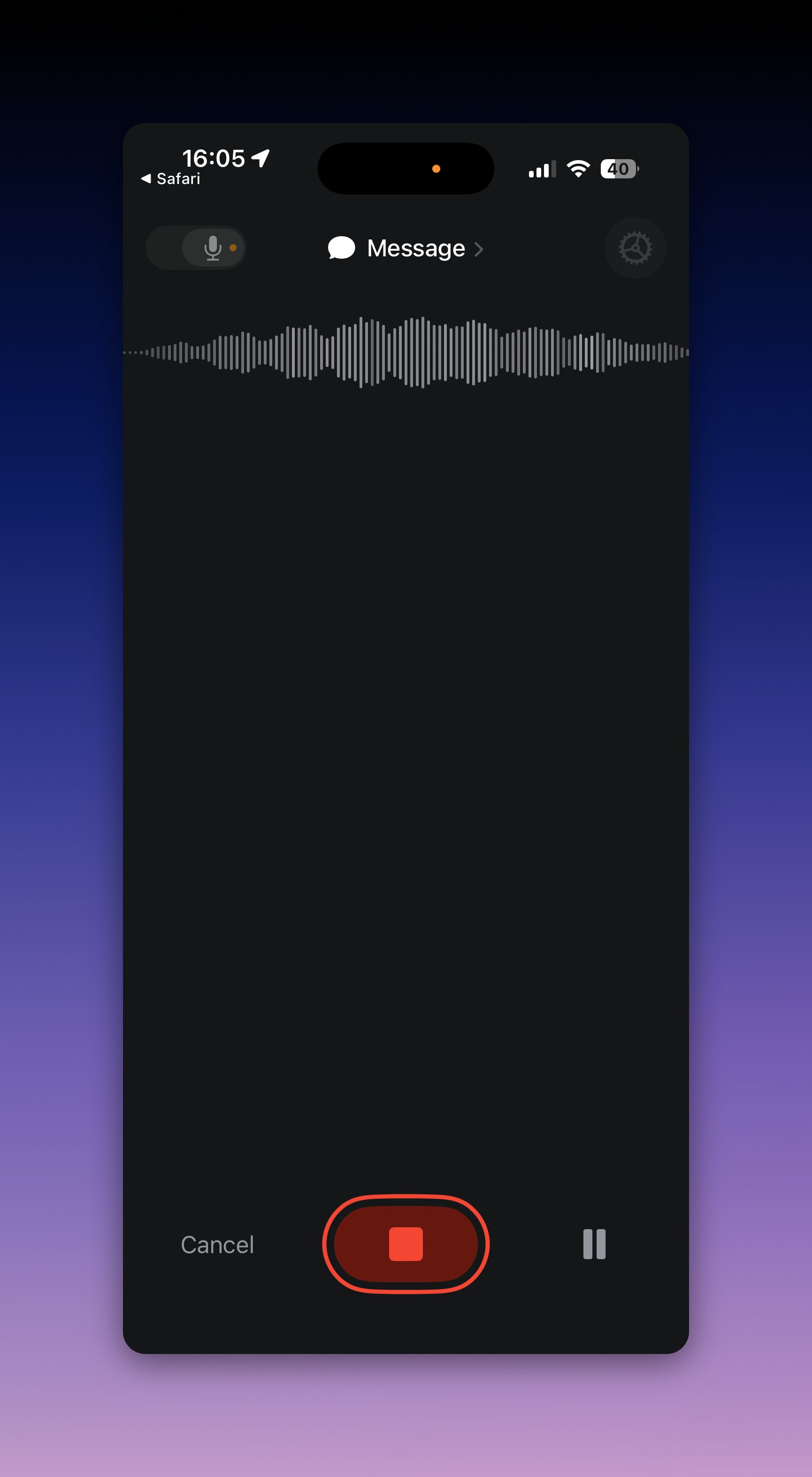 3. Stop the recording — Superwhisper inserts the text at the cursor
 **On iOS 26.4 and later**, tapping a Superwhisper button that opens the main app no longer returns you to your previous app — swipe back instead. This is an Apple platform change affecting all third-party keyboards. Details and status: [Adapting to iOS 26.4](/docs/common-issues/ios-26-keyboard-changes).
## Modes and settings on iOS
The iOS app has its own settings for modes, models, vocabulary, and stats — open the app and tap the gear icon.
**On iOS 26.4 and later**, tapping a Superwhisper button that opens the main app no longer returns you to your previous app — swipe back instead. This is an Apple platform change affecting all third-party keyboards. Details and status: [Adapting to iOS 26.4](/docs/common-issues/ios-26-keyboard-changes).
## Modes and settings on iOS
The iOS app has its own settings for modes, models, vocabulary, and stats — open the app and tap the gear icon.
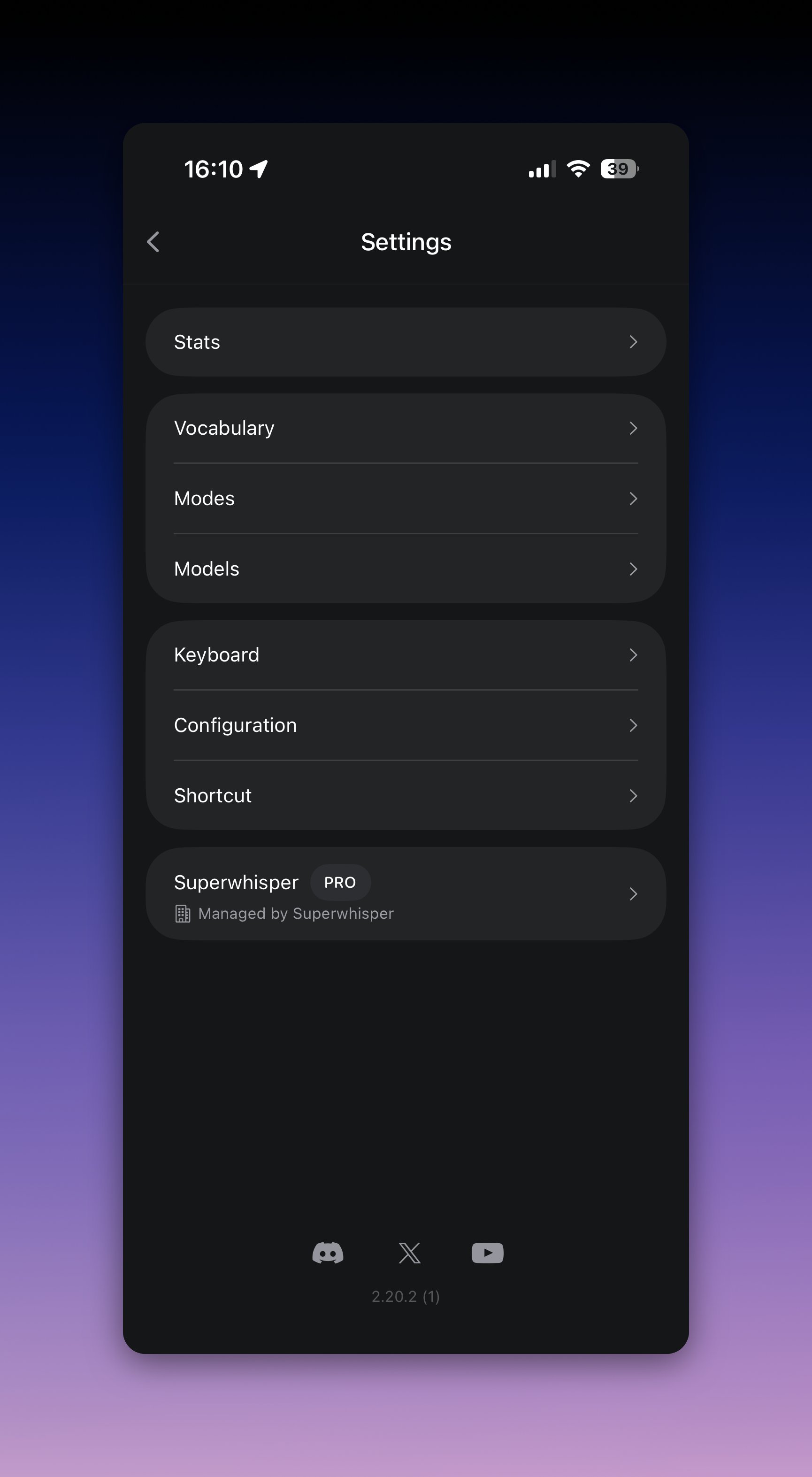 Modes and vocabulary are stored per device — they don't sync from your Mac or PC yet. Cloud sync is planned. Recreate your most-used modes in the iOS app's Modes settings.
## Activate Pro on iOS
Your Pro license covers iOS at no extra cost. See [Activate your license](/docs/billing/activate) for the QR-code and manual methods — including activating from a Windows PC.
## Keyboard not working?
* Confirm **Allow Full Access** is on (iOS Settings → General → Keyboard → Keyboards → Superwhisper)
* If the keyboard disappears from the list after an iOS update, re-add it with the steps above
* If dictations fail or vanish, check your connection — cloud models need internet. Then retry from the main app, where recordings appear in History
* Still stuck? Email [support@superwhisper.com](mailto:support@superwhisper.com) with your iPhone model, iOS version, and Superwhisper version
Modes and vocabulary are stored per device — they don't sync from your Mac or PC yet. Cloud sync is planned. Recreate your most-used modes in the iOS app's Modes settings.
## Activate Pro on iOS
Your Pro license covers iOS at no extra cost. See [Activate your license](/docs/billing/activate) for the QR-code and manual methods — including activating from a Windows PC.
## Keyboard not working?
* Confirm **Allow Full Access** is on (iOS Settings → General → Keyboard → Keyboards → Superwhisper)
* If the keyboard disappears from the list after an iOS update, re-add it with the steps above
* If dictations fail or vanish, check your connection — cloud models need internet. Then retry from the main app, where recordings appear in History
* Still stuck? Email [support@superwhisper.com](mailto:support@superwhisper.com) with your iPhone model, iOS version, and Superwhisper version