> ## Documentation Index
> Fetch the complete documentation index at: https://superwhisper.com/docs/llms.txt
> Use this file to discover all available pages before exploring further.
# Quickstart
> Install Superwhisper on macOS or Windows and start dictating in less than a minute.
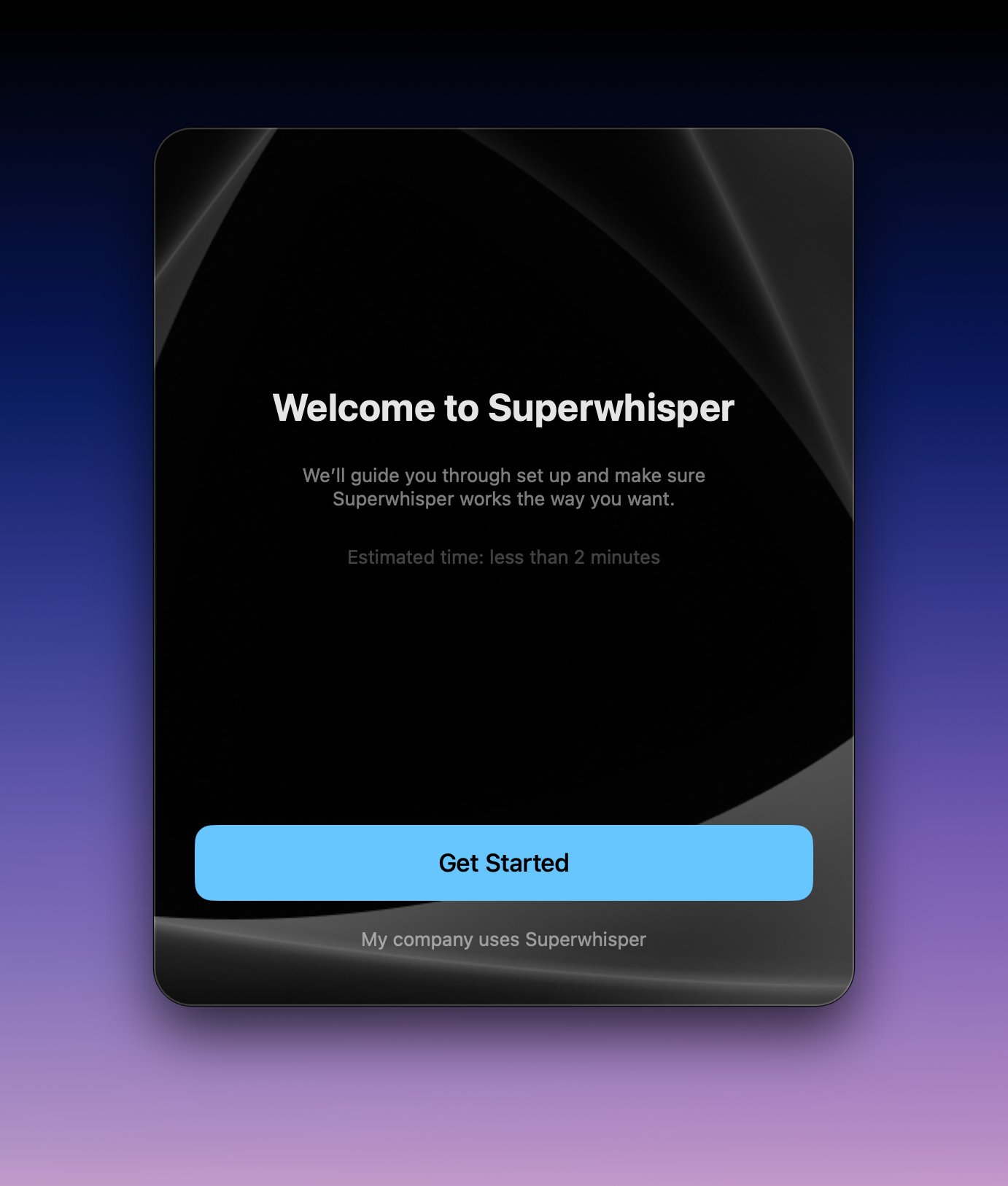
Download Superwhisper from [superwhisper.com](https://superwhisper.com). Open the file and drag Superwhisper into your **Applications** folder, then launch it.
 Superwhisper asks for two permissions on first launch:
* **Microphone** — to record your voice
* **Accessibility** — to paste text into other apps
Superwhisper asks for two permissions on first launch:
* **Microphone** — to record your voice
* **Accessibility** — to paste text into other apps
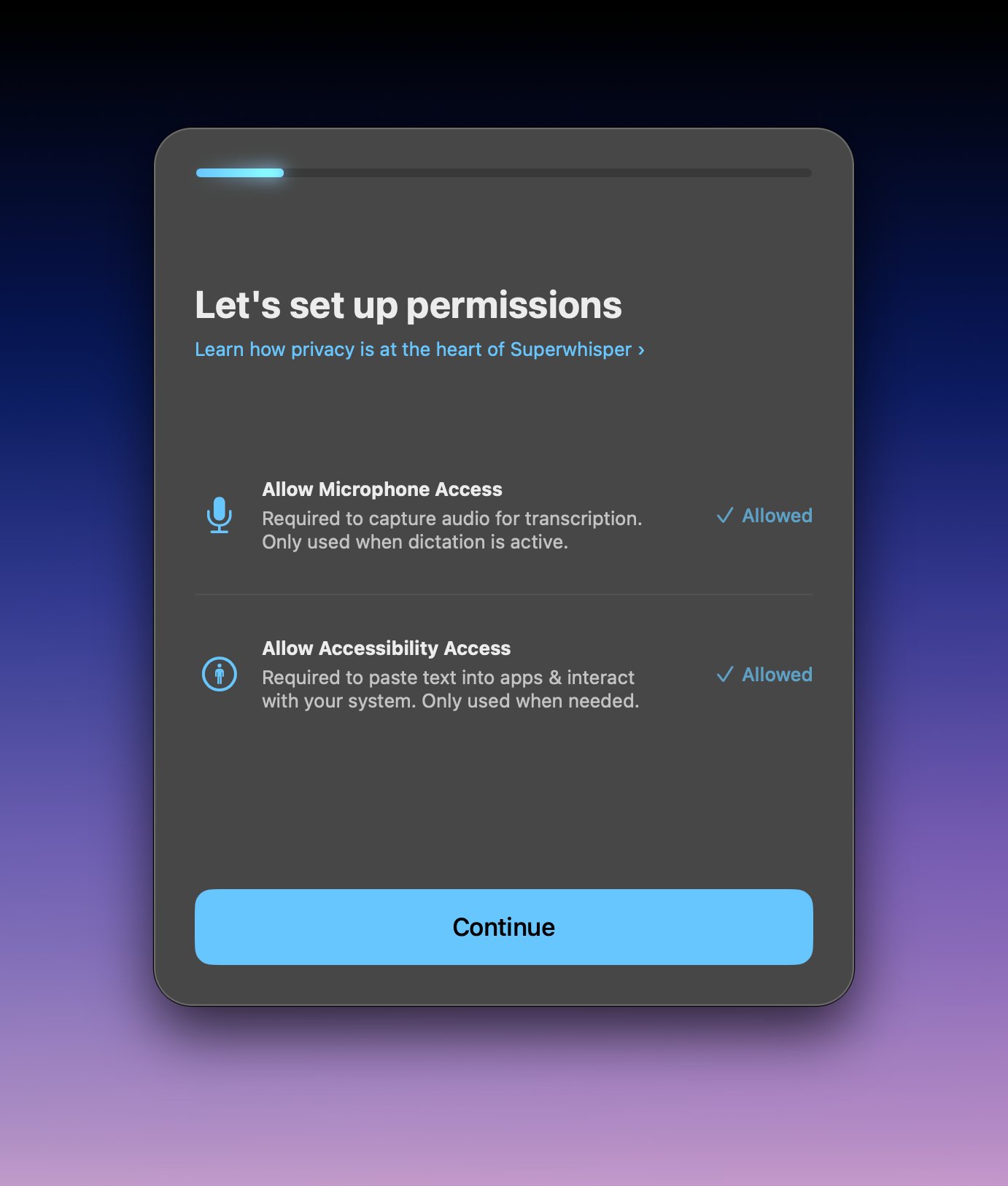 If you skipped a permission, grant it later in **System Settings → Privacy & Security → Microphone / Accessibility**.
The wizard asks for your language, transcription model, and microphone. The defaults work well — you can change everything later.
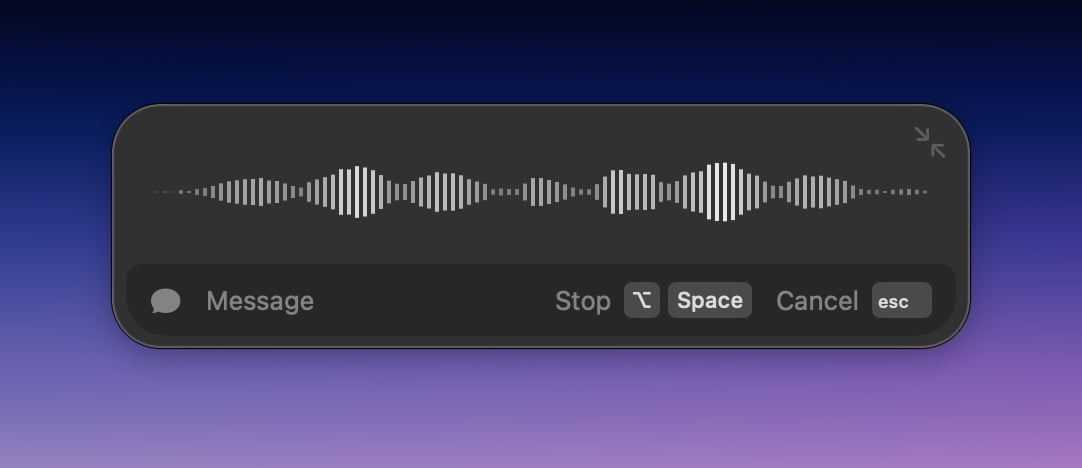
Click into any text field, press the recording shortcut (**⌥ Space**, Option + Space, by default), speak, and press it again to stop. Superwhisper transcribes your words and pastes them at the cursor.
If you skipped a permission, grant it later in **System Settings → Privacy & Security → Microphone / Accessibility**.
The wizard asks for your language, transcription model, and microphone. The defaults work well — you can change everything later.
Click into any text field, press the recording shortcut (**⌥ Space**, Option + Space, by default), speak, and press it again to stop. Superwhisper transcribes your words and pastes them at the cursor.
 Download the Windows installer from [superwhisper.com/windows](https://superwhisper.com/windows) and run it. Superwhisper starts automatically and adds an icon to your system tray.
If the app fails to launch with a missing DLL or Vulkan error, see [Superwhisper on Windows](/docs/get-started/windows#installation-problems).
Allow microphone access when Windows asks. You can check this later in **Settings → Privacy & security → Microphone**.
The wizard asks for your language, transcription model, and microphone. The defaults work well — you can change everything later.
Click into any text field, press the recording shortcut shown during onboarding, speak, and press it again to stop. Superwhisper transcribes your words and pastes them at the cursor.
## Next steps
Set up a Message mode and pick its model — cloud or local.
Modes shape your dictation into messages, emails, and notes.
Set up shortcuts, sounds, and the options most people change first.
For iPhone and iPad, see [Superwhisper on iOS](/docs/get-started/ios). If your company provides Superwhisper, your admin sends an invite — install the app and sign in with your work email.
Download the Windows installer from [superwhisper.com/windows](https://superwhisper.com/windows) and run it. Superwhisper starts automatically and adds an icon to your system tray.
If the app fails to launch with a missing DLL or Vulkan error, see [Superwhisper on Windows](/docs/get-started/windows#installation-problems).
Allow microphone access when Windows asks. You can check this later in **Settings → Privacy & security → Microphone**.
The wizard asks for your language, transcription model, and microphone. The defaults work well — you can change everything later.
Click into any text field, press the recording shortcut shown during onboarding, speak, and press it again to stop. Superwhisper transcribes your words and pastes them at the cursor.
## Next steps
Set up a Message mode and pick its model — cloud or local.
Modes shape your dictation into messages, emails, and notes.
Set up shortcuts, sounds, and the options most people change first.
For iPhone and iPad, see [Superwhisper on iOS](/docs/get-started/ios). If your company provides Superwhisper, your admin sends an invite — install the app and sign in with your work email.