> ## Documentation Index
> Fetch the complete documentation index at: https://superwhisper.com/docs/llms.txt
> Use this file to discover all available pages before exploring further.
# Keyboard Shortcuts
> Customize your keyboard shortcuts to control your dictation efficiently and enhance your productivity with quick commands
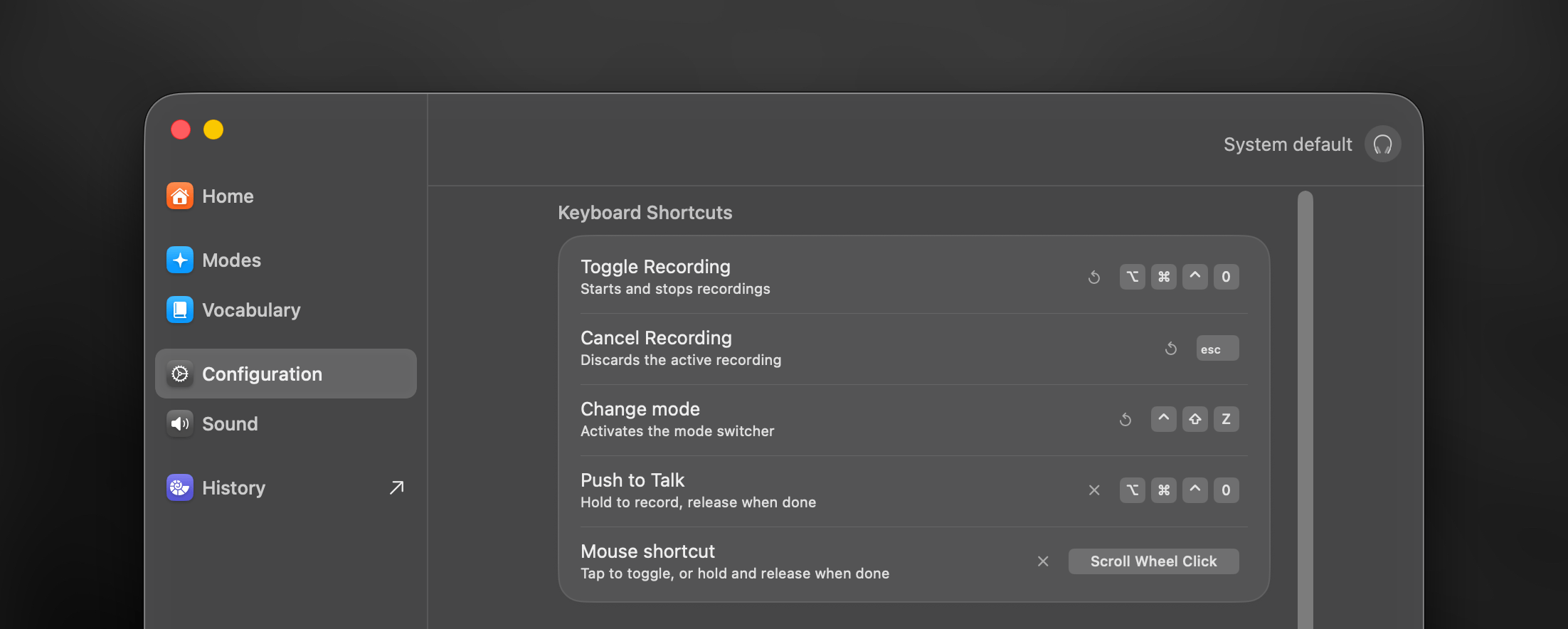 Access the Keyboard Shortcuts section in Superwhisper's Configuration tab. Each shortcut can be modified to avoid conflicts with other applications and create a workflow that feels natural to you.
***
## Toggle Recording
Set up a keyboard combination to start and stop your recordings. Single modifier keys (like Left Command, Right Command, or Fn key) can be used independently, providing additional flexibility in your shortcut configuration.
***
## Cancel Recording
This command allows you to cancel an active recording:
* For recordings under 30 seconds: Cancels immediately
* For longer recordings: Shows a confirmation prompt to prevent accidental cancellations
After completing your recording, your dictation enters the processing stage. During this time, using the cancel shortcut will only hide the recording window.
***
## Change Mode
This keyboard shortcut allows you to switch between different modes:
* Hold your chosen modifier key and tap the assigned key to cycle through modes
* For greater flexibility, you can change your mode before or during dictation
***
## Push-to-Talk
Enables precise control over your recording sessions:
* Press and hold to record
* Release to stop recording
* Can share the same shortcut as Toggle Recording
If you're setting up a shared shortcut for Push-to-Talk and Toggle Recording, try pressing the main key before adding modifier keys if you encounter configuration issues.
***
## Mouse Shortcut
Assign a mouse button to control your recording with dual functionality:
* Quick click: Acts as toggle recording (start/stop with each click)
* Press and hold: Functions as push-to-talk (records while button is held)
Mouse button functionality depends on your hardware compatibility. Some mice only register clicks and can't detect sustained holds, limiting this feature to specific buttons or models.
***
## Explore More
Discover more ways to switch modes in Superwhisper. Use auto-activation rules, deep links, or automation tools - ideal for power users looking to enhance their workflow.
Access the Keyboard Shortcuts section in Superwhisper's Configuration tab. Each shortcut can be modified to avoid conflicts with other applications and create a workflow that feels natural to you.
***
## Toggle Recording
Set up a keyboard combination to start and stop your recordings. Single modifier keys (like Left Command, Right Command, or Fn key) can be used independently, providing additional flexibility in your shortcut configuration.
***
## Cancel Recording
This command allows you to cancel an active recording:
* For recordings under 30 seconds: Cancels immediately
* For longer recordings: Shows a confirmation prompt to prevent accidental cancellations
After completing your recording, your dictation enters the processing stage. During this time, using the cancel shortcut will only hide the recording window.
***
## Change Mode
This keyboard shortcut allows you to switch between different modes:
* Hold your chosen modifier key and tap the assigned key to cycle through modes
* For greater flexibility, you can change your mode before or during dictation
***
## Push-to-Talk
Enables precise control over your recording sessions:
* Press and hold to record
* Release to stop recording
* Can share the same shortcut as Toggle Recording
If you're setting up a shared shortcut for Push-to-Talk and Toggle Recording, try pressing the main key before adding modifier keys if you encounter configuration issues.
***
## Mouse Shortcut
Assign a mouse button to control your recording with dual functionality:
* Quick click: Acts as toggle recording (start/stop with each click)
* Press and hold: Functions as push-to-talk (records while button is held)
Mouse button functionality depends on your hardware compatibility. Some mice only register clicks and can't detect sustained holds, limiting this feature to specific buttons or models.
***
## Explore More
Discover more ways to switch modes in Superwhisper. Use auto-activation rules, deep links, or automation tools - ideal for power users looking to enhance their workflow.