> ## Documentation Index
> Fetch the complete documentation index at: https://superwhisper.com/docs/llms.txt
> Use this file to discover all available pages before exploring further.
# File Transcription
> Learn how to transcribe external audio and video files using Superwhisper.
## Overview
Superwhisper can process external audio and video files. Use it for meeting recordings, lectures, interviews, voice memos, and more scenarios. The app uses the AI and voice settings of your currently active mode, ensuring results match your preferred formatting. It's convenient and straightforward, whether you're recording on another app or device.
**For optimal transcription results, use:**
* MP3 audio files
* MP4 video files
* Mono WAV files with 16 kHz sample rate
***
## 1. Transcribing via the Menu Bar
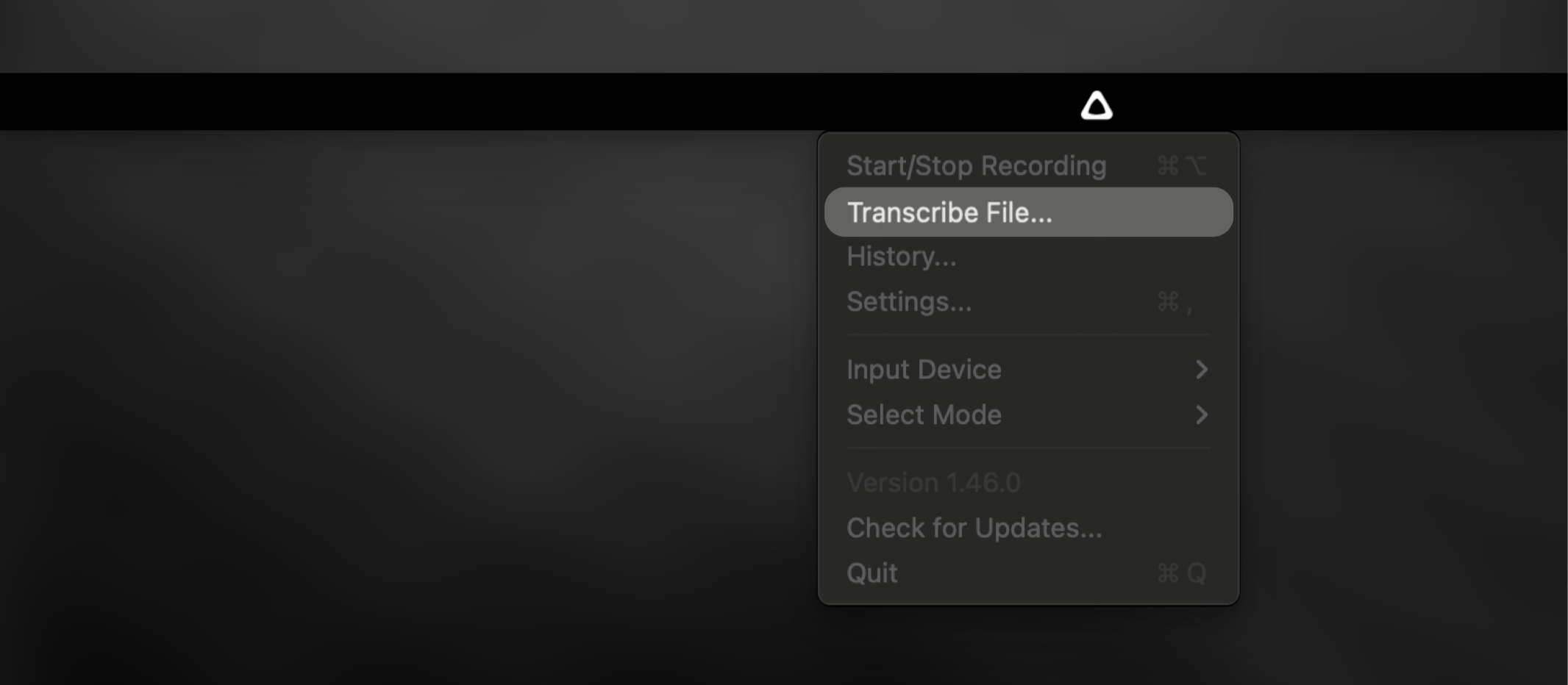 Ensure your preferred Supwerhisper mode is active
Click on Superwhisper's menu bar icon
Choose the "Transcribe File" option from the menu
Browse and select the audio file you want to transcribe
***
## 2. Transcribing via Finder
Ensure your preferred Supwerhisper mode is active
Click on Superwhisper's menu bar icon
Choose the "Transcribe File" option from the menu
Browse and select the audio file you want to transcribe
***
## 2. Transcribing via Finder
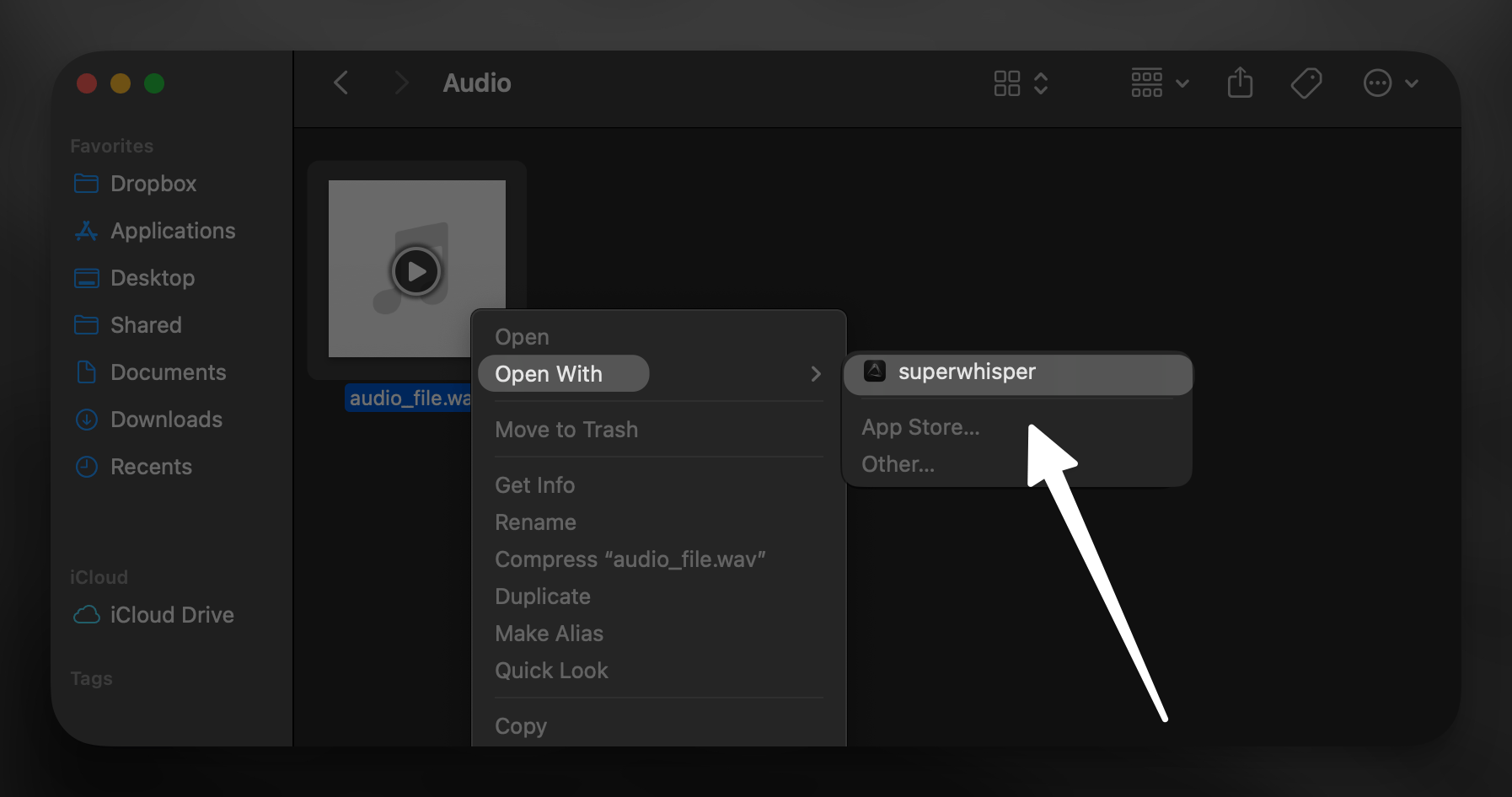 Find the audio file in Finder
Right-click on the file to open context menu
Select "Open With" > Superwhisper
* If Superwhisper isn't listed, choose "Other" to select the application
***
## 3. Transcription via Command Line
If you are a technical user, you can also transcribe files directly using Bash:
```bash theme={null}
open /path/to/your/audiofile.mp3 -a superwhisper
```
Find the audio file in Finder
Right-click on the file to open context menu
Select "Open With" > Superwhisper
* If Superwhisper isn't listed, choose "Other" to select the application
***
## 3. Transcription via Command Line
If you are a technical user, you can also transcribe files directly using Bash:
```bash theme={null}
open /path/to/your/audiofile.mp3 -a superwhisper
```