> ## Documentation Index
> Fetch the complete documentation index at: https://superwhisper.com/docs/llms.txt
> Use this file to discover all available pages before exploring further.
# Meetings
> Record, transcribe, and summarize meetings on your Mac with no bot in the call. Set up models, meeting detection, and calendar reminders.
Meetings records your microphone and your Mac's audio, shows a live transcript with a label for each speaker, and writes a summary when the call ends. No bot joins the call.
 Meetings needs macOS and Superwhisper 3.0 or later. It's a **Pro** feature. On the Free plan, it uses your free trial words. See [Plans](#plans). On an Enterprise license, your admin can [turn Meetings off](/docs/enterprise/configuration#how-policies-affect-meetings).
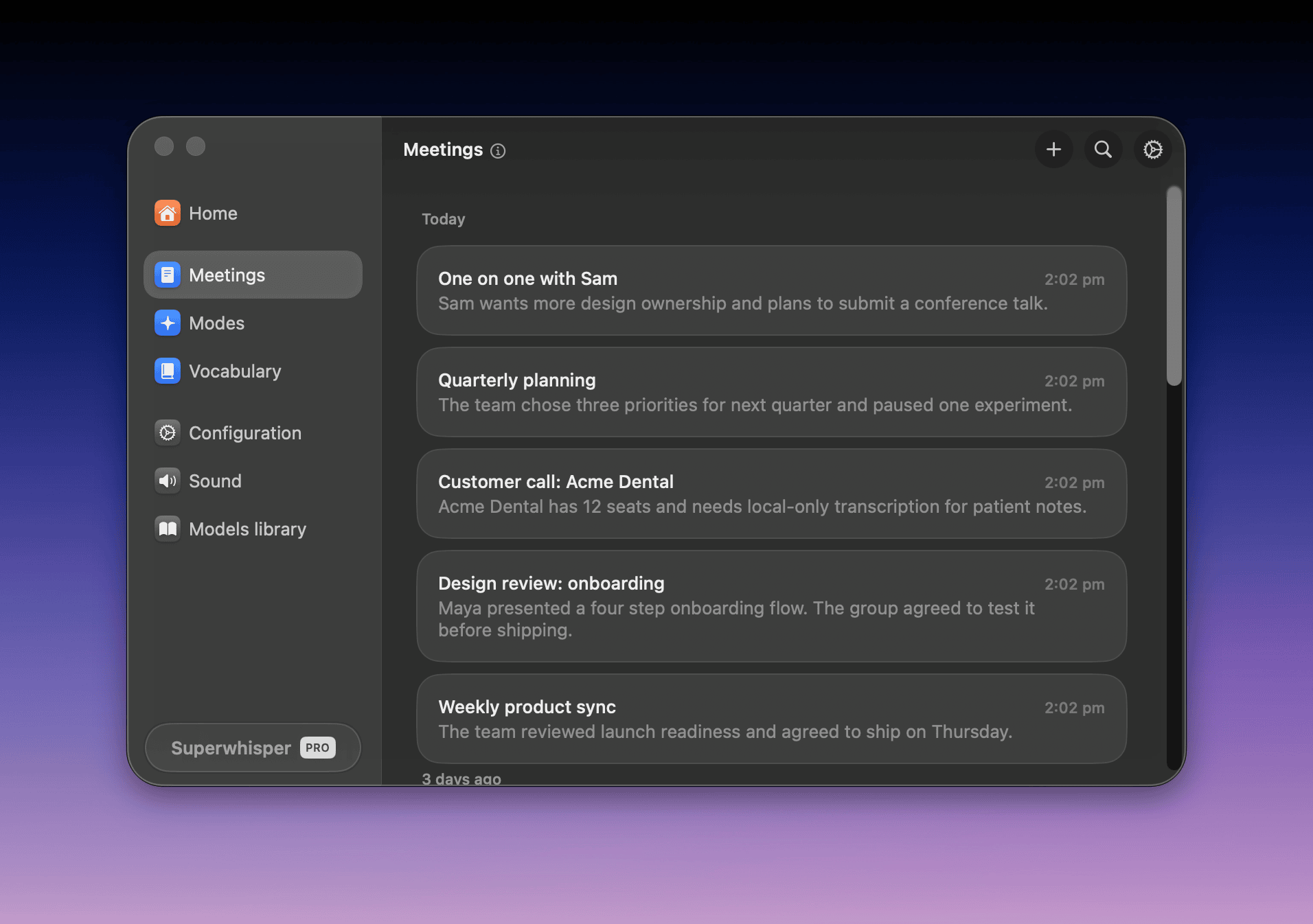
Meetings live in their own **Meetings** tab. They don't appear in [History](/docs/get-started/history) or count in your dictation stats.
## Permissions
* **Microphone**: records your voice
* **Screen & System Audio Recording**: records the other side of the call. Turn it on in **System Settings → Privacy & Security → Screen & System Audio Recording** (**Screen Recording** on macOS 14)
* **Calendars** (optional): only for [calendar integration](#calendar-integration)
## Set up
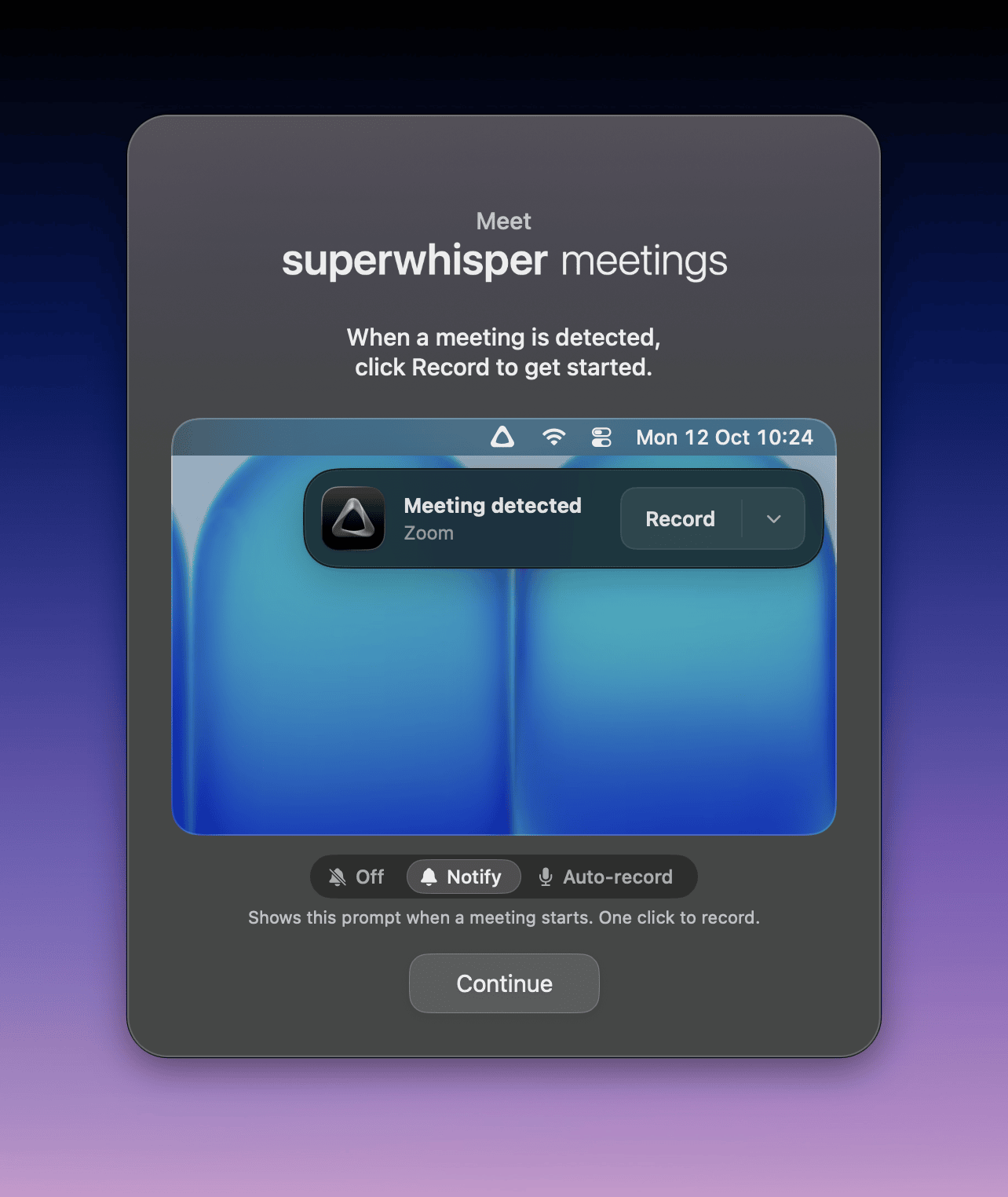
The first time you open the **Meetings** tab, a short tour asks how Superwhisper should offer to record. To replay it, click the **i** next to the **Meetings** title.
Meetings needs macOS and Superwhisper 3.0 or later. It's a **Pro** feature. On the Free plan, it uses your free trial words. See [Plans](#plans). On an Enterprise license, your admin can [turn Meetings off](/docs/enterprise/configuration#how-policies-affect-meetings).
Meetings live in their own **Meetings** tab. They don't appear in [History](/docs/get-started/history) or count in your dictation stats.
## Permissions
* **Microphone**: records your voice
* **Screen & System Audio Recording**: records the other side of the call. Turn it on in **System Settings → Privacy & Security → Screen & System Audio Recording** (**Screen Recording** on macOS 14)
* **Calendars** (optional): only for [calendar integration](#calendar-integration)
## Set up
The first time you open the **Meetings** tab, a short tour asks how Superwhisper should offer to record. To replay it, click the **i** next to the **Meetings** title.
 If the tab shows **Set up meetings**, click it and choose your models.
### Meeting settings
Click the gear on the **Meetings** tab. These settings apply to meetings only, not to your dictation modes.
If the tab shows **Set up meetings**, click it and choose your models.
### Meeting settings
Click the gear on the **Meetings** tab. These settings apply to meetings only, not to your dictation modes.
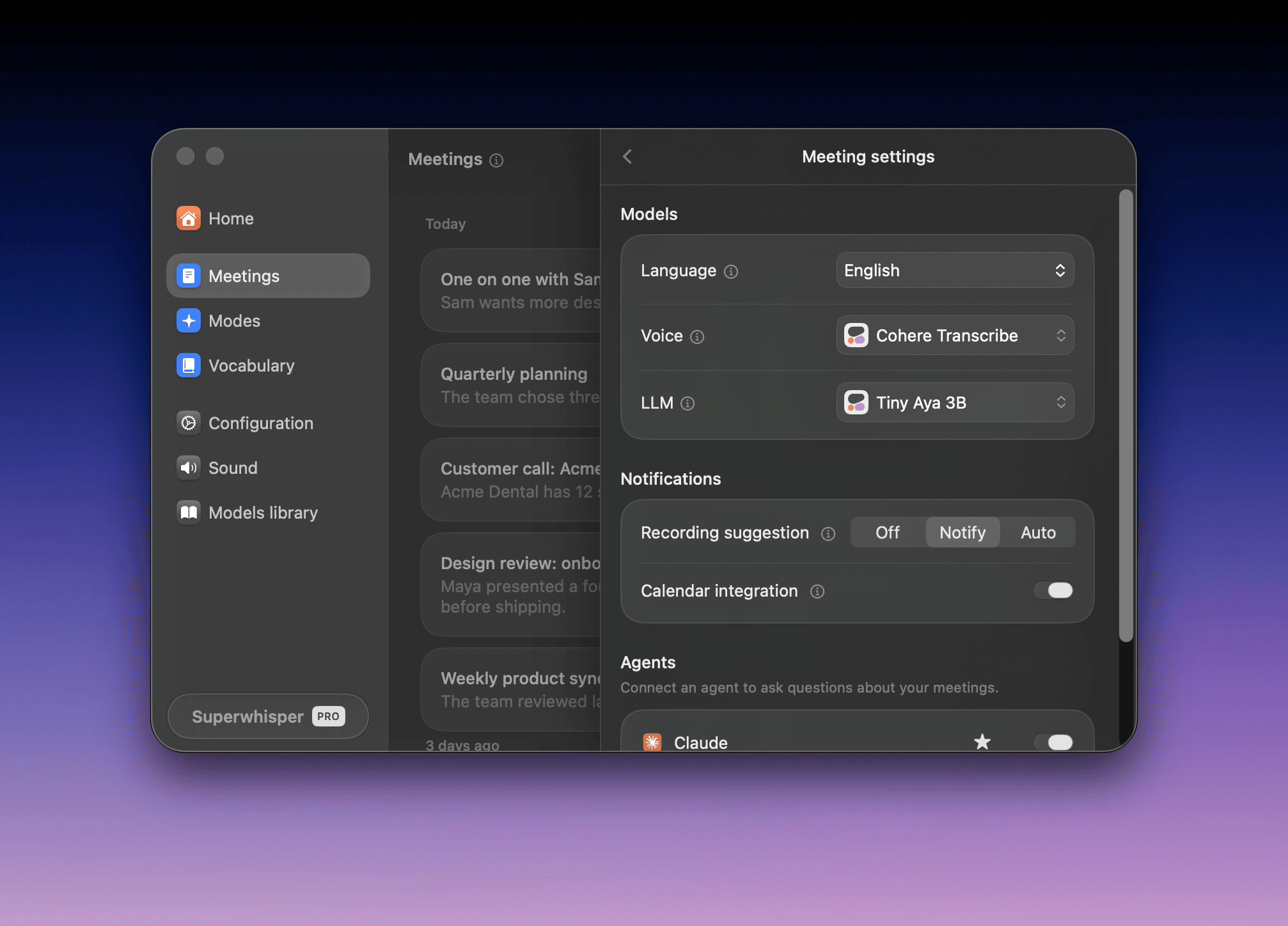 * **Language**: pins the transcription language. **Auto** works for most meetings
* **Voice**: the voice model that writes the transcript
* **LLM**: the language model that writes the summary
* **Recording suggestion**: see [Meeting detection](#meeting-detection)
* **Calendar integration**: see [Calendar integration](#calendar-integration)
* **Agents**: see [Ask an agent](/docs/meetings/share#ask-an-agent-about-your-meetings)
### Choose models
* **Voice**: the list starts with the best models for meetings. Cohere Transcribe is the most accurate local model. S1-Voice is the cloud default. Parakeet, Scribe, and Nova 3 follow
* **LLM**: S1-Language is the cloud default. For local summaries, choose **Tiny Aya 3B** or **Qwen 3.5 2B**. S1-mini can't write summaries
Voice models that can stream do so automatically. Meetings has no **Realtime** switch.
Speaker separation always runs on your Mac. Its model (about 150 MB) downloads before your first meeting.
To keep everything on your Mac, see [Private and offline meetings](/docs/meetings/offline).
## Meeting detection
Set **Recording suggestion** in **Meeting settings**:
* **Off**: no prompts. Start each recording from the **Meetings** tab
* **Notify**: a **Meeting detected** prompt appears when a call starts. Click **Record**
* **Auto**: recording starts by itself
Either way, Superwhisper asks before it stops a recording.
Detection works with **Zoom**, **Google Meet**, **Microsoft Teams**, and **Slack** huddles, in the desktop app or the browser. For other apps, [start the recording yourself](/docs/meetings/record#start-a-recording).
## Calendar integration
Turn on **Calendar integration** to get a reminder about a minute before each meeting. Superwhisper reads the calendars in the macOS Calendar app, including Google, Microsoft 365, and iCloud accounts added there.
* **Join & Record** opens the call link and starts recording. If you already joined, the button reads **Record**
* The event title and attendees fill in the meeting
* All-day, cancelled, and declined events get no reminder, and neither do events with one attendee and no call link
Calendar data stays on your Mac. If the setting shows **Calendar access is off**, turn on Superwhisper in **System Settings → Privacy & Security → Calendars**.
## Plans
On the Free plan, meetings use the same free trial words as other Pro features. When they run out, the app shows **Meetings require Pro**.
* A meeting in progress stops recording, and Superwhisper keeps the audio
* Past meetings stay readable, marked **Free words used — this meeting is read-only**
* Reading a meeting is always free. Regenerating a summary needs Pro or free words
See [Plans](/docs/billing/plans).
On an Enterprise license, your organization's policies decide whether Meetings is available. If **Allow system audio recording** is off, the **Meetings** tab is hidden. See [How policies affect Meetings](/docs/enterprise/configuration#how-policies-affect-meetings).
## Next steps
Start and end recordings, take notes, and name speakers.
Change the summary format or write your own template.
Send a summary anywhere, and ask AI about past meetings.
Keep audio, transcripts, and summaries on your Mac.
This documentation is built and hosted on [Mintlify](https://mintlify.com), a developer documentation platform.
* **Language**: pins the transcription language. **Auto** works for most meetings
* **Voice**: the voice model that writes the transcript
* **LLM**: the language model that writes the summary
* **Recording suggestion**: see [Meeting detection](#meeting-detection)
* **Calendar integration**: see [Calendar integration](#calendar-integration)
* **Agents**: see [Ask an agent](/docs/meetings/share#ask-an-agent-about-your-meetings)
### Choose models
* **Voice**: the list starts with the best models for meetings. Cohere Transcribe is the most accurate local model. S1-Voice is the cloud default. Parakeet, Scribe, and Nova 3 follow
* **LLM**: S1-Language is the cloud default. For local summaries, choose **Tiny Aya 3B** or **Qwen 3.5 2B**. S1-mini can't write summaries
Voice models that can stream do so automatically. Meetings has no **Realtime** switch.
Speaker separation always runs on your Mac. Its model (about 150 MB) downloads before your first meeting.
To keep everything on your Mac, see [Private and offline meetings](/docs/meetings/offline).
## Meeting detection
Set **Recording suggestion** in **Meeting settings**:
* **Off**: no prompts. Start each recording from the **Meetings** tab
* **Notify**: a **Meeting detected** prompt appears when a call starts. Click **Record**
* **Auto**: recording starts by itself
Either way, Superwhisper asks before it stops a recording.
Detection works with **Zoom**, **Google Meet**, **Microsoft Teams**, and **Slack** huddles, in the desktop app or the browser. For other apps, [start the recording yourself](/docs/meetings/record#start-a-recording).
## Calendar integration
Turn on **Calendar integration** to get a reminder about a minute before each meeting. Superwhisper reads the calendars in the macOS Calendar app, including Google, Microsoft 365, and iCloud accounts added there.
* **Join & Record** opens the call link and starts recording. If you already joined, the button reads **Record**
* The event title and attendees fill in the meeting
* All-day, cancelled, and declined events get no reminder, and neither do events with one attendee and no call link
Calendar data stays on your Mac. If the setting shows **Calendar access is off**, turn on Superwhisper in **System Settings → Privacy & Security → Calendars**.
## Plans
On the Free plan, meetings use the same free trial words as other Pro features. When they run out, the app shows **Meetings require Pro**.
* A meeting in progress stops recording, and Superwhisper keeps the audio
* Past meetings stay readable, marked **Free words used — this meeting is read-only**
* Reading a meeting is always free. Regenerating a summary needs Pro or free words
See [Plans](/docs/billing/plans).
On an Enterprise license, your organization's policies decide whether Meetings is available. If **Allow system audio recording** is off, the **Meetings** tab is hidden. See [How policies affect Meetings](/docs/enterprise/configuration#how-policies-affect-meetings).
## Next steps
Start and end recordings, take notes, and name speakers.
Change the summary format or write your own template.
Send a summary anywhere, and ask AI about past meetings.
Keep audio, transcripts, and summaries on your Mac.
This documentation is built and hosted on [Mintlify](https://mintlify.com), a developer documentation platform.