> ## Documentation Index
> Fetch the complete documentation index at: https://superwhisper.com/docs/llms.txt
> Use this file to discover all available pages before exploring further.
# Intro to Modes
> Superwhisper modes tailor how your voice gets processed, helping you work faster and smarter. Choose the right mode to transform your dictation into exactly what you need.
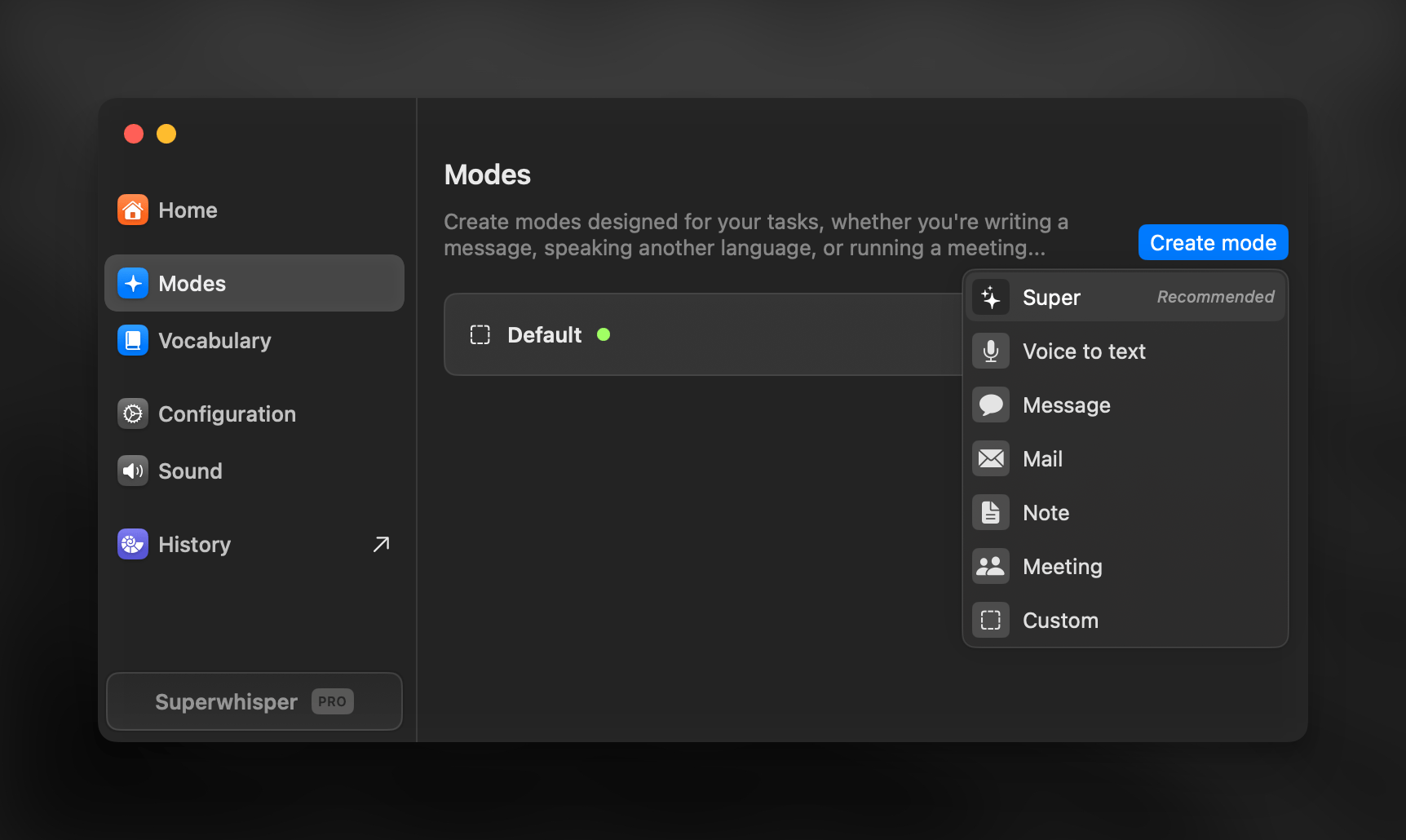 For greater workflow flexibility, create different versions of each mode by customizing voice models, AI models, and other settings. **Click any mode's name to rename it.**
## Per-Mode Settings
### Voice Processing
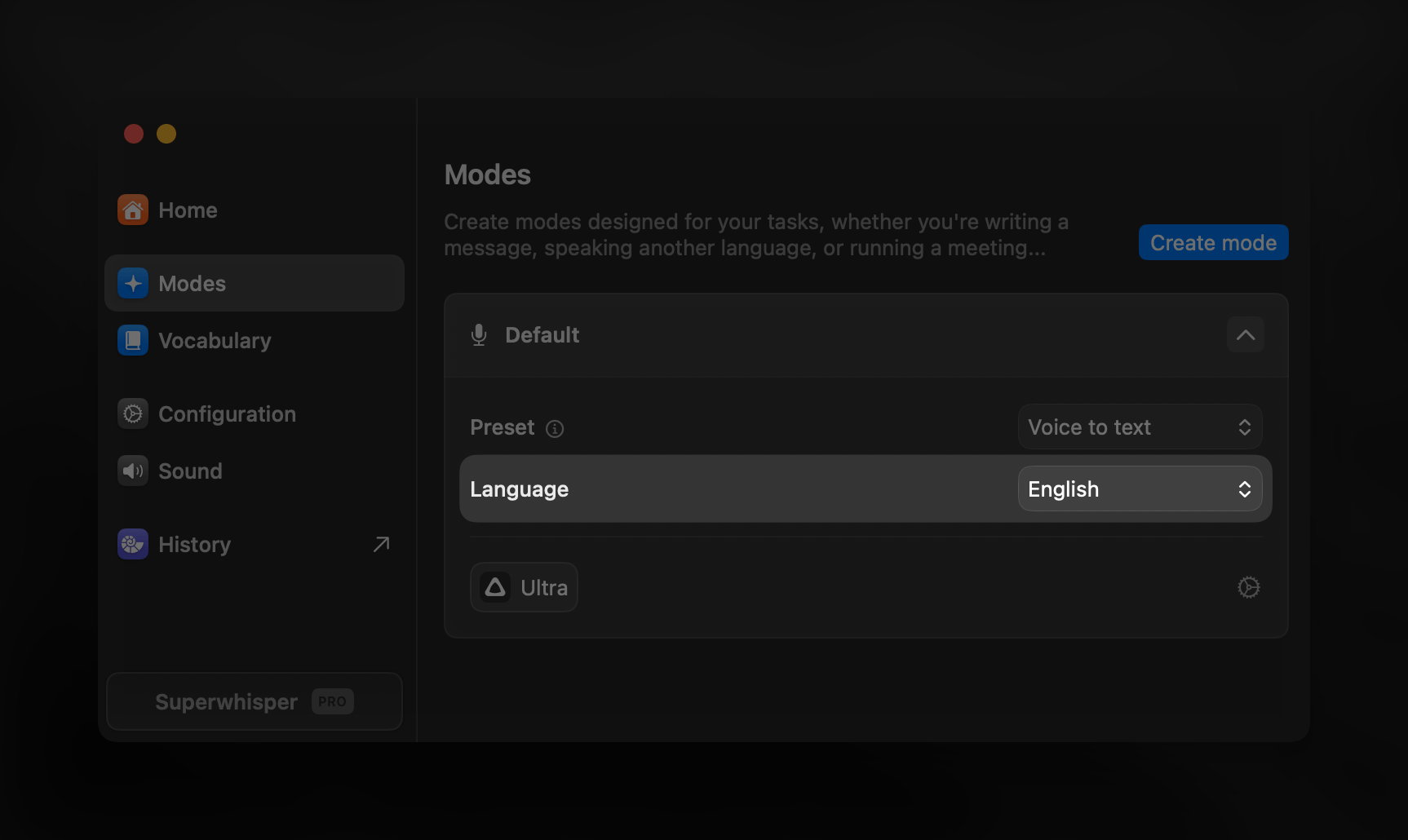
After dictating, your audio first goes through voice processing for transcription.
* Supported languages vary by voice model
* Based on your chosen language and voice model, you may see an option to translate your dictation to English. For best results with this option, use Pro, Standard, or Ultra models
For greater workflow flexibility, create different versions of each mode by customizing voice models, AI models, and other settings. **Click any mode's name to rename it.**
## Per-Mode Settings
### Voice Processing
After dictating, your audio first goes through voice processing for transcription.
* Supported languages vary by voice model
* Based on your chosen language and voice model, you may see an option to translate your dictation to English. For best results with this option, use Pro, Standard, or Ultra models
 Your preferred voice model does not support translation to English, or you need translation to another language? Set this up with AI processing by creating a [Custom mode](custom)
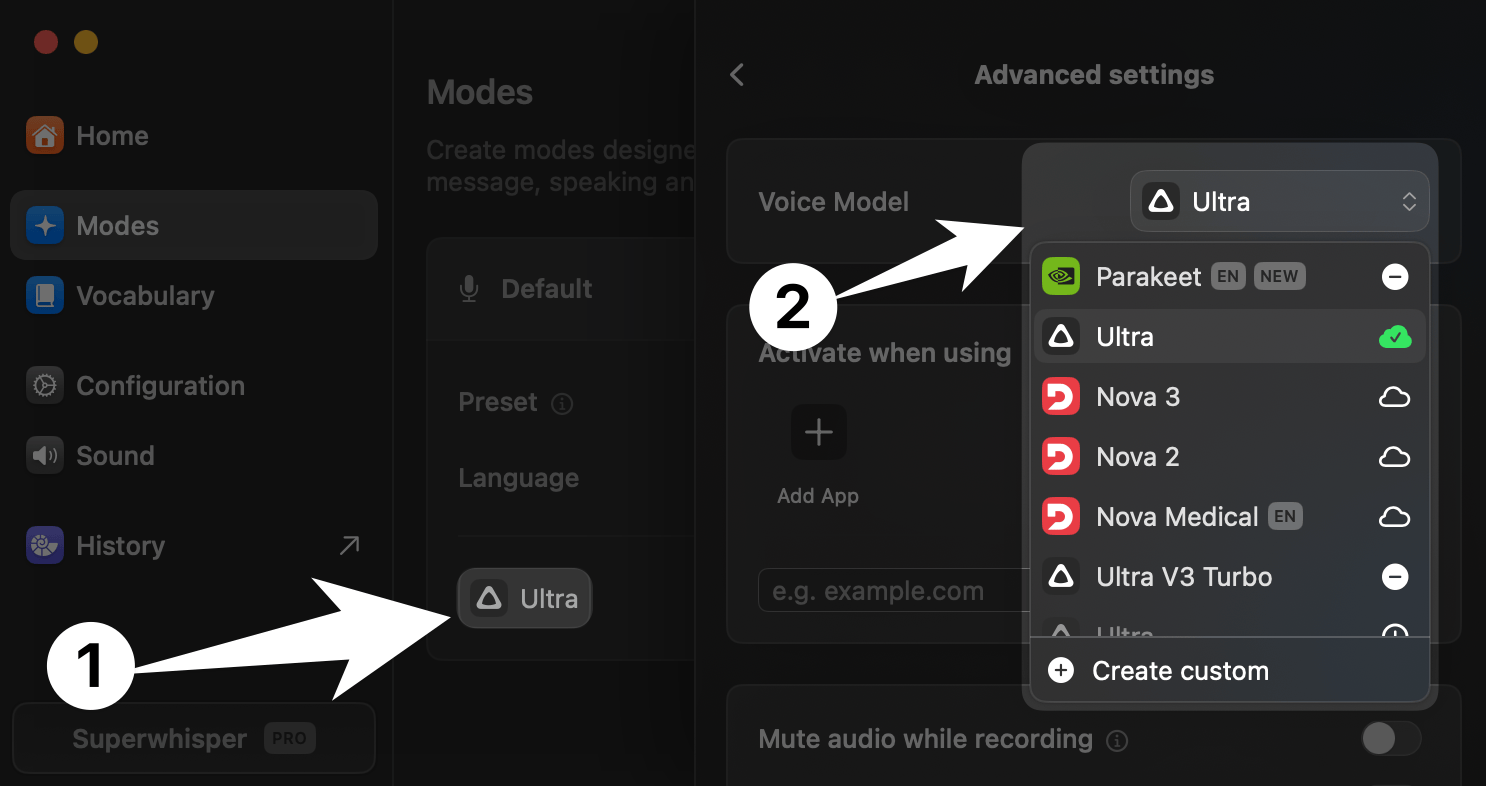
Manage all your models in the Advanced Settings sidebar where you can:
* Download voice models for local use
* Connect your own API tokens for supported services
* Select from the available cloud-based models
Your preferred voice model does not support translation to English, or you need translation to another language? Set this up with AI processing by creating a [Custom mode](custom)
Manage all your models in the Advanced Settings sidebar where you can:
* Download voice models for local use
* Connect your own API tokens for supported services
* Select from the available cloud-based models
 ***
### Auto-Activation Rules
While in the Advanced Settings sidebar, you can set up rules to automatically switch modes based on your active apps and websites.
***
### Auto-Activation Rules
While in the Advanced Settings sidebar, you can set up rules to automatically switch modes based on your active apps and websites.
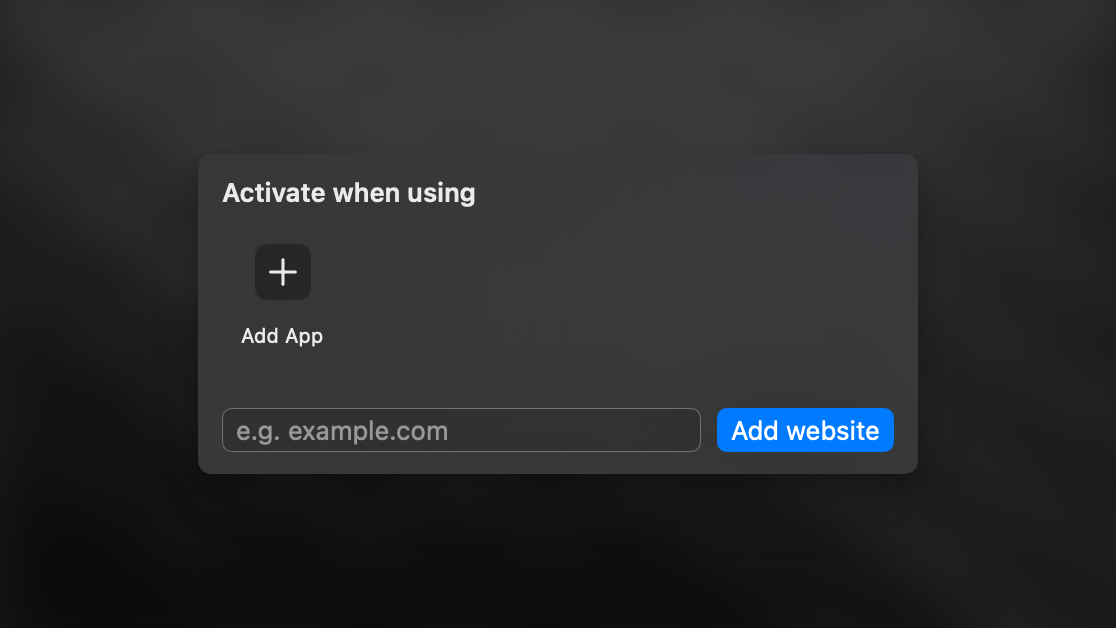 Keep in mind: Once a mode activates for an app or site, you won't be able to override it, and the system doesn't automatically switch back to your previous mode.
***
### Advanced Settings
Belo the Auto-Activation Rules, you can select how your audio is handled during dictation.
* **Mute Audio While Recording**
* **Pause Media While Recording**
* **Record from System Audio**
* Perfect for meetings, video content, interviews, or live audio coming your speakers
* When recording system audio, the waves on the recording window do not move. You can always check Superwhisper's history to verify capture
* **Identify Speakers**
* Useful for meeting transcriptions
* Speaker separation results appear in the Segments tab of History
Speaker-separated transcripts won't process through AI automatically within the same mode. See [this guide](speaker-separated-meetings) on handling multi-speaker transcripts with AI processing.
***
### AI Processing
After transcription, AI processing shapes your text based on the mode's purpose.
Keep in mind: Once a mode activates for an app or site, you won't be able to override it, and the system doesn't automatically switch back to your previous mode.
***
### Advanced Settings
Belo the Auto-Activation Rules, you can select how your audio is handled during dictation.
* **Mute Audio While Recording**
* **Pause Media While Recording**
* **Record from System Audio**
* Perfect for meetings, video content, interviews, or live audio coming your speakers
* When recording system audio, the waves on the recording window do not move. You can always check Superwhisper's history to verify capture
* **Identify Speakers**
* Useful for meeting transcriptions
* Speaker separation results appear in the Segments tab of History
Speaker-separated transcripts won't process through AI automatically within the same mode. See [this guide](speaker-separated-meetings) on handling multi-speaker transcripts with AI processing.
***
### AI Processing
After transcription, AI processing shapes your text based on the mode's purpose.
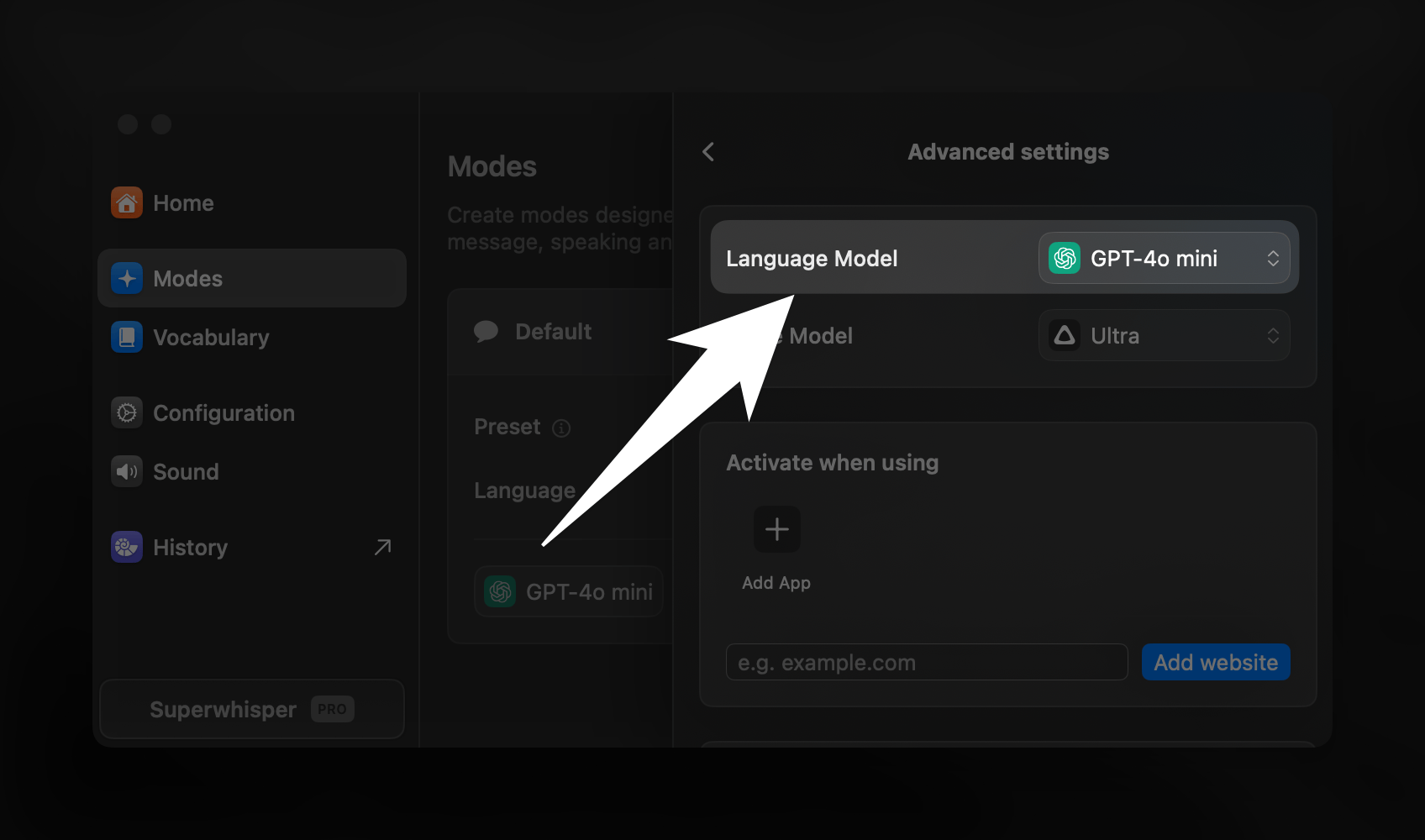 * Access and manage AI models in the same Advanced Settings sidebar, above the selected voice model
Make sure you have selected a mode with AI processing to see this option
* Built-in modes AI processing support multiple languages automatically
* Make sure to select your correct language in the [Voice Processing](#voice-processing) settings
* AI will process your dictation and respond in your chosen language
* AI processing varies by mode
* [Voice to Text](voice) does not include AI processing
* [Message](message), [Email](email), [Note](note), [Super](super), and [Meeting](meeting) modes use optimized AI processing instructions to deliver the best results for their specific purposes
* [Custom Mode](custom) lets you take full control by writing your own AI processing instructions
* Both [Super](super) and [Custom](custom) modes enhance AI processing capabilities with context awareness, providing additional possibilities
***
## Learn More
Jump between modes easily with: **Keyboard Shortcuts, Auto-Activation Rules, & Deep Links.**
Want to tweak a built-in mode beyond its basic settings? **Create a Custom Mode to get the exact functionality you need.**
* Access and manage AI models in the same Advanced Settings sidebar, above the selected voice model
Make sure you have selected a mode with AI processing to see this option
* Built-in modes AI processing support multiple languages automatically
* Make sure to select your correct language in the [Voice Processing](#voice-processing) settings
* AI will process your dictation and respond in your chosen language
* AI processing varies by mode
* [Voice to Text](voice) does not include AI processing
* [Message](message), [Email](email), [Note](note), [Super](super), and [Meeting](meeting) modes use optimized AI processing instructions to deliver the best results for their specific purposes
* [Custom Mode](custom) lets you take full control by writing your own AI processing instructions
* Both [Super](super) and [Custom](custom) modes enhance AI processing capabilities with context awareness, providing additional possibilities
***
## Learn More
Jump between modes easily with: **Keyboard Shortcuts, Auto-Activation Rules, & Deep Links.**
Want to tweak a built-in mode beyond its basic settings? **Create a Custom Mode to get the exact functionality you need.**