> ## Documentation Index
> Fetch the complete documentation index at: https://superwhisper.com/docs/llms.txt
> Use this file to discover all available pages before exploring further.
# Speaker-Separated Meetings
> Learn how to transcribe meetings with speaker separation and process them with AI for enhanced insights. This method combines Superwhisper's speaker identification capabilities with powerful AI processing.
This is an advanced workflow requiring configuration file edits and multiple steps. If you need basic meeting summaries, consider using the standard Meeting Mode. Or, if you want speaker-separated transcripts with basic AI processing, simply enable "Identify Speakers" in any mode.
## Overview
This guide shows you how to combine speaker-separated transcription with AI analysis to understand each participant's contributions in your meetings. You'll learn how to capture detailed transcripts that track who said what, then use AI to extract meaningful insights from individual speakers' input.
## Transcription Setup and Recording
Create a new Voice Mode with these settings:
* Enable "Identify Speakers" toggle
* Enable "Record from System Audio" if recording live meetings
While all voice models support speaker separation, Nova voice models deliver the most accurate and reliable results for this feature.
Choose your preferred recording method:
* Select your newly created mode
* Start recording
Be aware that pressing Escape will stop recording
* Record meeting with your preferred app
* Select your newly created mode
* Click the Superwhisper menu bar icon
* Select "Transcribe File"
* Choose your audio file
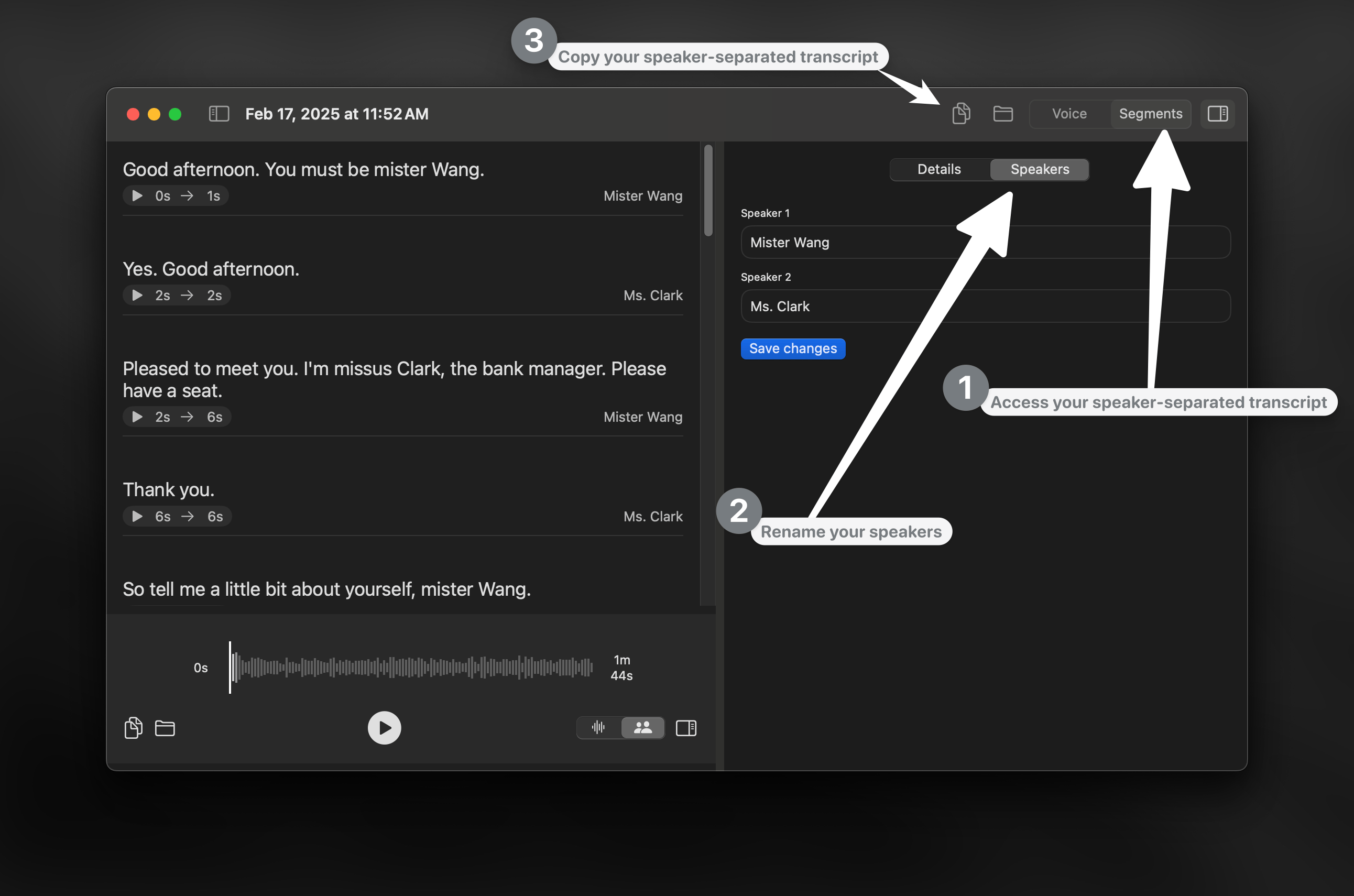 1. Open Superwhisper History
2. Select the Segments tab
3. Rename speakers (optional):
* Click speaker names directly, or
* Use the right sidebar's Speakers section
4. Click "Copy to Clipboard" to get the full speaker-separated transcript
***
## AI Processing and Analysis
### Option A: External AI Services
* Use OpenAI, Claude, or your preferred AI provider
* Request your desired analysis on the transcript
### Option B: Superwhisper Custom Mode
* Write an assistant-focused prompt
* Enable Application Context
For tips and ideas on how to get the best results with your custom instructions, check these [prompting tips](custom#prompting-tips).
* Open any text editor
* Paste your speaker-separated transcript
* Activate the mode you have just created
* Dictate your analysis request
### Sample Procesing Requests
```
"Summarize this meeting's key points by speaker"
"Extract action items and assign them to each speaker"
"Show which team members contributed to each key decision"
"Create a participation report showing who discussed which topics in this meeting"
"Break down topic ownership and insights by participant from this meeting's transcript"
```
1. Open Superwhisper History
2. Select the Segments tab
3. Rename speakers (optional):
* Click speaker names directly, or
* Use the right sidebar's Speakers section
4. Click "Copy to Clipboard" to get the full speaker-separated transcript
***
## AI Processing and Analysis
### Option A: External AI Services
* Use OpenAI, Claude, or your preferred AI provider
* Request your desired analysis on the transcript
### Option B: Superwhisper Custom Mode
* Write an assistant-focused prompt
* Enable Application Context
For tips and ideas on how to get the best results with your custom instructions, check these [prompting tips](custom#prompting-tips).
* Open any text editor
* Paste your speaker-separated transcript
* Activate the mode you have just created
* Dictate your analysis request
### Sample Procesing Requests
```
"Summarize this meeting's key points by speaker"
"Extract action items and assign them to each speaker"
"Show which team members contributed to each key decision"
"Create a participation report showing who discussed which topics in this meeting"
"Break down topic ownership and insights by participant from this meeting's transcript"
```