

- macOS
- Windows
- iOS
- Android
1
Open your license settings
Open Superwhisper’s settings and click the Superwhisper button in the bottom-left corner.
2
Enter your key
Type or paste your license key into the key boxes. Keep the uppercase lettering.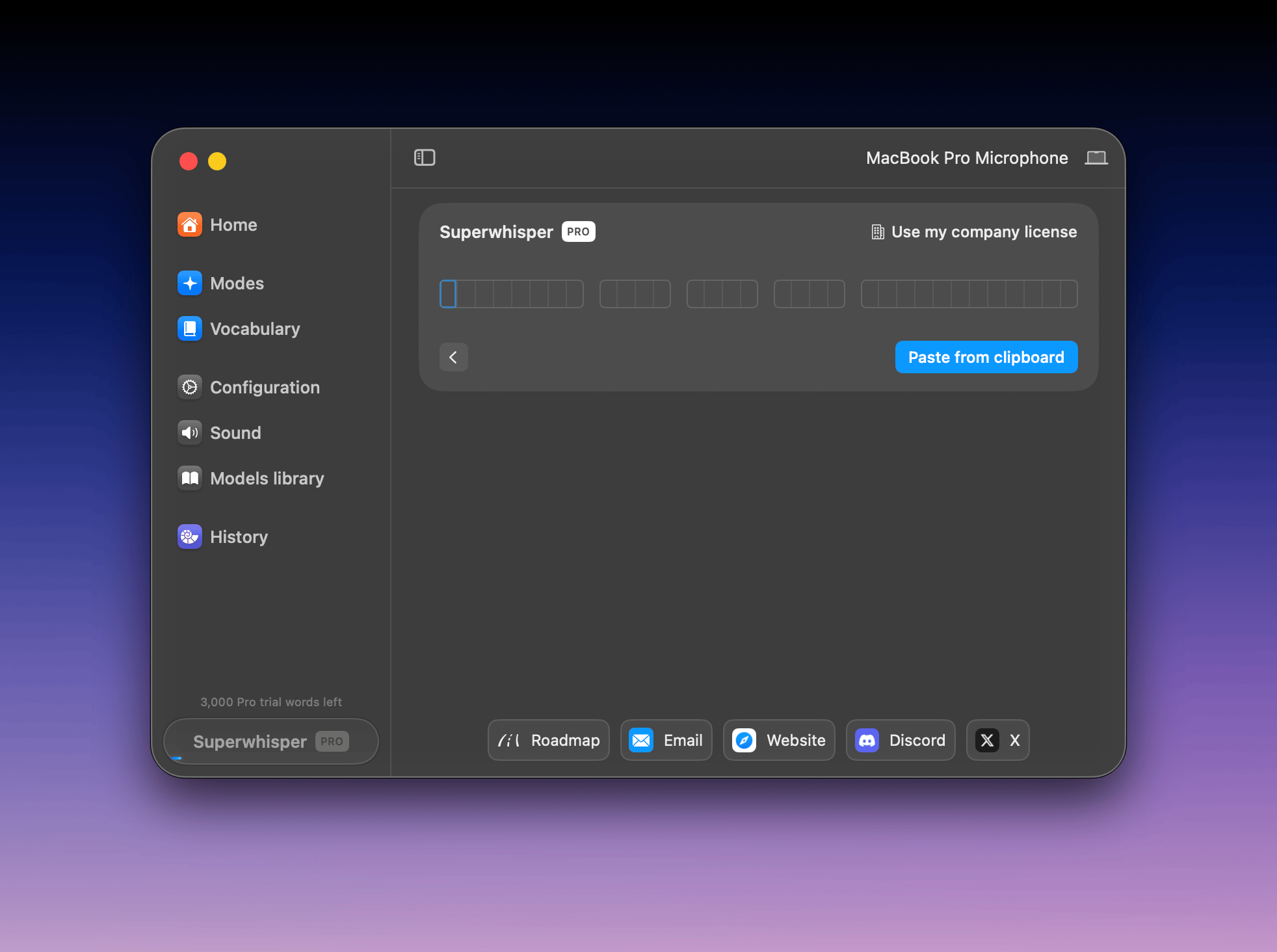
3
Confirm it's active
When activation succeeds, this panel shows your email and license with a PRO badge.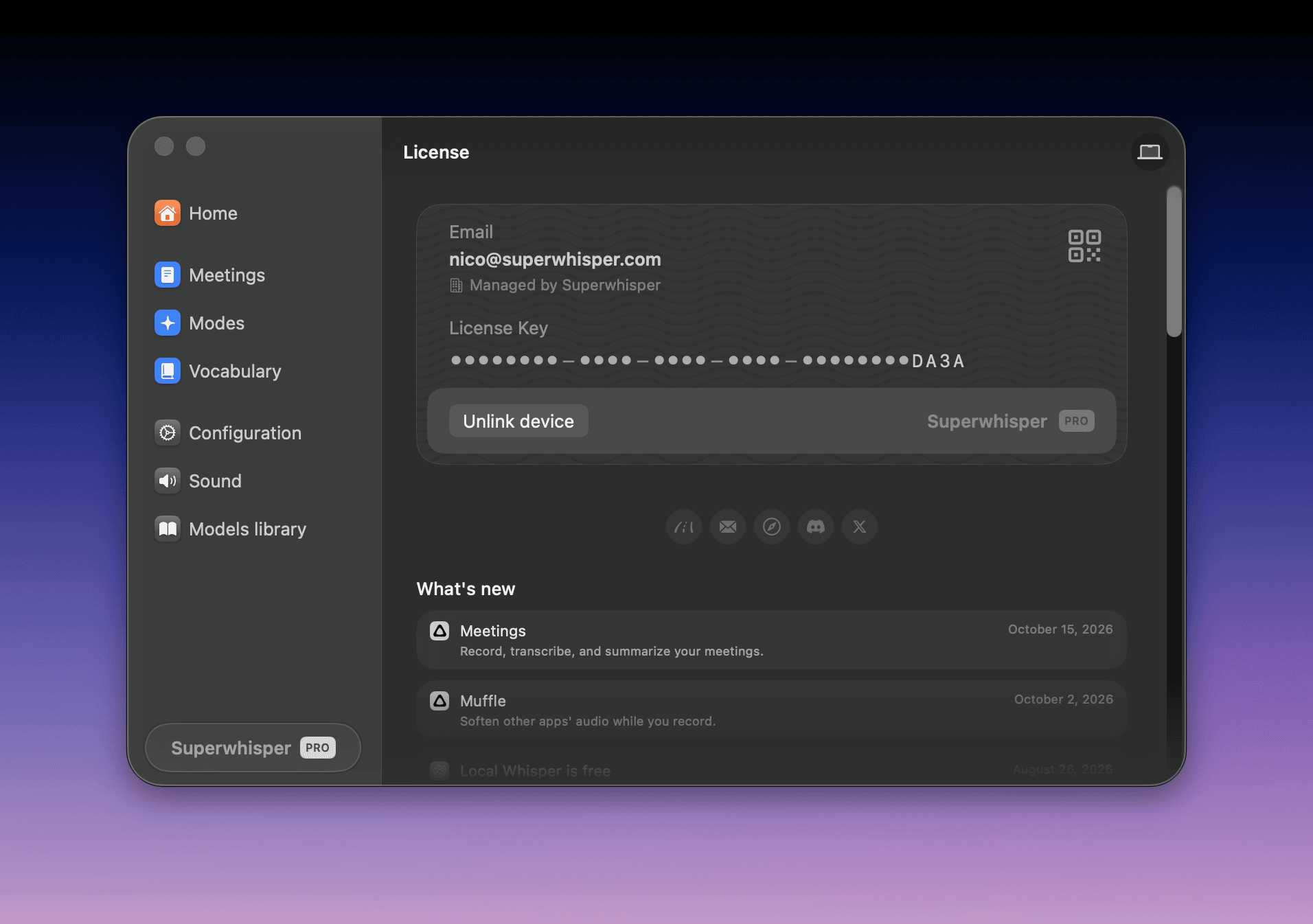
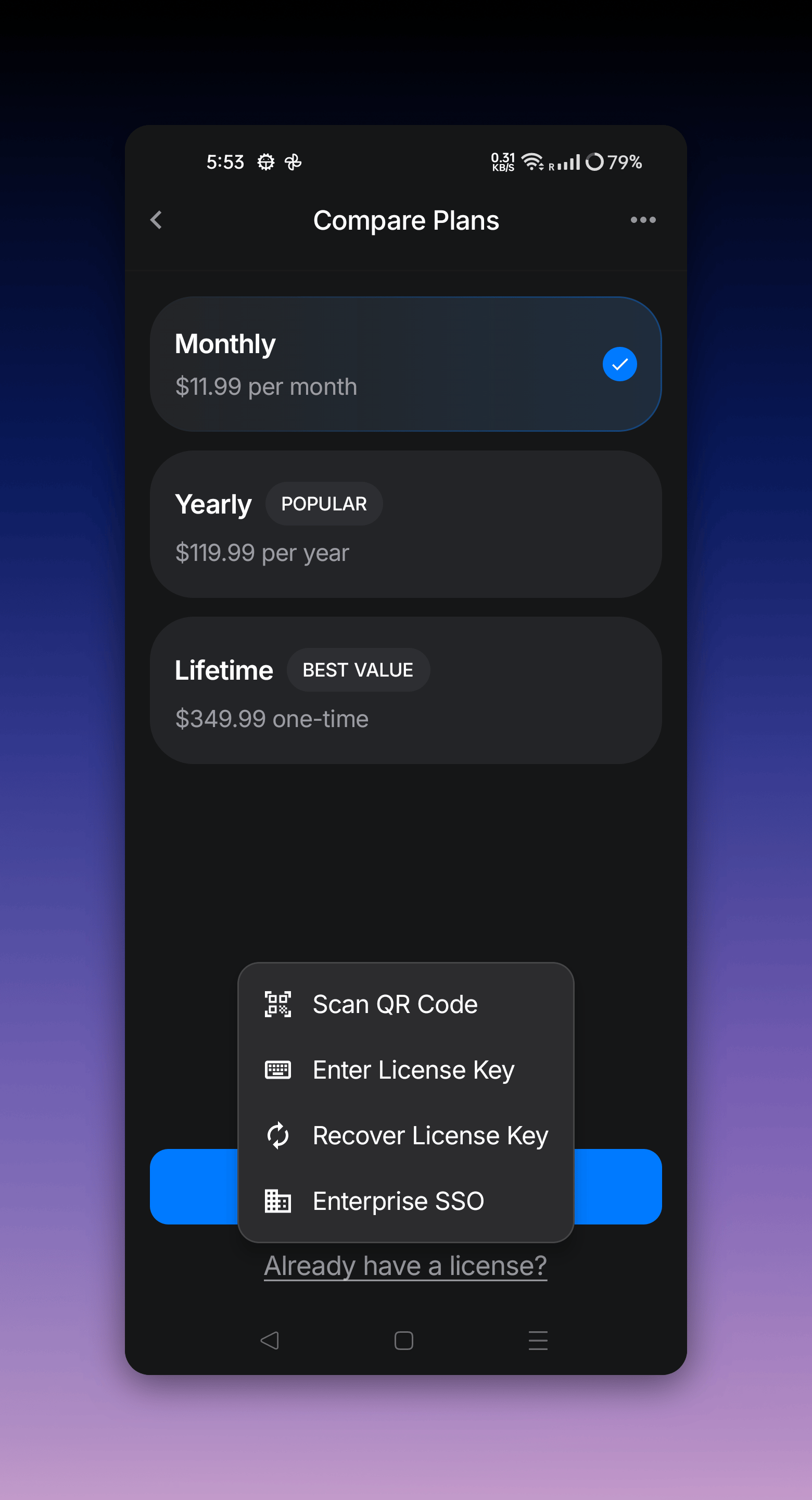
Find or recover a lost license key
The same steps recover any license type: Monthly, Annual, or Lifetime. Lifetime keys never expire, so a recovered key activates immediately.- Bought on superwhisper.com: open superwhisper.com/licenses and enter the email you purchased with. If it matches a license, we email you the key. Check spam, and try every address you might have used at checkout
- Bought on the App Store: open the iOS app → Settings → Superwhisper Pro → Recover my License Key
- Bought on Google Play: open the Android app → gear icon → your plan → Already have a license? → Recover License Key
- Still nothing, or you no longer have access to the purchase email: email support@superwhisper.com with the receipt or the original purchase email address
Activation troubleshooting
The QR code won’t scan. Copy your key on the Mac (double-click it; you’ll see “Copied to clipboard”), then opensuperwhisper://license/YOUR-KEY on your iPhone in Safari.
The app still shows a trial after I entered my key. Check for extra spaces, keep the uppercase lettering, and make sure you’re entering the key emailed by superwhisper.com, not an order number. If it still fails, email support@superwhisper.com with your key and purchase email.
App Store purchase not recognized. Open the iOS app → Settings → Superwhisper Pro → Recover my License Key. This re-checks your App Store purchase and reactivates the subscription.
Google Play purchase not recognized. Open the Android app → gear icon → your plan → Already have a license? → Recover License Key. Confirm you’re signed in to the Google account that made the purchase.
On a company (Enterprise) license: you don’t need a key. Follow Activate Your Enterprise License. To move a device off an org, use Unlink device in the license panel.