

If your company provides Superwhisper, follow Activate Your Enterprise License first to sign in with your work email. Then come back here for your first dictation.
- macOS
- Windows
1
Download and install
Superwhisper requires macOS 14 or later. Download it from superwhisper.com, open the file, and drag Superwhisper into your Applications folder, then launch it.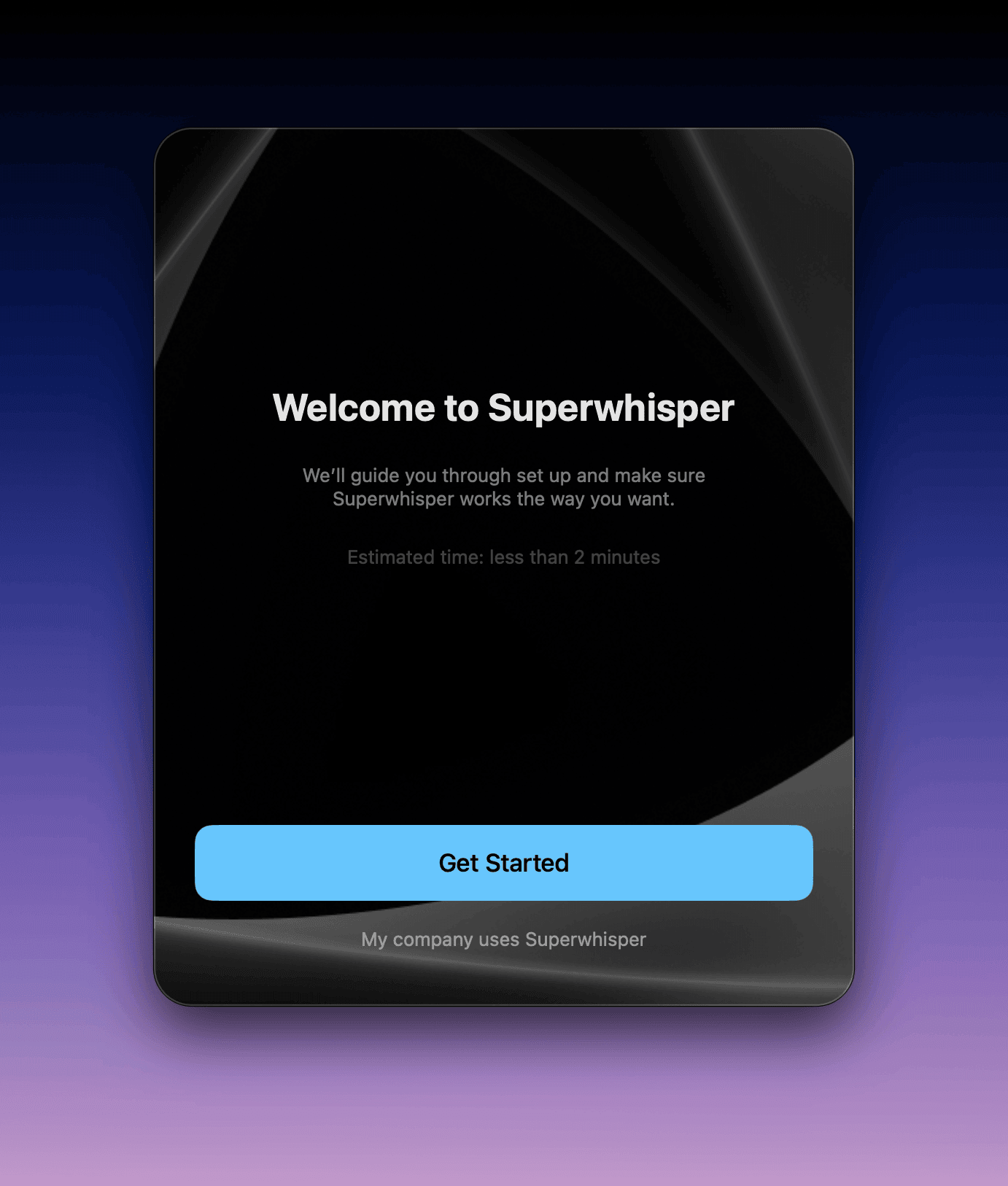
2
Grant permissions
Superwhisper asks for permissions on first launch. Click Allow next to each one: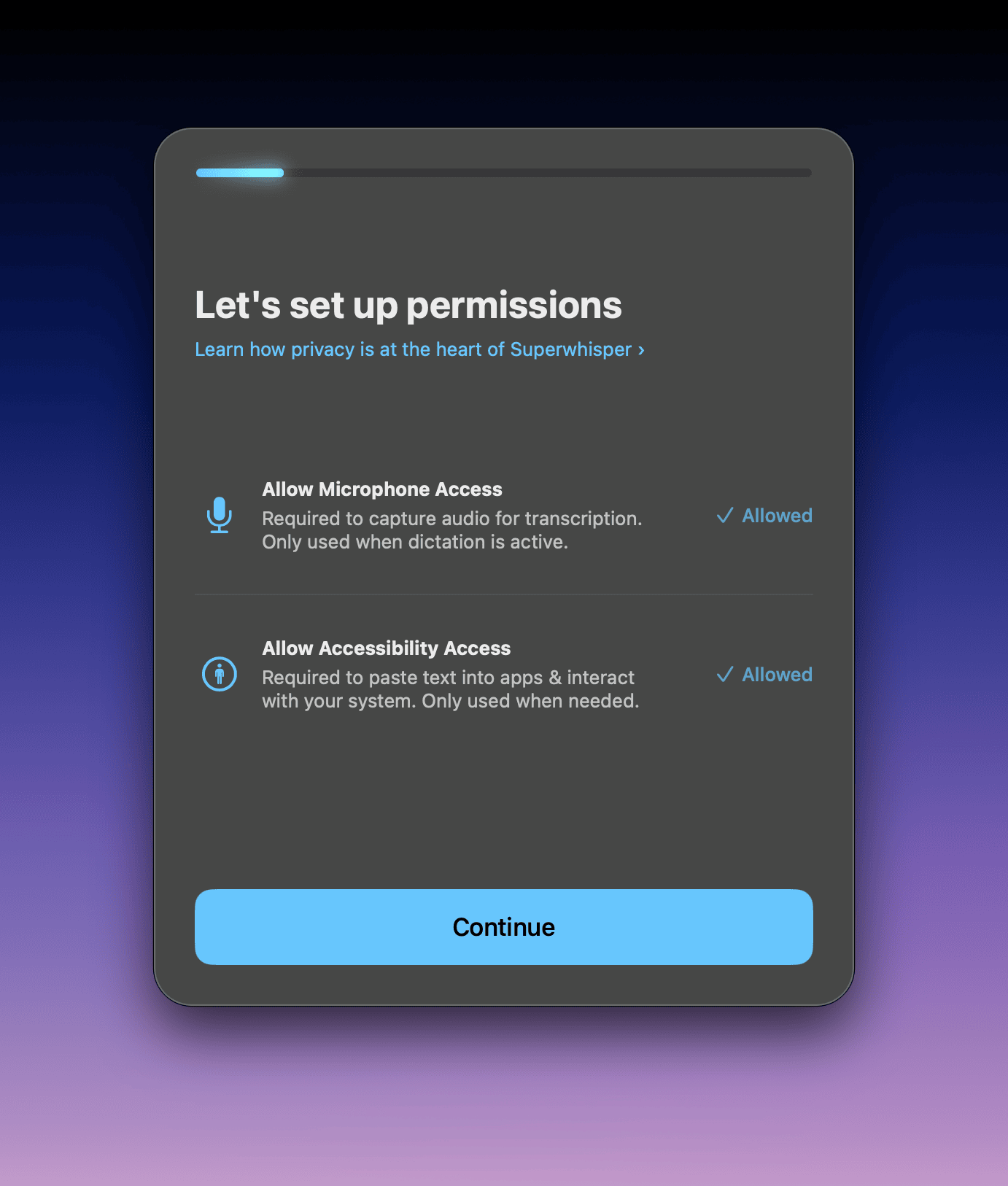
- Microphone: to record your voice
- Accessibility: to insert your dictation into apps
- System audio (optional): to record calls with Meetings
If you skipped a permission, grant it later in System Settings → Privacy & Security → Microphone / Accessibility / Screen & System Audio Recording.
3
Test your microphone and pick a shortcut
Say a few words and check that the waveform moves. Then pick the key you hold to dictate. Right ⌘ is the default; click Change shortcut to use another.Superwhisper sets up your first mode, a Message mode with cloud models. To change models later, see Create your first mode.
4
Dictate your first text
Setup ends with a practice message: hold your shortcut, speak, and let go. Superwhisper pastes your words at the cursor. Dictate the same way in any app, or press ⌥ Space (Option + Space) to start and again to stop.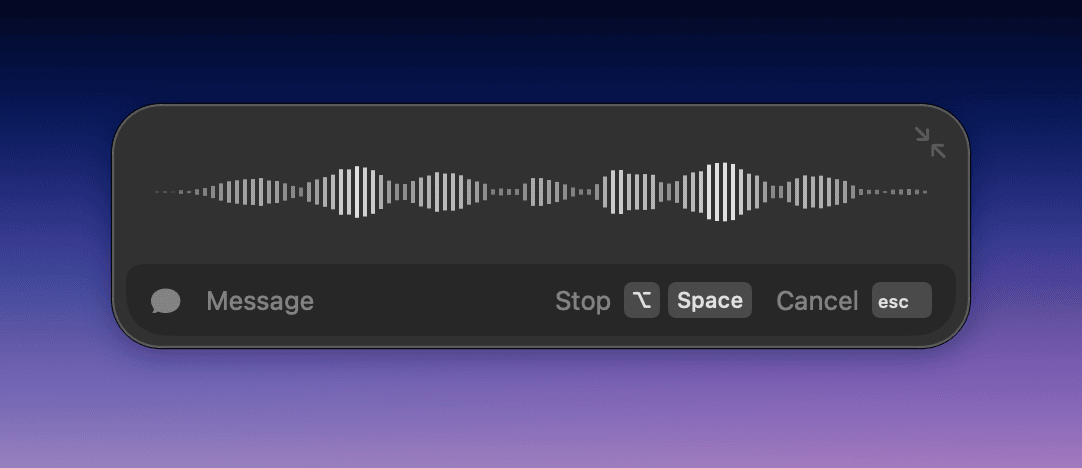
Next steps
Create your first mode
Set up a Message mode and pick its model, cloud or local.
Understand modes
Modes shape your dictation into messages, emails, and notes.
Essential settings
Set up shortcuts, sounds, and the options most people change first.
For iPhone, see Superwhisper on iOS. For Android, see Superwhisper on Android.