

Start a recording
- From a prompt: click Record in the Meeting detected prompt. See Meeting detection
- From a calendar reminder: click Join & Record or Record. See Calendar integration
- By hand: in the Meetings tab, click +. Use this for any other app or an in-person meeting
Meetings has no keyboard shortcut. Your dictation shortcut still works during a meeting, and your dictation stays out of the meeting recording.
During the meeting
Live transcript
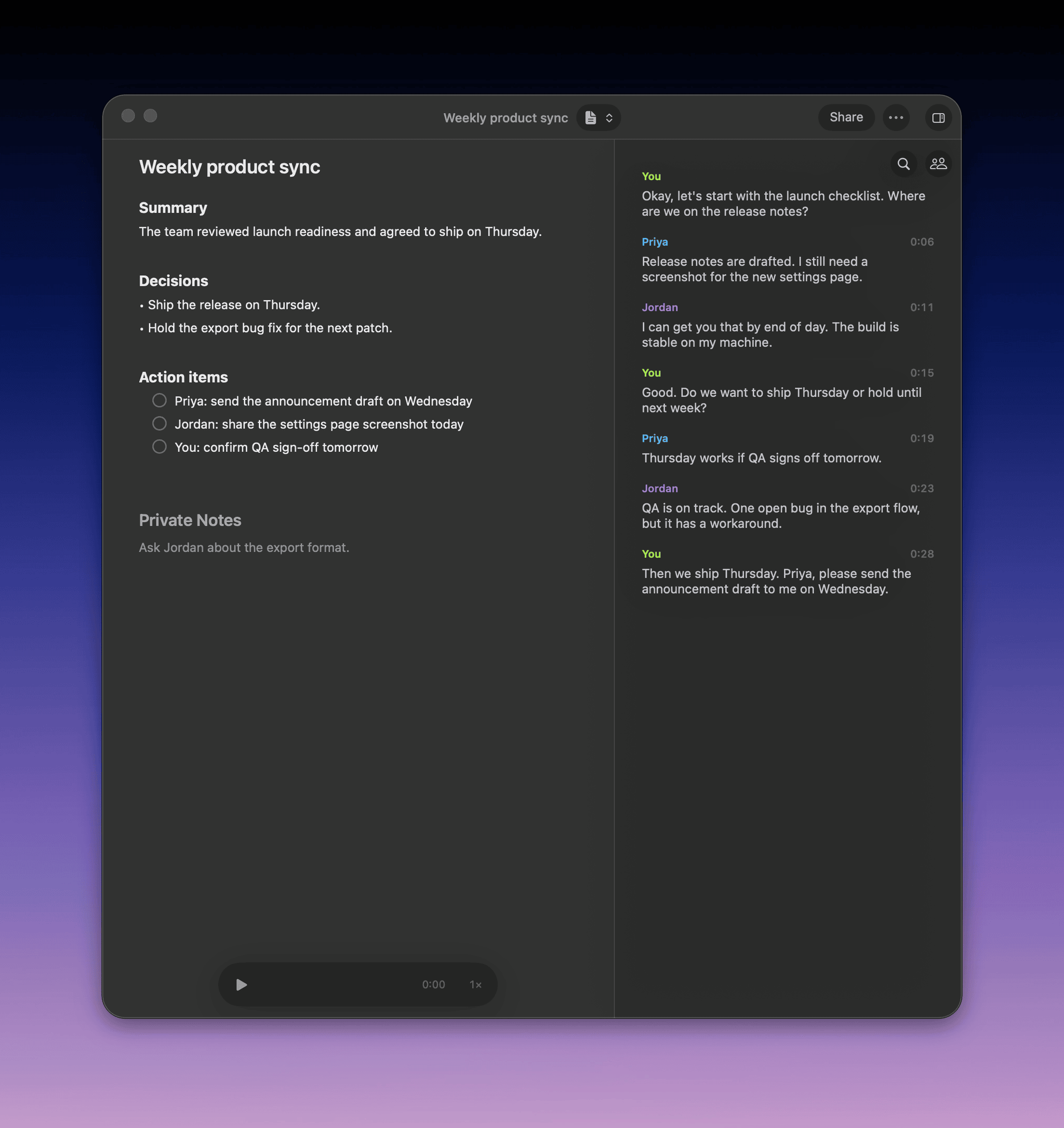
Click Transcript in the toolbar to show or hide the transcript. Search it with Search transcript or speakers. The transcript follows the language spoken, even when it changes mid-call. To pin one language, set Language in Meeting settings.Private notes
Type in the notes area of the meeting window. The summary treats your notes as facts about the meeting. Notes stay on your Mac and aren’t part of a share link.Speaker names
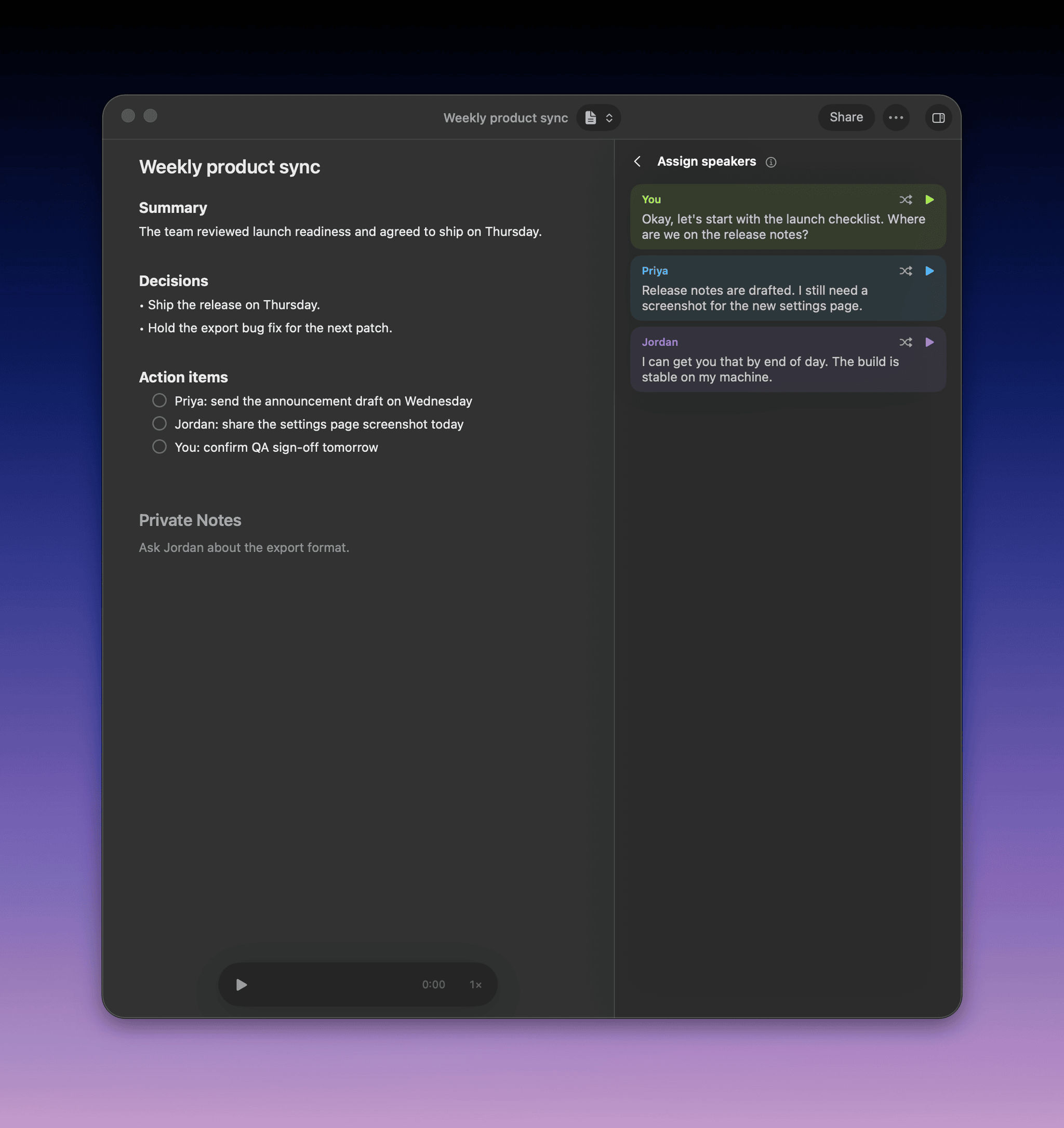
Speakers show as Speaker 1, Speaker 2, and so on. When you record alone with no call audio, your lines show as You. In Zoom, Google Meet, Microsoft Teams, and Slack huddles, Superwhisper suggests names from the call. To rename a speaker:- Click Assign speakers (the people icon) in the transcript panel
- Play a sample to hear who it is
- Click the name and type a new one
Pause, minimize, and switch models
- Pause: click Pause recording, then Resume recording to continue
- Minimize: press Cmd-M. The window shrinks to a small pill and keeps recording. Click the pill to bring it back
- Switch voice model: change Voice in Meeting settings. If the current model streams, the change applies to your next meeting
End a recording
Click End recording (the stop button), then confirm. The summary starts right away. See Summaries and templates. When the call ends, Superwhisper shows Meeting ending in 9s. Click End meeting to stop now, or choose Keep recording from its menu. Cmd-W asks before it ends a recording. It never closes the window on its own.Discard a recording
Click Discard this recording (the trash button), then Discard recording. This deletes the audio and transcript and can’t be undone.Find past meetings
The Meetings tab lists meetings by day, newest first. Open one to play the audio, edit the title, summary, or notes, or switch templates. The More menu (…) has Copy summary, Copy transcript, Recording info, and Delete recording. Search meetings looks through titles, summaries, notes, attendees, and speakers. Narrow it with filters: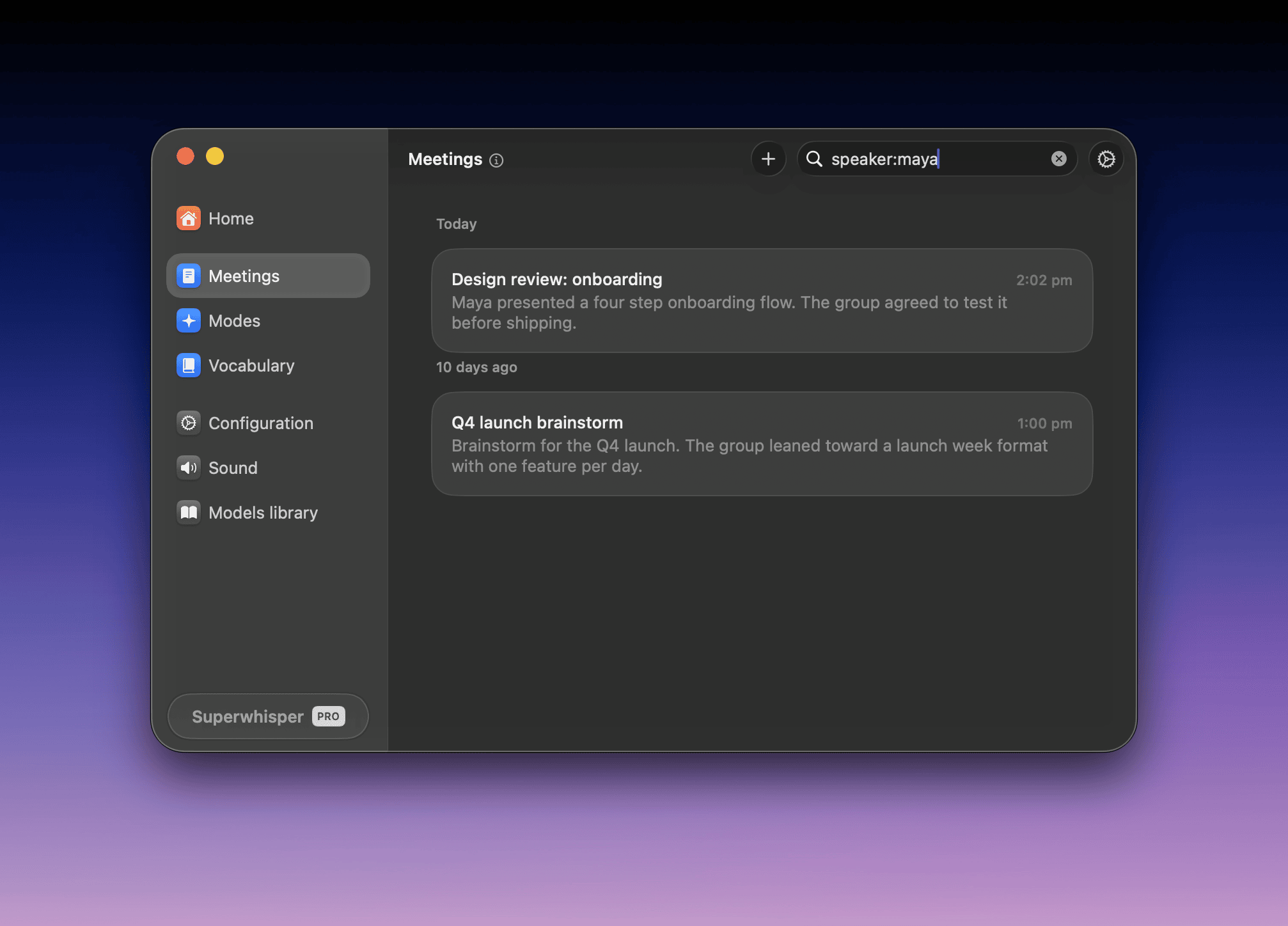
Troubleshooting
”Set up meeting models in the Meetings tab first”
The meeting models aren’t ready. In the Meetings tab, click Set up meetings.”No microphone available.”
Connect a microphone, or select one.”Meetings are disabled by your organization.”
Your Enterprise admin turned off system audio recording, which turns off Meetings.The other side of the call is missing
Turn on Screen & System Audio Recording for Superwhisper. See System audio recordings come out empty.No “Meeting detected” prompt
- Set Recording suggestion to Notify or Auto in Meeting settings
- Check that the call is in Zoom, Google Meet, Microsoft Teams, or a Slack huddle. For other apps, start the recording by hand
- On the Free plan, check that you have free words left