

Set up the keyboard
1
Install the app
Download Superwhisper from the App Store and open it once.
2
Enable the keyboard
Go to iOS Settings → General → Keyboard → Keyboards → Add New Keyboard… and select Superwhisper.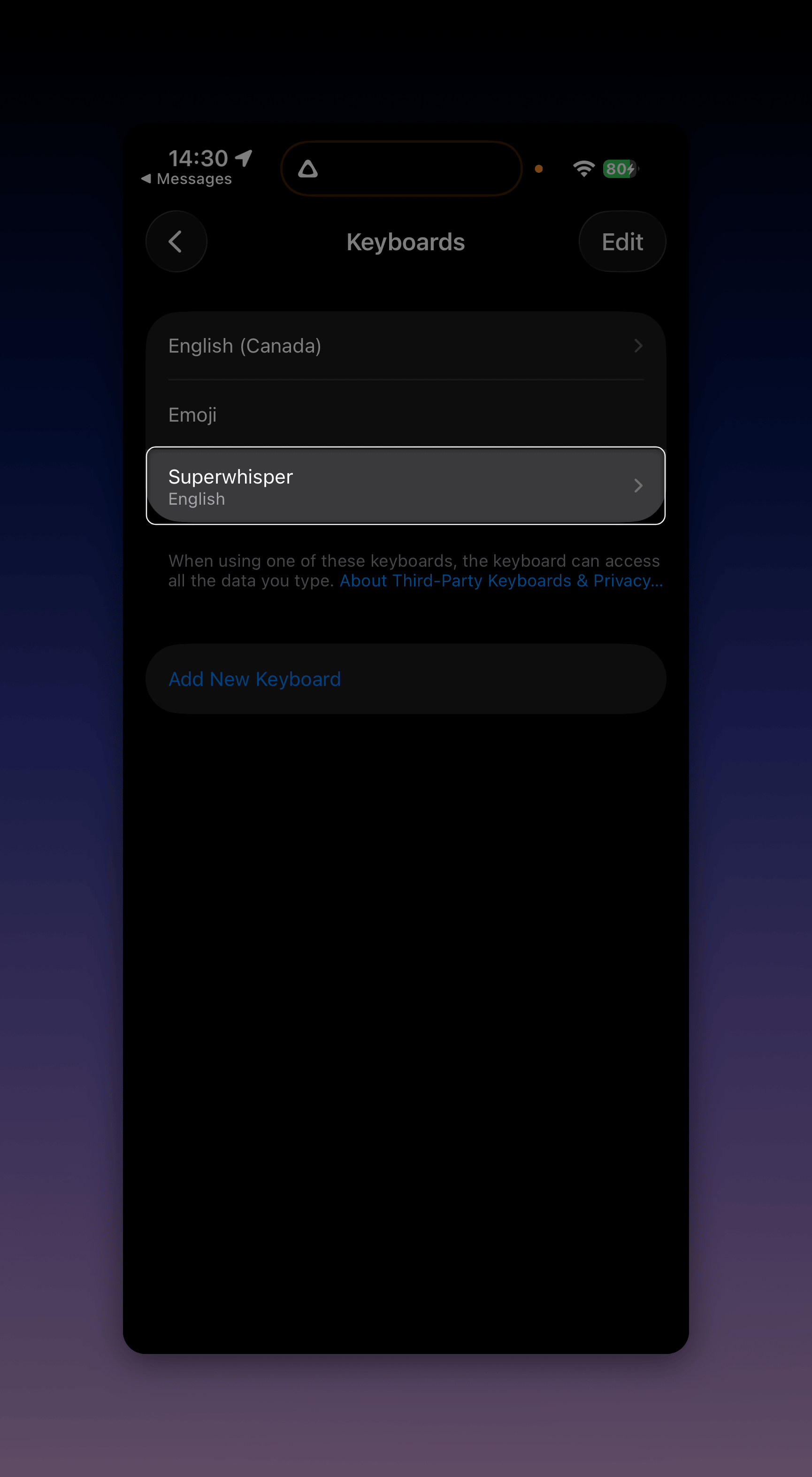
3
Allow Full Access
Tap the Superwhisper keyboard in the same list and turn on Allow Full Access. The keyboard needs this to transcribe audio and insert text.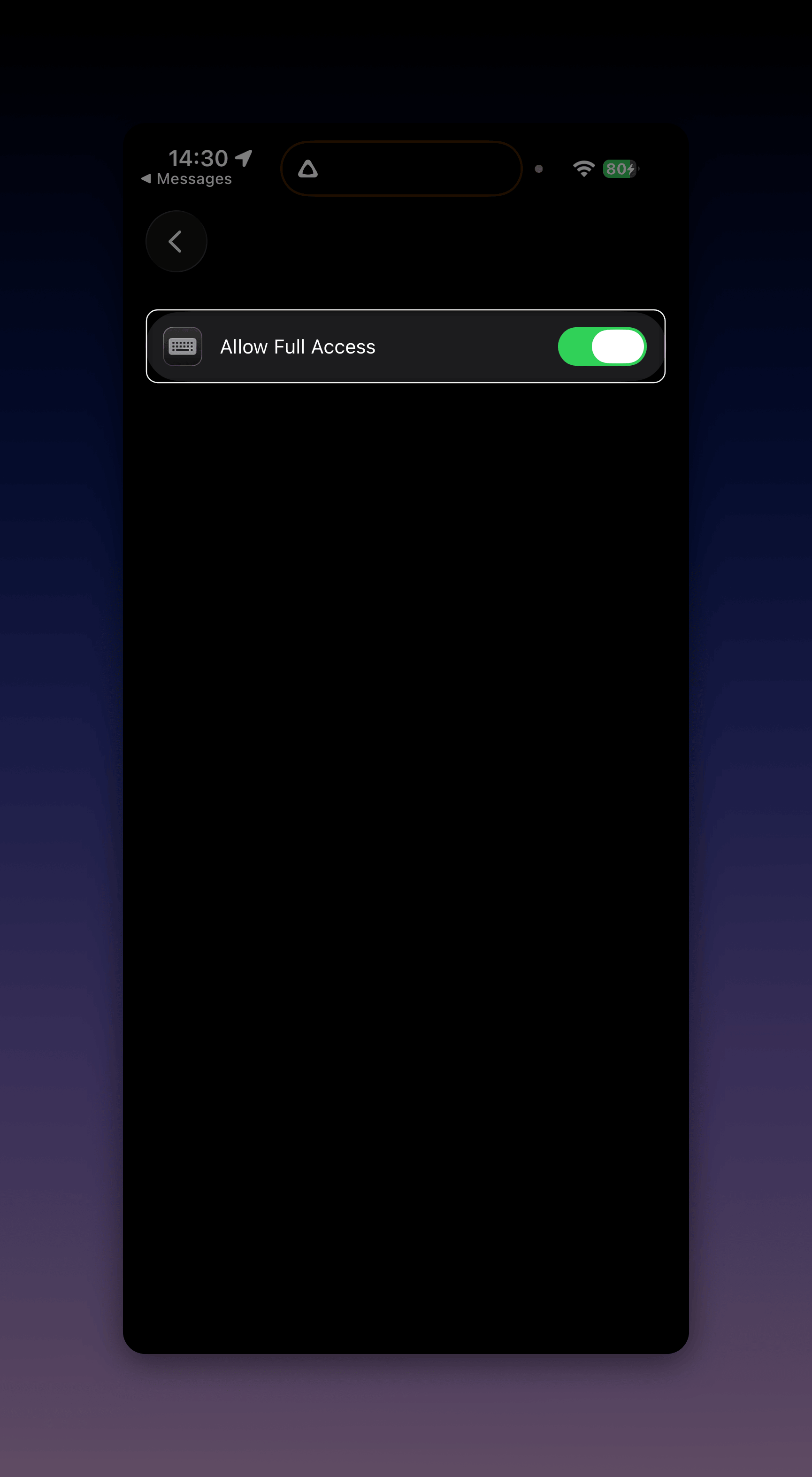
Dictate
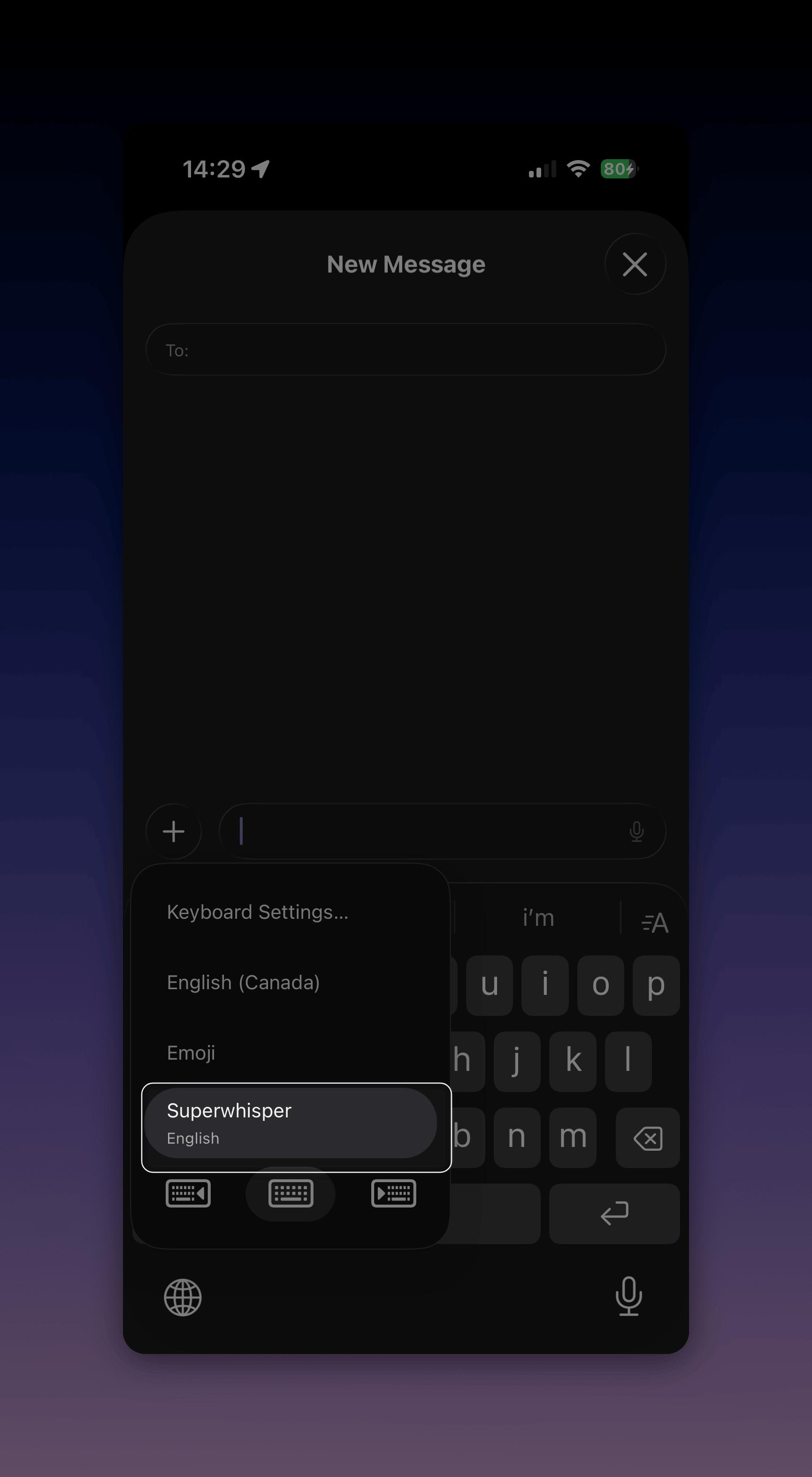
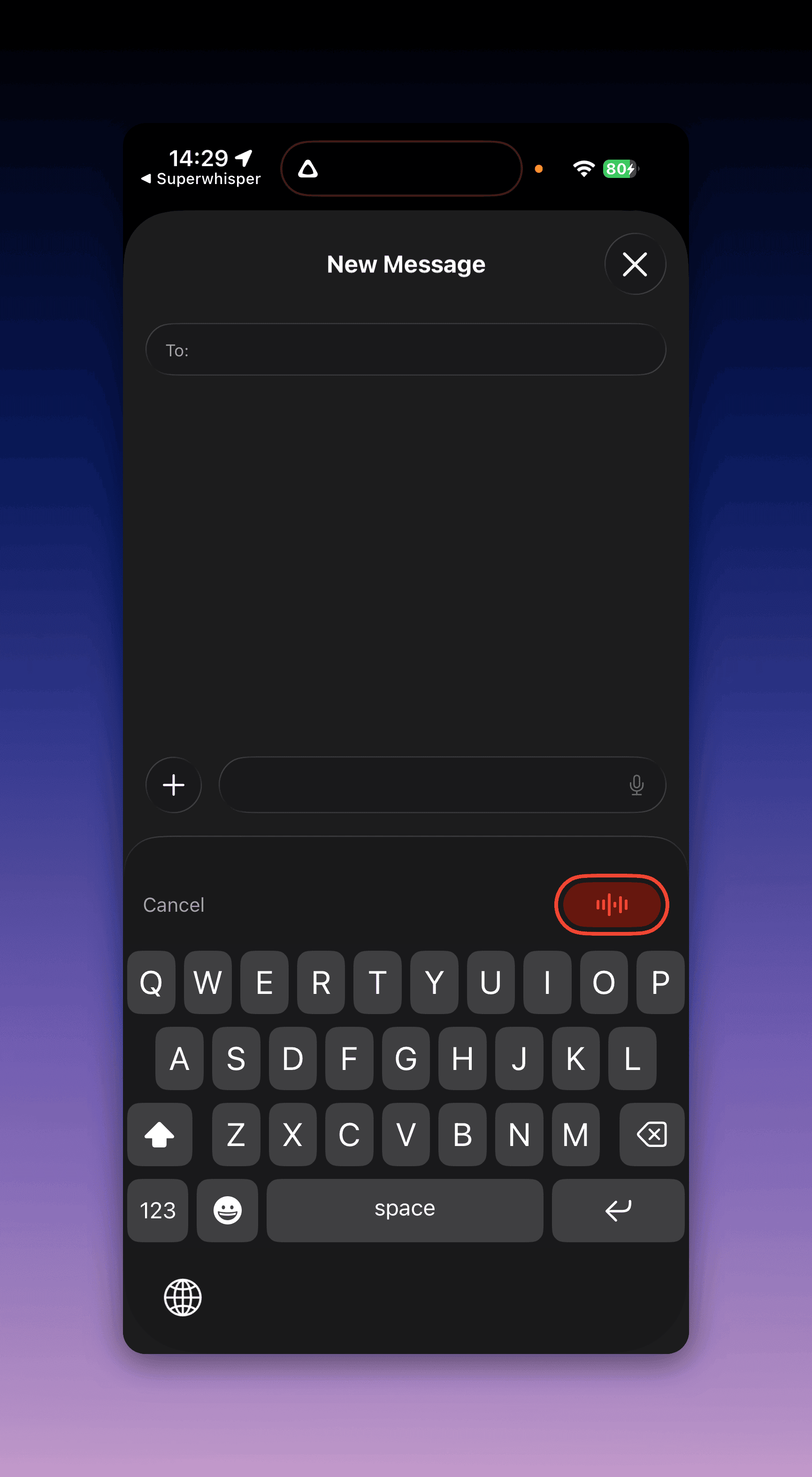
- In any app, touch and hold the globe key and choose Superwhisper
- Tap the record button and speak
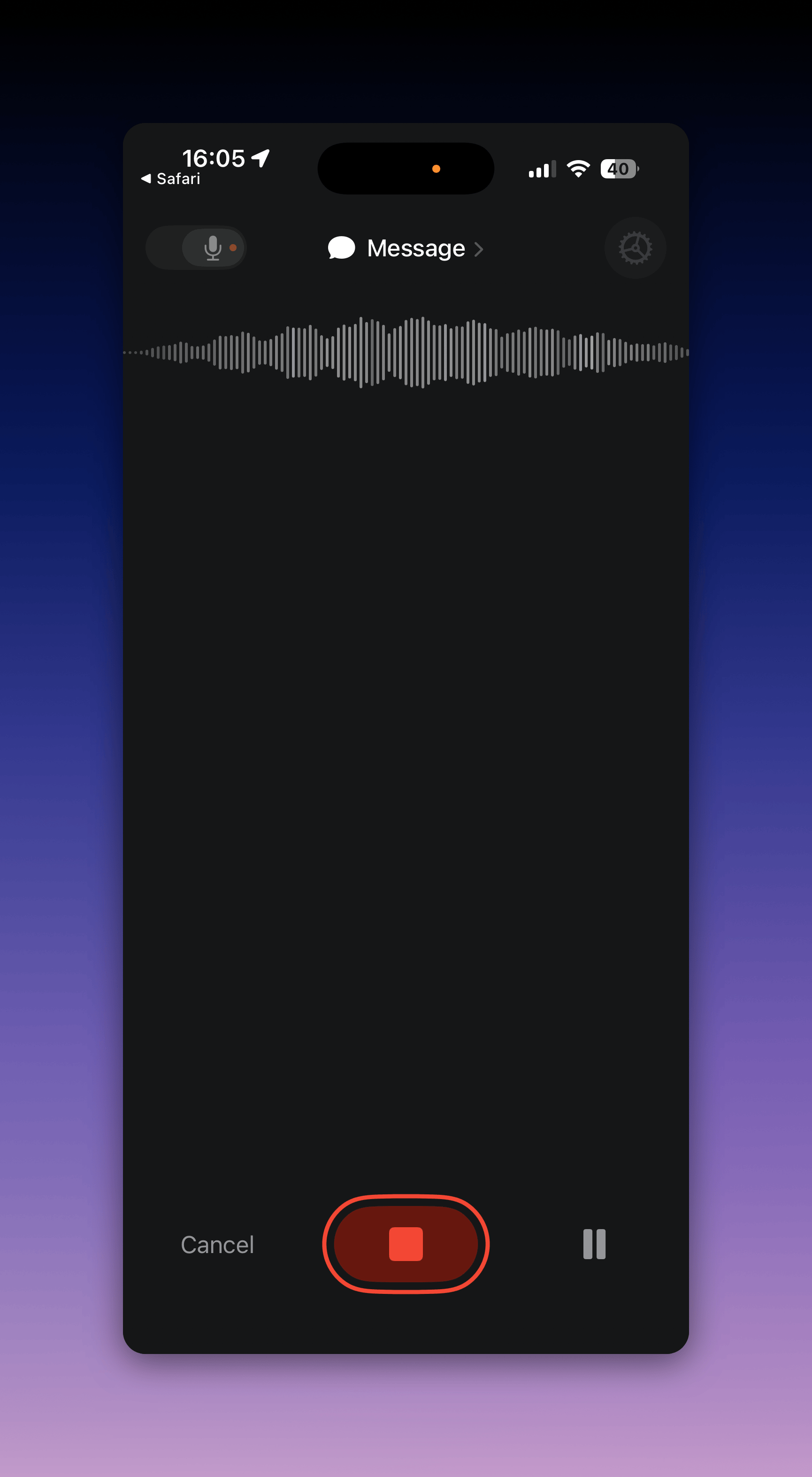
- Stop the recording. Superwhisper inserts the text at the cursor
Modes and settings on iOS
The iOS app has its own settings for modes, models, vocabulary, and stats. Open the app and tap the gear icon. From there you can also choose a microphone other than the default and reset your stats. To find a past recording, search for it in Spotlight or ask Siri.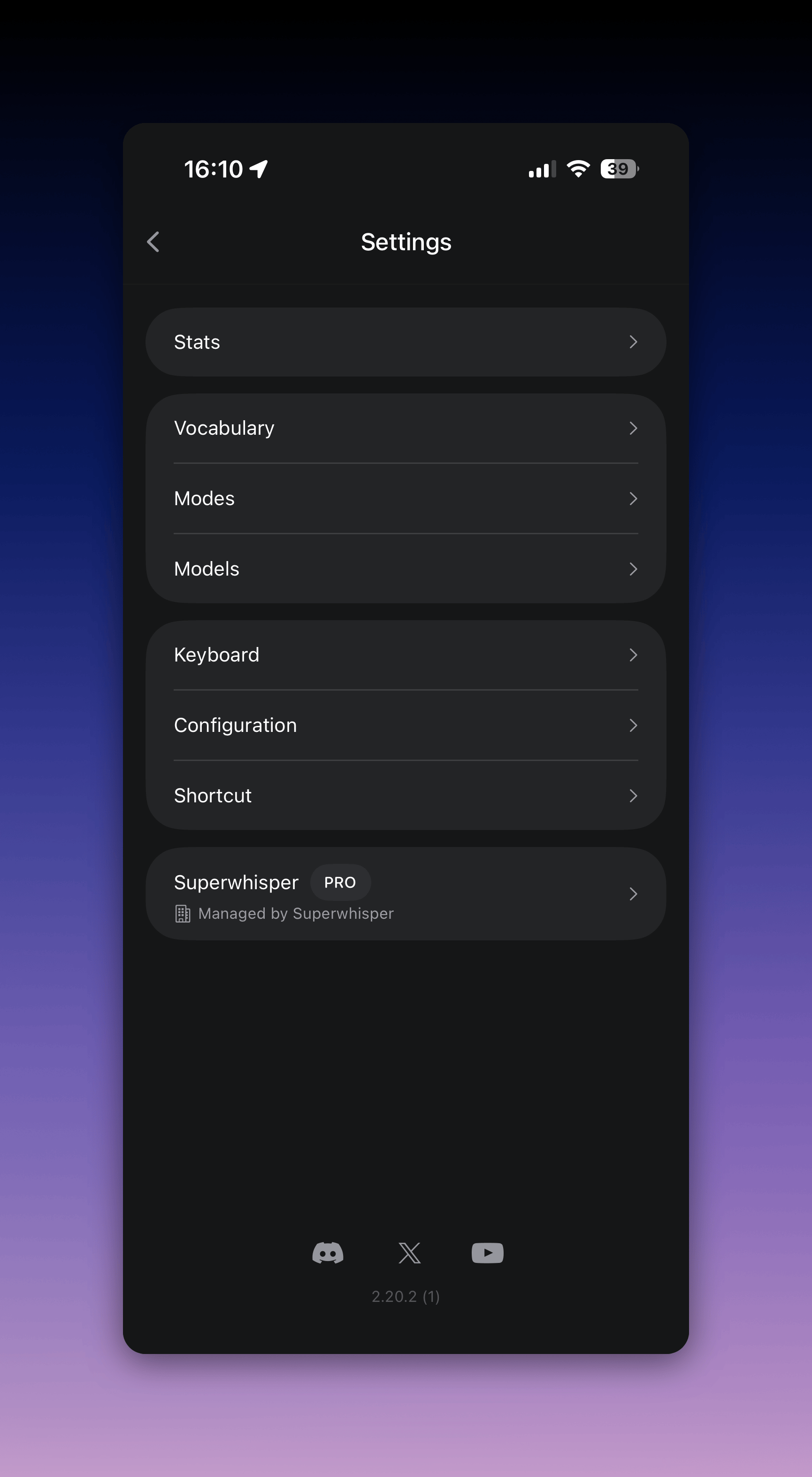
Modes and vocabulary are stored per device. They don’t sync from your Mac or PC yet. Cloud sync is planned. Recreate your most-used modes in the iOS app’s Modes settings.
Activate Pro on iOS
Your Pro license covers iOS at no extra cost. See Activate your license for the QR-code and manual methods, including activation from a Windows PC.Keyboard not working
- Confirm Allow Full Access is on (iOS Settings → General → Keyboard → Keyboards → Superwhisper)
- If the keyboard disappears from the list after an iOS update, re-add it with the steps above
- If dictations fail or vanish, check your connection; cloud models need internet. Then retry from the main app, where recordings appear in History
- If you’re still stuck, email support@superwhisper.com with your iPhone model, iOS version, and Superwhisper version