

Message
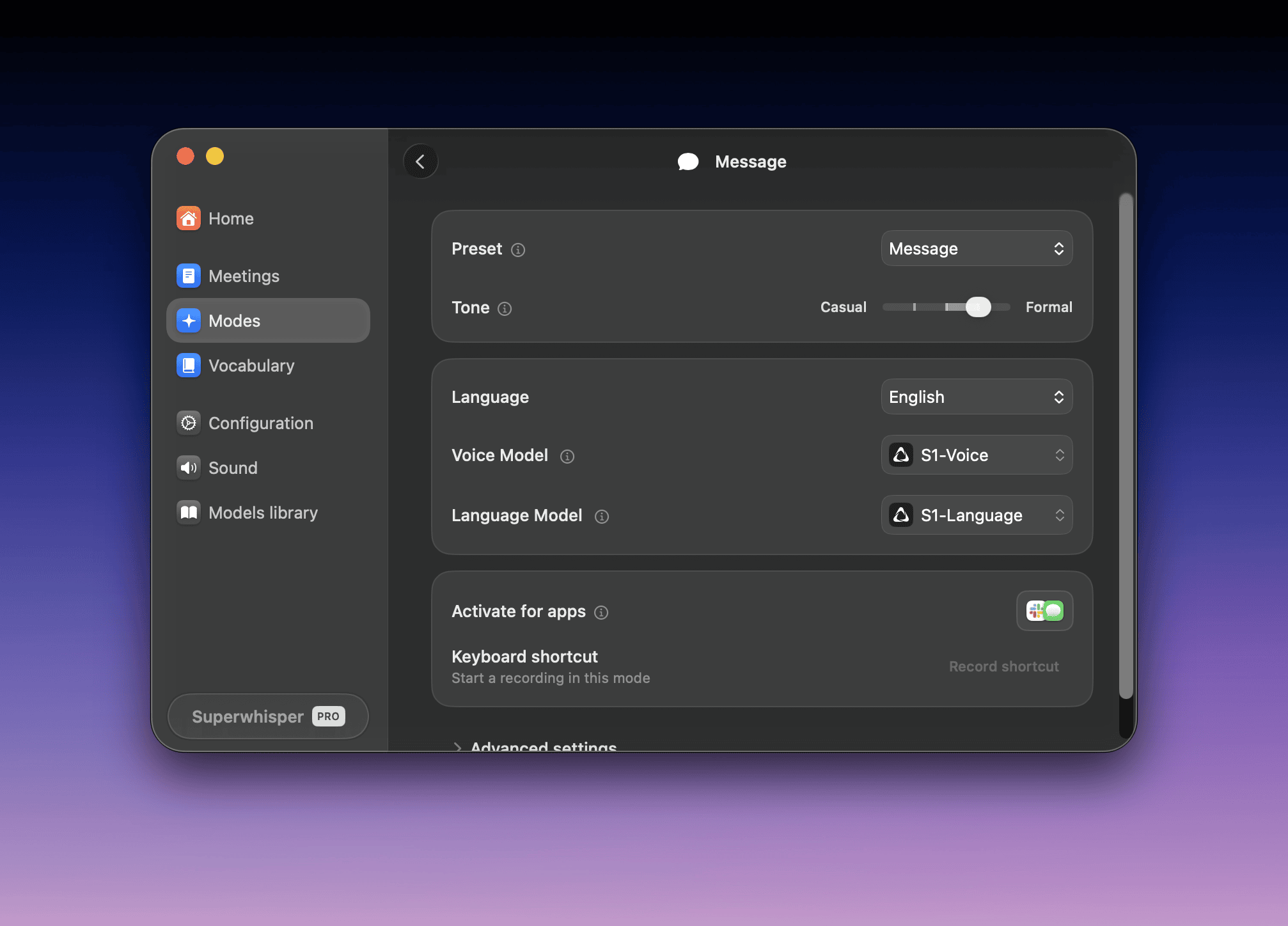
- Removes speech artifacts and filler words
- Fixes grammar and punctuation
- Formats text for readability
- Keeps your natural conversation flow
Unlike the transcription-only Voice to Text mode, Message Mode refines your speech while preserving your tone and communication style.
Super
Super Mode adapts your dictation to what’s on screen. It:- Adapts messages to match the active application
- Corrects spelling based on app-specific terms, names, and vocabulary
- Converts spoken URLs and email addresses into proper format
- Preserves your tone and intent while improving clarity
Context awareness
Super Mode uses accessibility APIs to gather three types of context:1. Application Context
1. Application Context
- Identifies your active application
- Reads text from current input fields or text editor
2. Selected Text Context
2. Selected Text Context
- Reads any text you’ve highlighted
- Uses selection to inform AI processing
3. Clipboard Context
3. Clipboard Context
- Incorporates text copied within 3 seconds of dictation, or during dictation
When Application Context is active, Superwhisper also includes system information: the current date and time, your full name, and your computer name. This lets the AI insert the date, sign off an email with your name, and handle similar context-specific requests.
Commands
Super Mode lets you dictate commands on selected text. Use commands for text transformation and formatting, not content analysis or generation.Works well
“Make this text title case”
“Convert selection to uppercase”
“Format my selected text as bullet points”
Doesn't work well
“Summarize this paragraph”
“Expand on these ideas”
“Rewrite this section”
Super Mode troubleshooting
If Super Mode gives unexpected results, check these common causes:Command Type Mismatch
Command Type Mismatch
- If you are dictating a command, ensure it is related to formatting or text transformation only
- Review the Commands section above for examples
AI Models
AI Models
S1-mini can’t run Super Mode: it works only in Message and Mail modes. Since Super Mode handles multiple types of context and more complex instructions, it may require advanced language understanding, such as that provided by Claude or GPT models. Using less capable or local models can lead to unexpected results, especially for tasks involving nuanced formatting or contextual adaptation.
Permissions and Timing
Permissions and Timing
- Check system settings for the correct permissions
- For application context, make sure the correct app window is active
- For selected text context, verify the text is selected when you trigger the dictation
- Clipboard text is only processed if copied within 3 seconds of starting your dictation, or while you speak
Verify Processing
Verify Processing
Open the dictation in History to review everything that was sent to the AI. This helps you pinpoint whether issues come from context capture, voice, or AI processing.
- Adds proper salutations, paragraphing, and a sign-off
- Keeps your natural tone and style
- Fixes grammar and punctuation
Note
Note Mode structures your dictation as a note. It:- Improves clarity
- Formats text for readability
- Highlights key points and action items
- Adapts the structure to the topic
- Creates lists and bullet points from your dictation
Note Mode works well for lectures, meetings, brainstorming, and quick thought capture.
Meeting
On macOS, Superwhisper 3.0 replaced Meeting Mode with Meetings, which records calls, labels each speaker, and writes a summary. Meeting modes you customized became summary templates. On Windows, Meeting Mode is still a preset. It structures your dictation into meeting minutes:- Organizes the text into attendees, action items, and key discussion points
- Highlights key decisions
- Preserves important context while removing redundant content
Meetings
Record, transcribe, and summarize meetings with no bot in the call.
Voice to Text
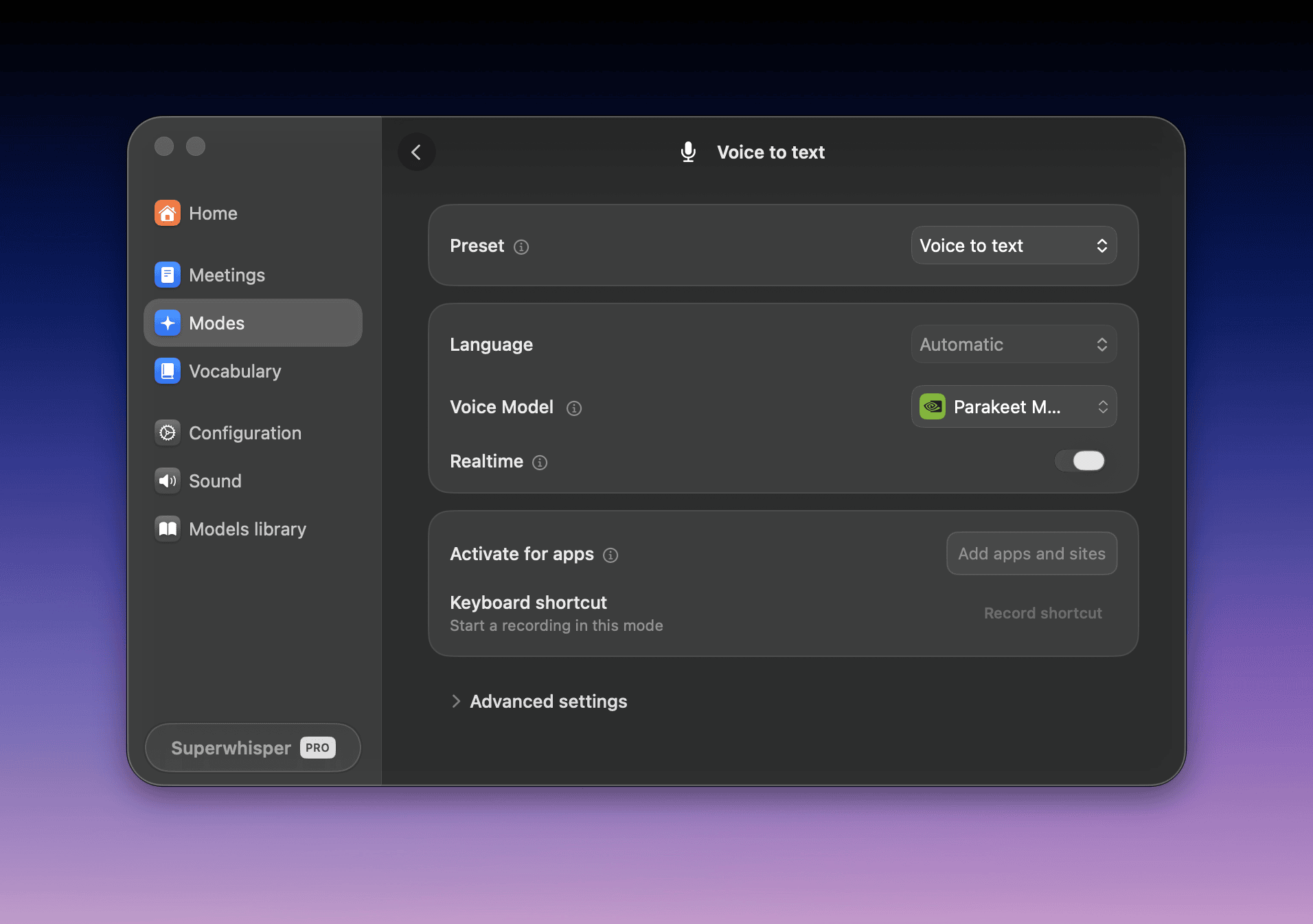
Quick dictation
- S1-Voice (Cloud): lowest word error rate on our benchmarks, in 100+ languages.
- Parakeet (Local): a local option for short dictations (English only; Parakeet Multilanguage for other languages).
- Cohere Transcribe (Local): the most accurate local model. Nothing you dictate leaves your device.
Longer recordings
- Nova 3 (Cloud): recommended for long recordings and the best choice for speaker separation.
- Other models: all models can process long recordings, with varying speed and accuracy.