

Set up
1
Install the app
Download Superwhisper from Google Play and open it.
2
Grant permissions
Superwhisper needs three permissions to work: Floating bubble (draw over other apps), Text insertion (insert text at your cursor), and Microphone. Notifications are optional. Check or fix them anytime under Settings → Permissions; tap a permission to jump to the matching Android setting.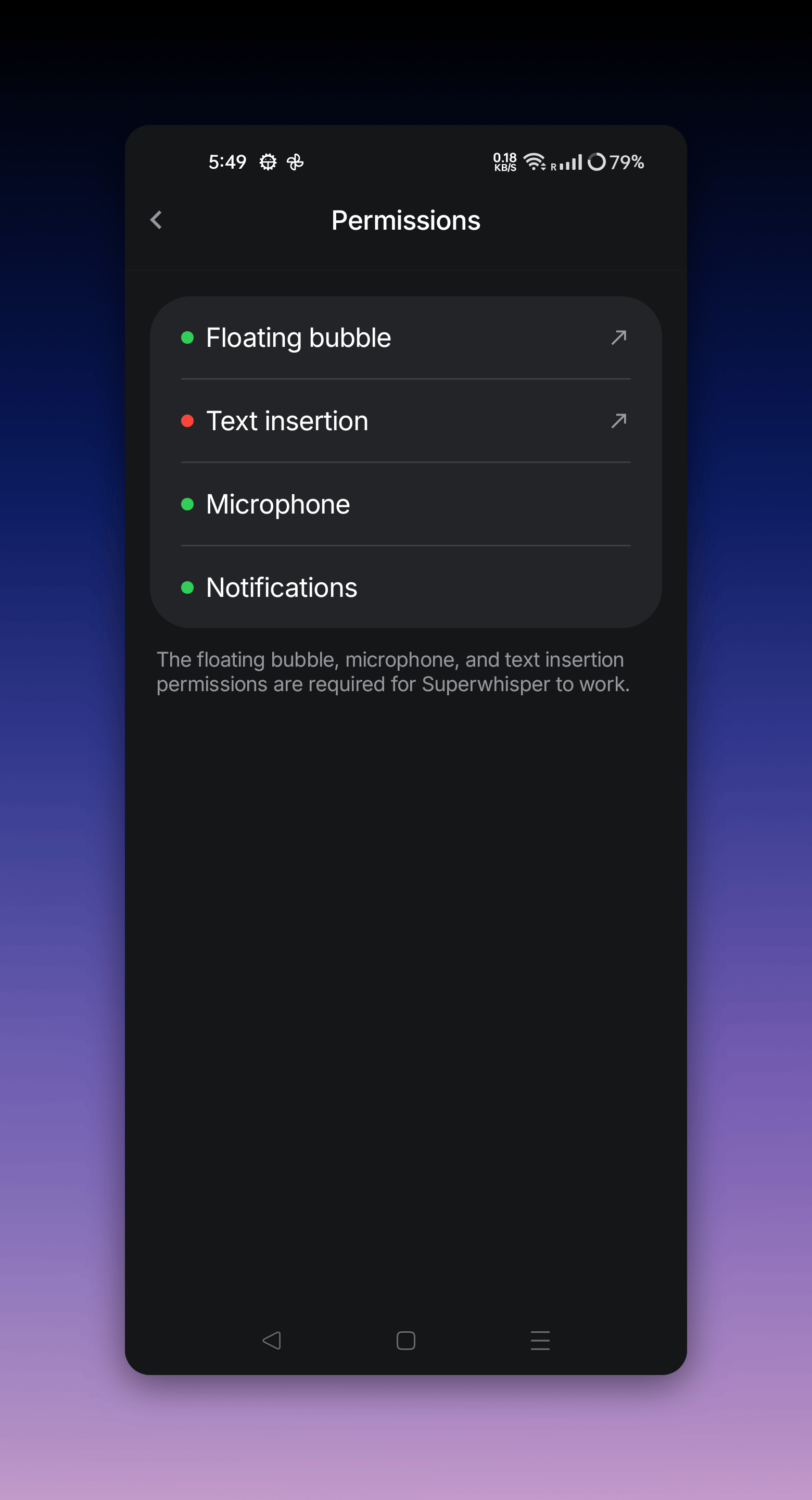
3
Enable the floating bubble
On the app’s home screen, tap Enable floating bubble. The bubble stays available over other apps.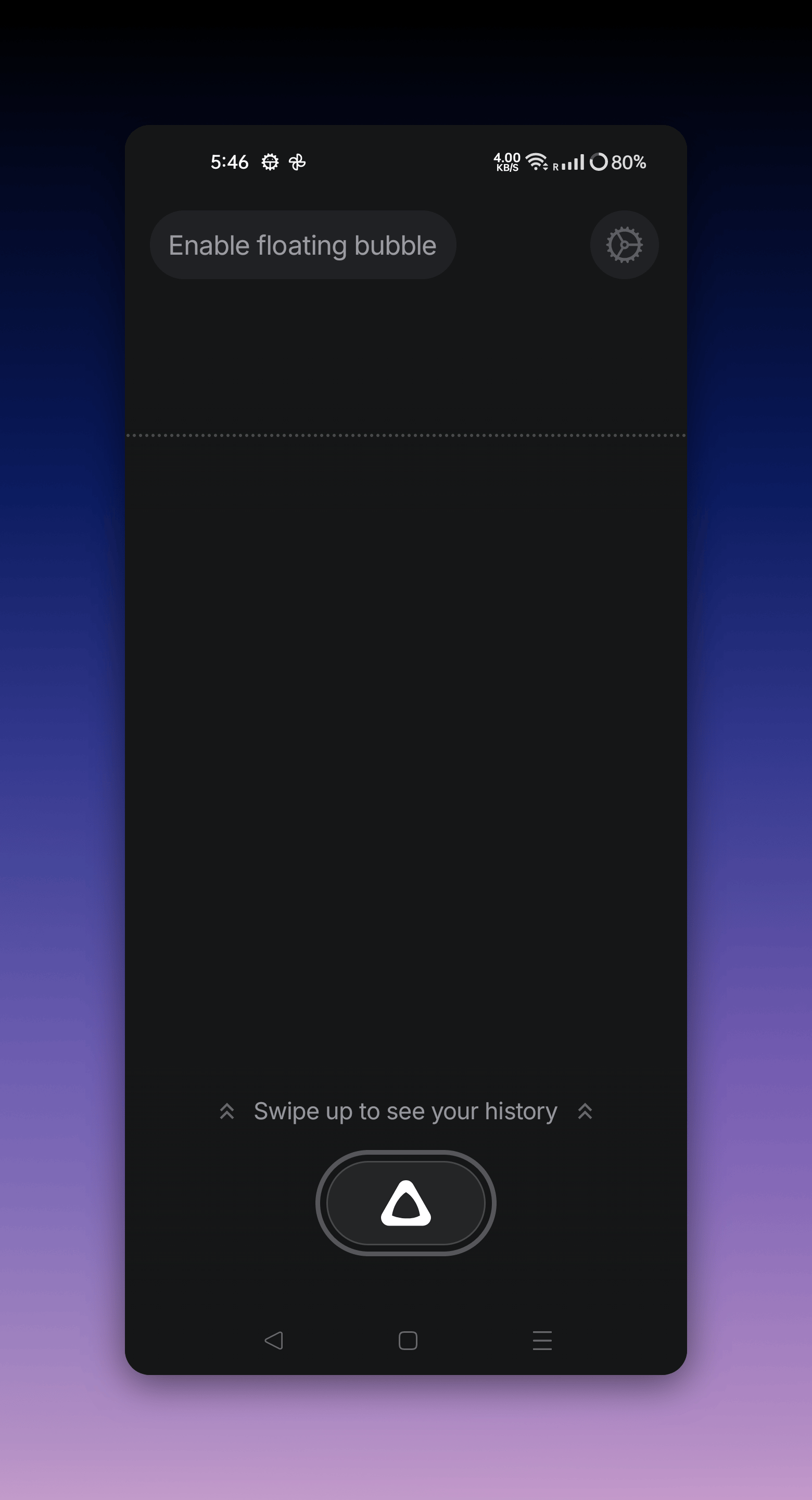
Dictate
- In any app, tap into a text field, then tap the Superwhisper bubble
- Speak, then tap the bubble again to stop
- Superwhisper transcribes your words and inserts them at the cursor
History
Swipe up on the app’s home screen to see your recordings. Open one to read the transcript, play back the audio, share the text, or delete the recording.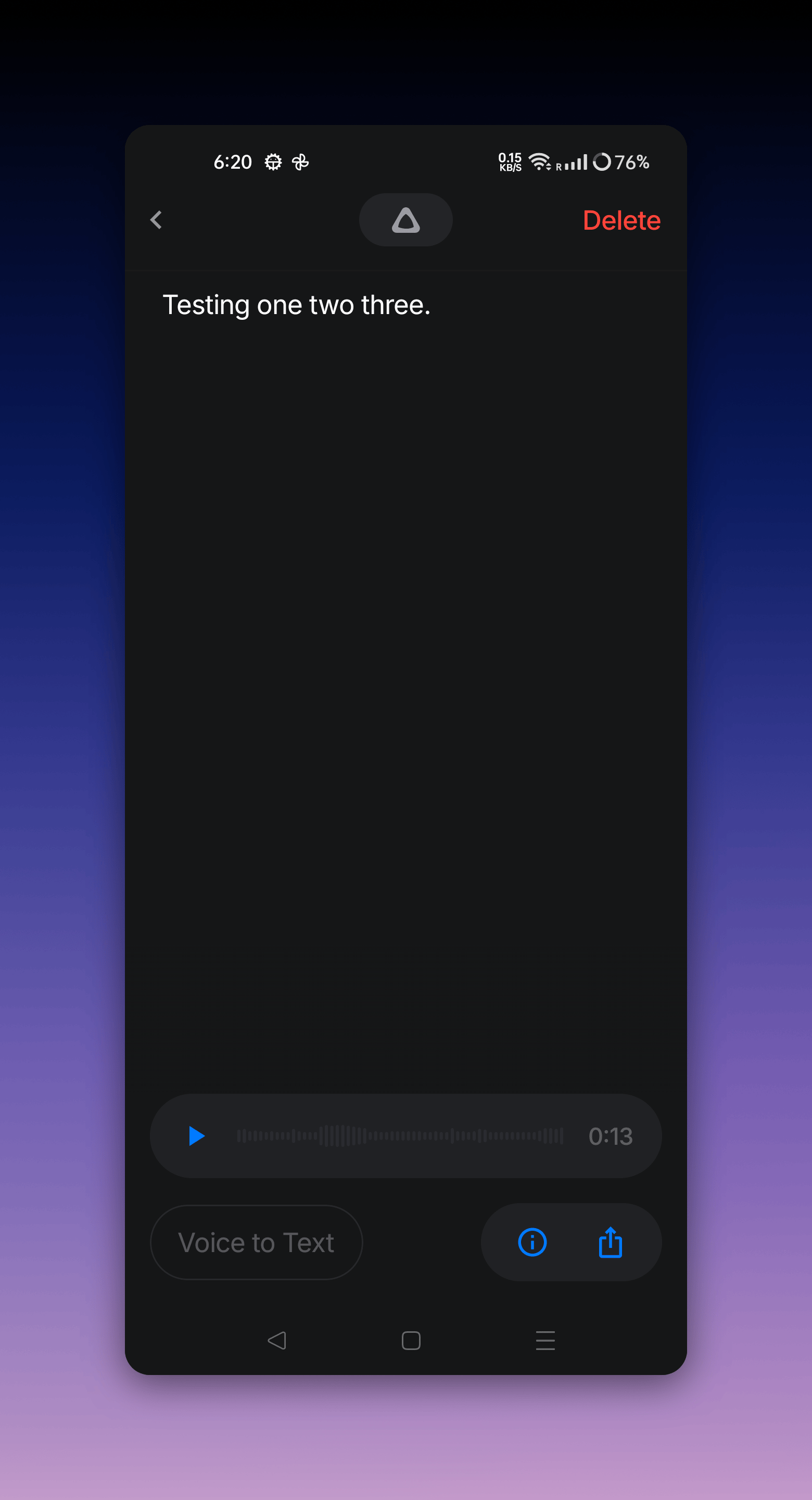
Settings
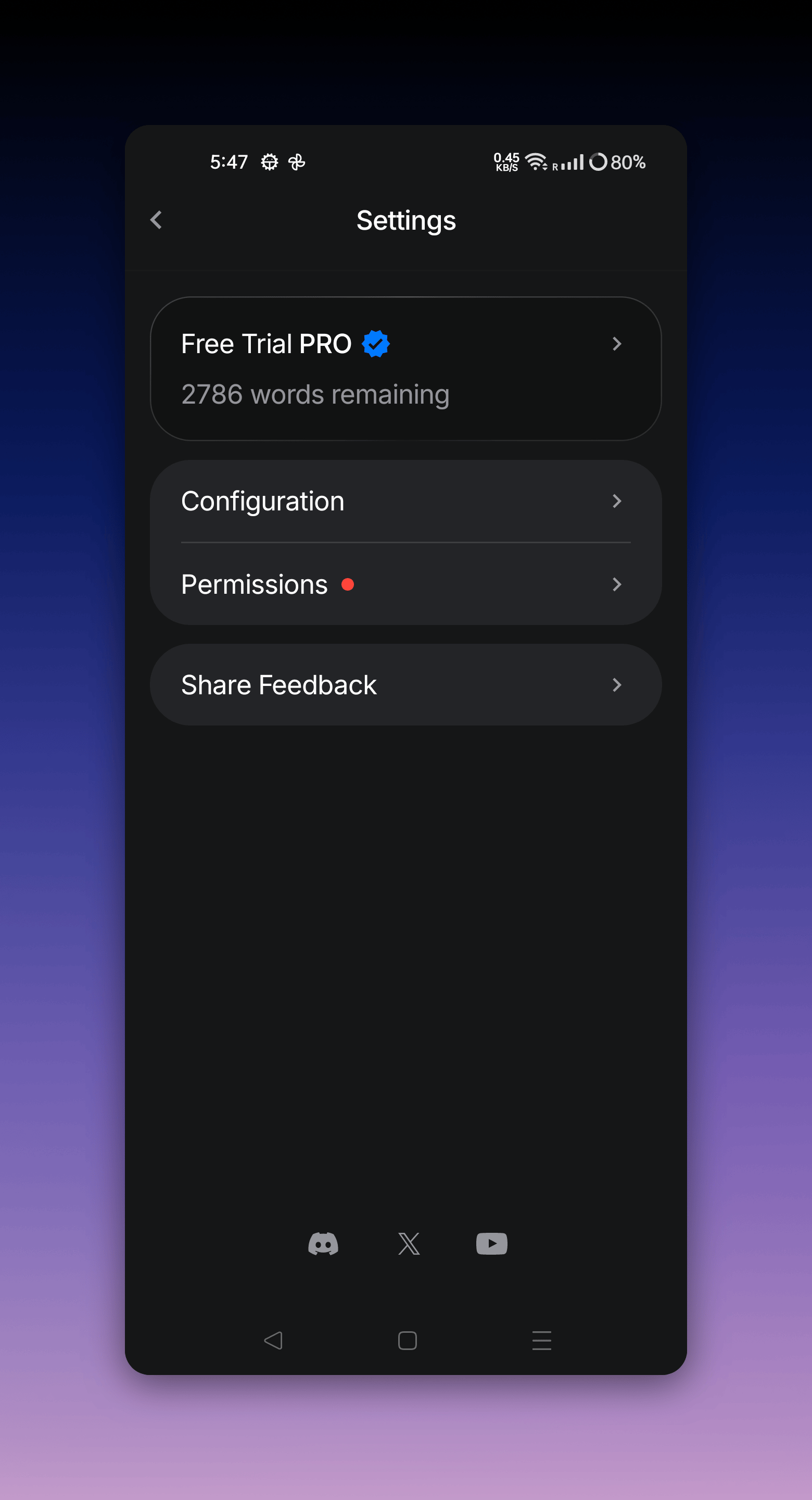
Tap the gear icon on the home screen. Settings shows your plan and remaining trial words, plus:- Configuration: app language, appearance, haptics, sound effects, media playback behavior while recording, and how long recordings are kept
- Permissions: the status of each permission, with shortcuts to fix any that are missing
Modes and vocabulary are stored per device and don’t sync from your other devices yet. Cloud sync is planned.
Activate Pro on Android
Your Pro license covers Android at no extra cost. See Activate your license for the QR-code and manual methods.Bubble not working
- The bubble doesn’t appear: check Settings → Permissions and grant Floating bubble, then enable the bubble again from the home screen
- Text doesn’t insert: grant Text insertion under Settings → Permissions. Your dictation isn’t lost; it’s saved in History
- If you’re still stuck, email support@superwhisper.com with your phone model, Android version, and Superwhisper version