

Create a Message mode
Message mode turns your dictation into a ready-to-send message, with a tone slider from casual to formal.1
Open Modes
Open Superwhisper’s settings and click Modes in the sidebar.
2
Create the mode
Open Modes and click Create mode (the sparkle button at the top right). Under Preset, select Message. Click the mode’s name to rename it.
3
Pick your models
Two setups work well:
- Cloud (start here)
- Local
Keep the defaults: S1-Voice for transcription and S1-Language for formatting. Nothing to download.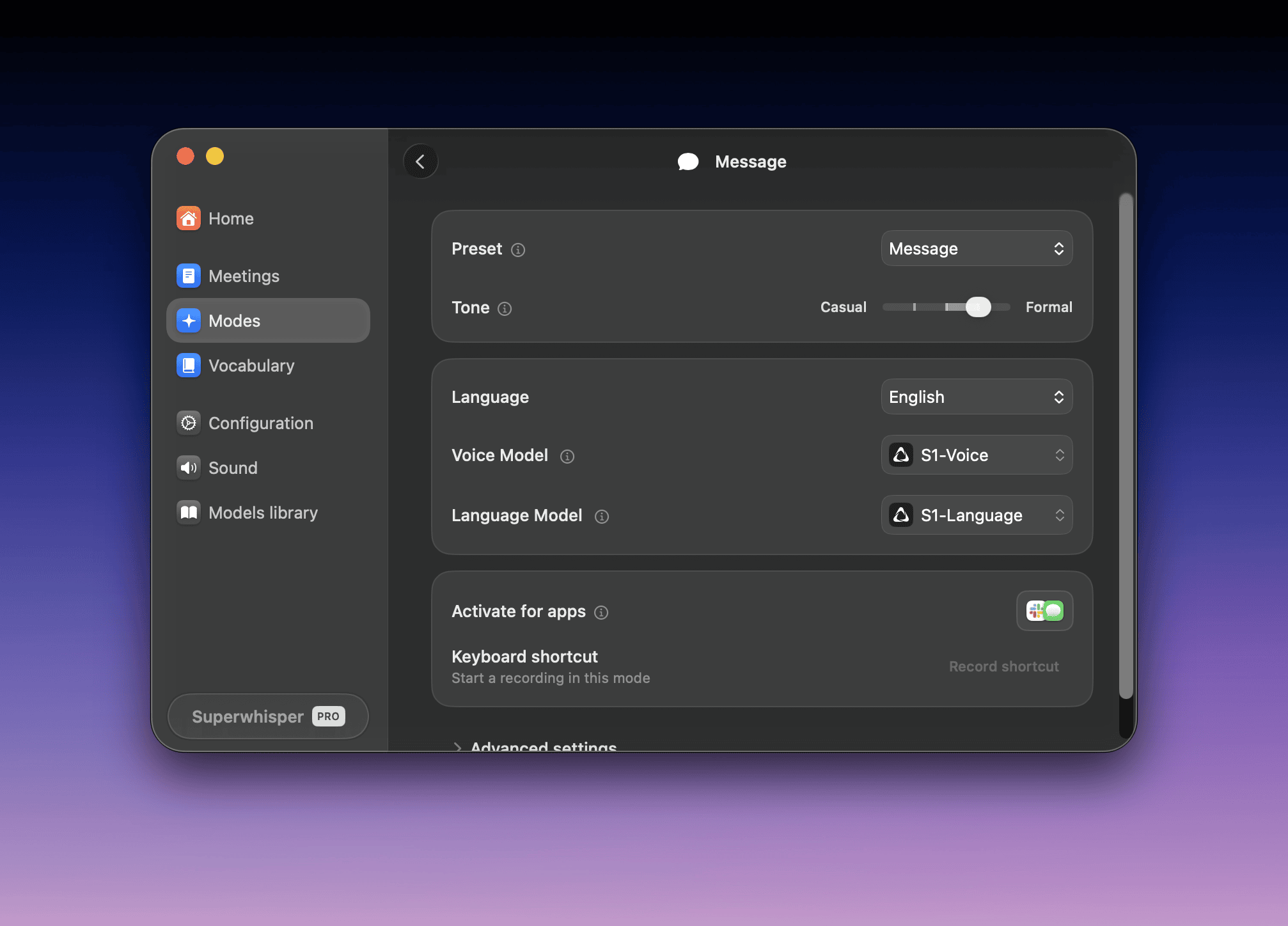
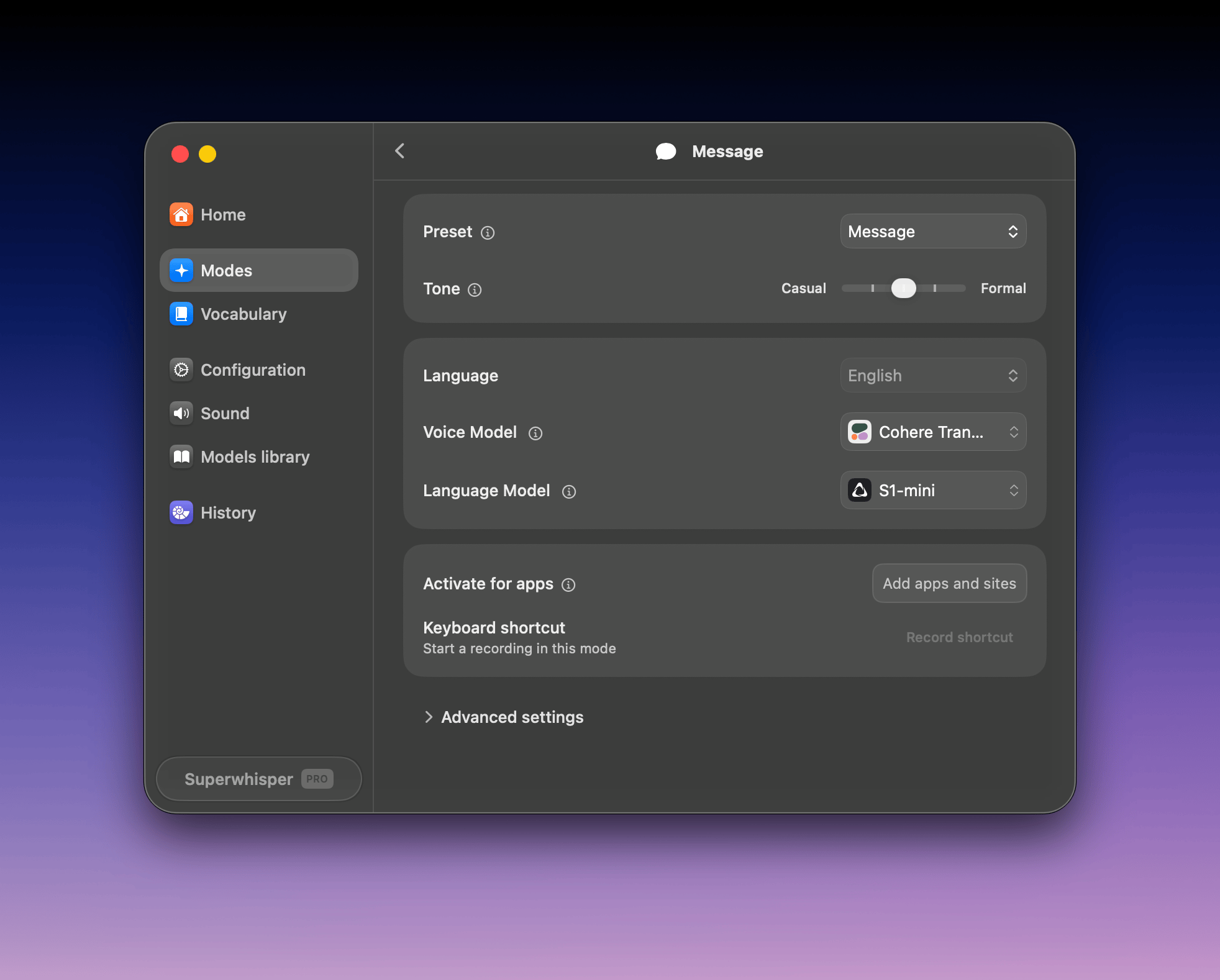
4
Dictate
Click into a text field, press ⌥ Space (Option + Space), and speak. Superwhisper records with your active mode, the one marked with a green dot in the Modes list. Press ⌥ ⇧ K (Option + Shift + K) to switch modes.
Explore more models
Open Settings → Models library to browse every model, download local ones, and remove ones you no longer use.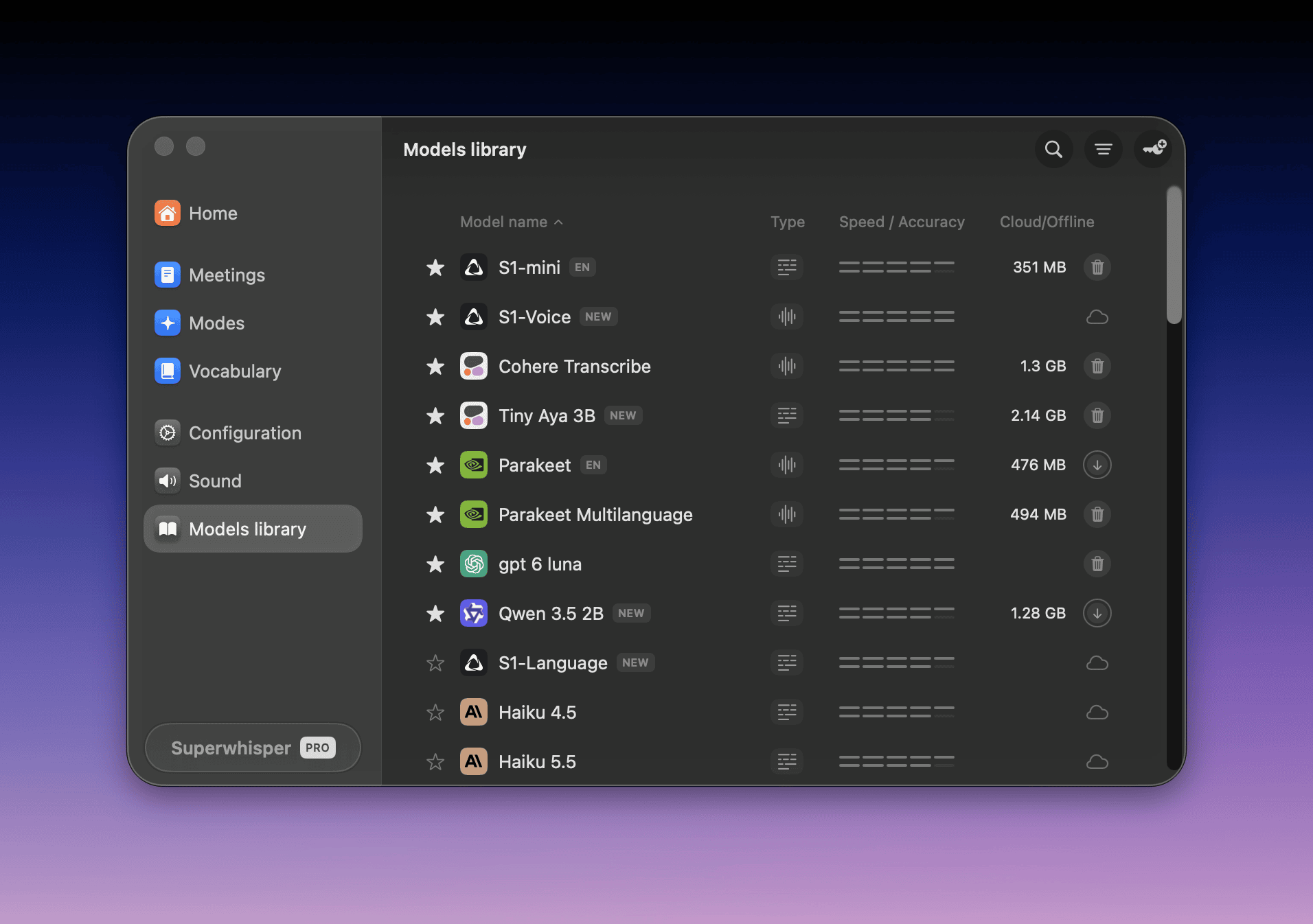
Cloud vs. local
Our picks
Accuracy numbers come from our public benchmarks. For speed comparisons, see benchmarks.
Every Whisper model is free, including Whisper Large v3 Turbo. Cohere Transcribe, the Parakeet models, and all cloud models need Pro.
On Windows: Cohere Transcribe and Whisper Large v3 Turbo use Vulkan when your GPU supports it, and fall back to the much slower CPU otherwise. Windows ARM (Snapdragon) devices don’t support them yet. On ARM, use Parakeet Multilanguage or a cloud model. Details in Windows requirements.
For every model’s languages, speed, accuracy, and size, see Voice models and Language models.
Next step
Understand modes
Modes decide what happens to your transcription: plain text, a formatted message, an email, or a custom transformation.