

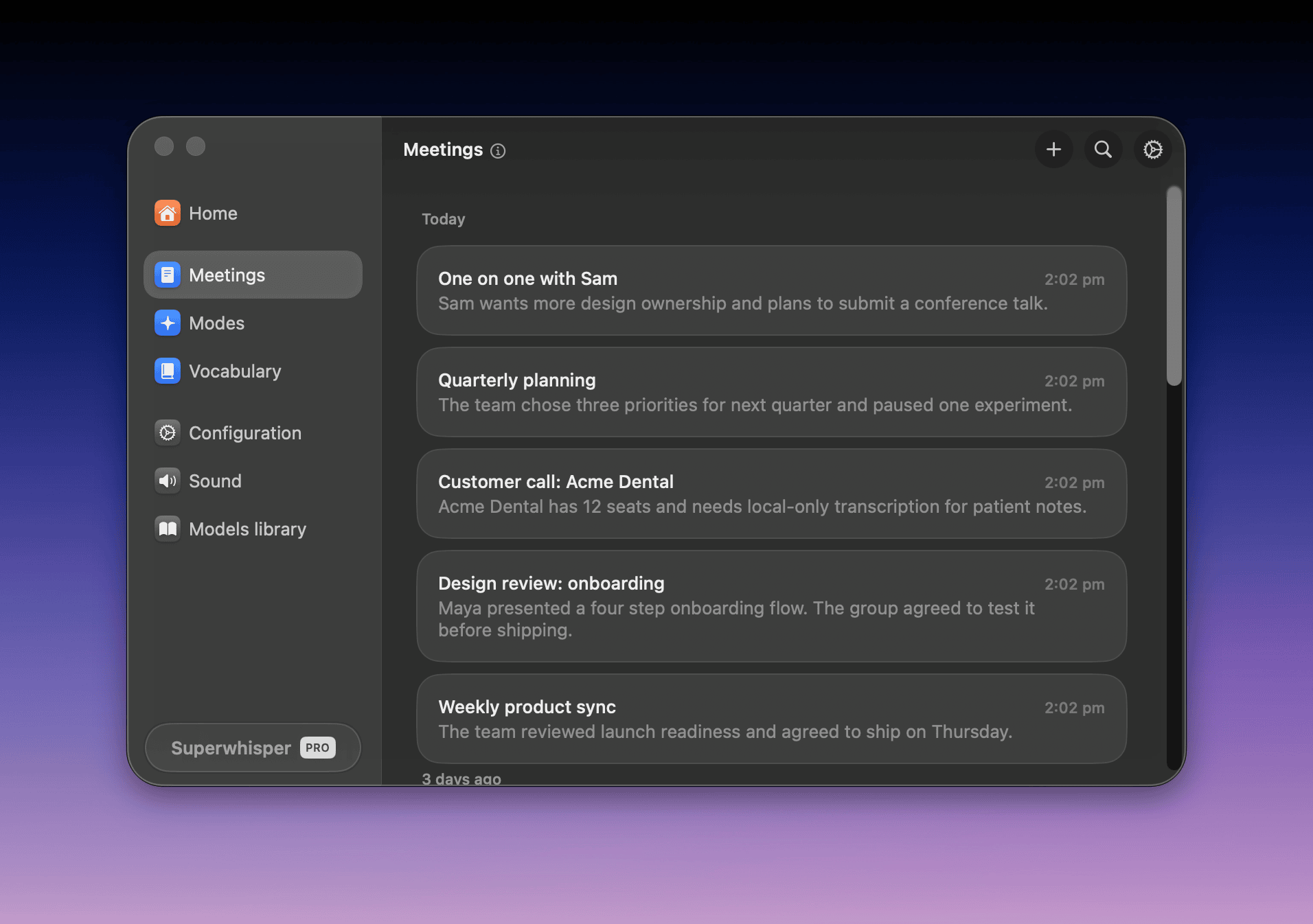
Meetings needs macOS and Superwhisper 3.0 or later. It’s a Pro feature. On the Free plan, it uses your free trial words. See Plans. On an Enterprise license, your admin can turn Meetings off.
Permissions
- Microphone: records your voice
- Screen & System Audio Recording: records the other side of the call. Turn it on in System Settings → Privacy & Security → Screen & System Audio Recording (Screen Recording on macOS 14)
- Calendars (optional): only for calendar integration
Set up
The first time you open the Meetings tab, a short tour asks how Superwhisper should offer to record. To replay it, click the i next to the Meetings title.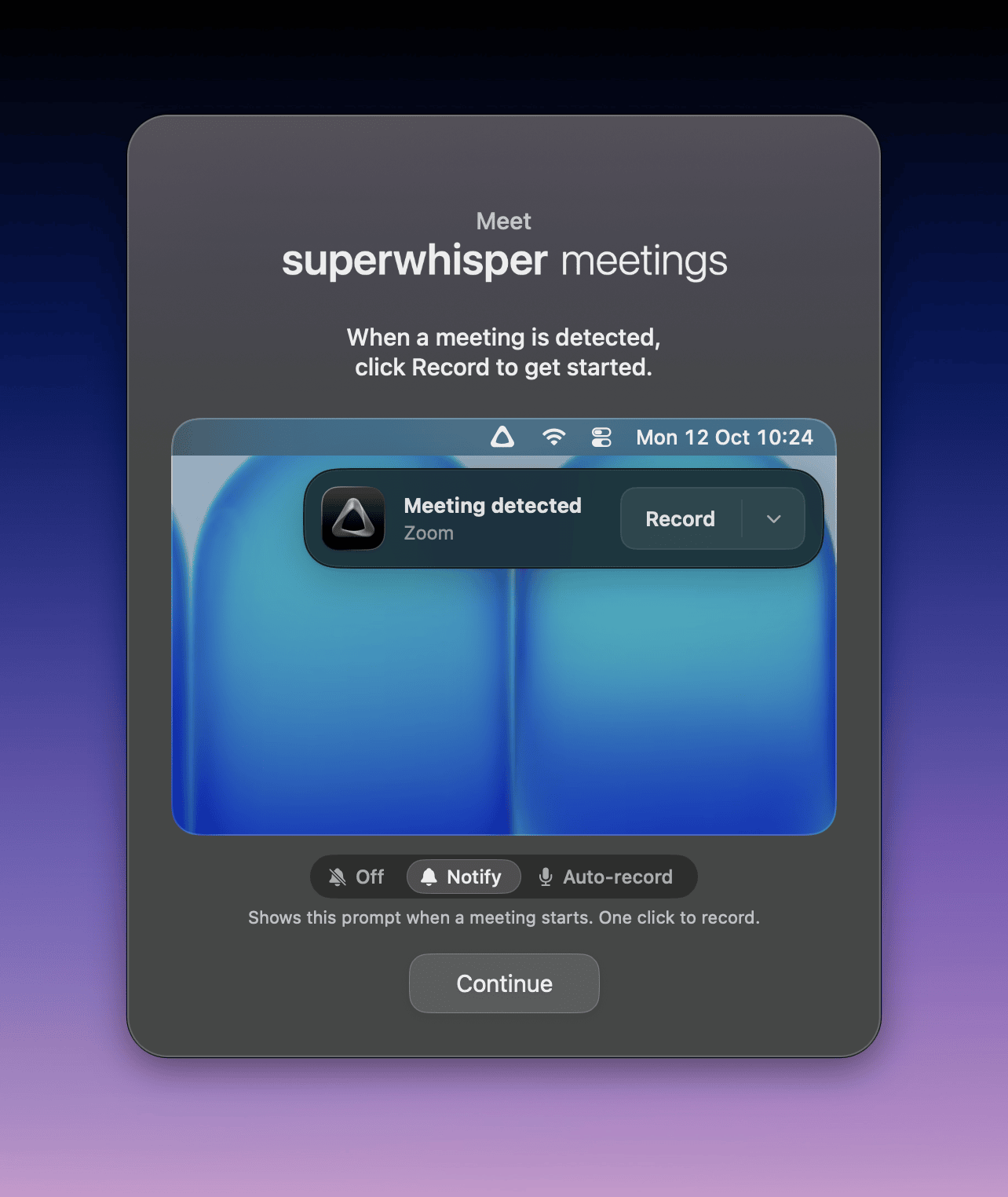
Meeting settings
Click the gear on the Meetings tab. These settings apply to meetings only, not to your dictation modes.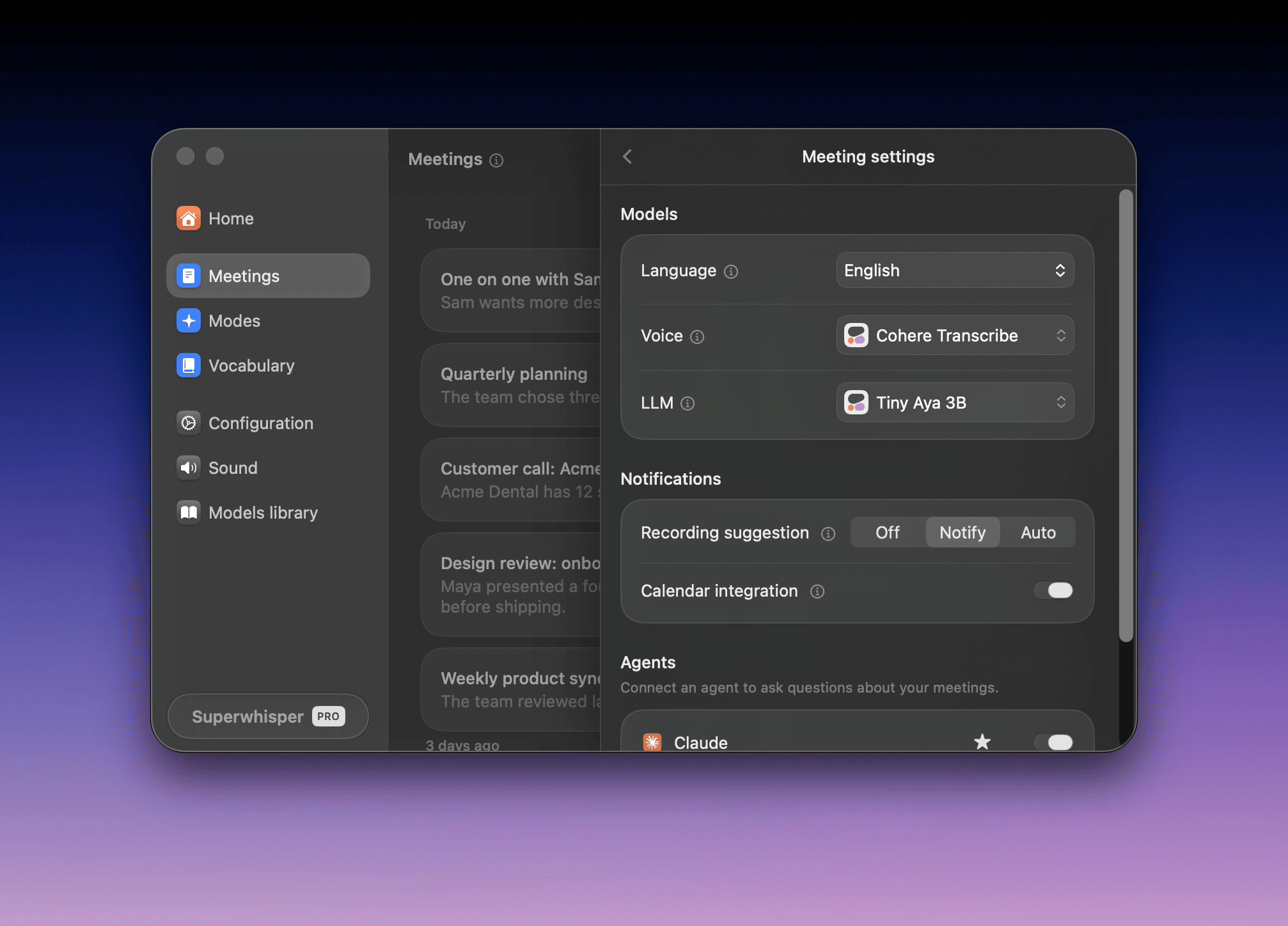
- Language: pins the transcription language. Auto works for most meetings
- Voice: the voice model that writes the transcript
- LLM: the language model that writes the summary
- Recording suggestion: see Meeting detection
- Calendar integration: see Calendar integration
- Agents: see Ask an agent
Choose models
- Voice: the list starts with the best models for meetings. Cohere Transcribe is the most accurate local model. S1-Voice is the cloud default. Parakeet, Scribe, and Nova 3 follow
- LLM: S1-Language is the cloud default. For local summaries, choose Tiny Aya 3B or Qwen 3.5 2B. S1-mini can’t write summaries
Meeting detection
Set Recording suggestion in Meeting settings:- Off: no prompts. Start each recording from the Meetings tab
- Notify: a Meeting detected prompt appears when a call starts. Click Record
- Auto: recording starts by itself
Calendar integration
Turn on Calendar integration to get a reminder about a minute before each meeting. Superwhisper reads the calendars in the macOS Calendar app, including Google, Microsoft 365, and iCloud accounts added there.- Join & Record opens the call link and starts recording. If you already joined, the button reads Record
- The event title and attendees fill in the meeting
- All-day, cancelled, and declined events get no reminder, and neither do events with one attendee and no call link
Plans
On the Free plan, meetings use the same free trial words as other Pro features. When they run out, the app shows Meetings require Pro.- A meeting in progress stops recording, and Superwhisper keeps the audio
- Past meetings stay readable, marked Free words used — this meeting is read-only
- Reading a meeting is always free. Regenerating a summary needs Pro or free words
On an Enterprise license, your organization’s policies decide whether Meetings is available. If Allow system audio recording is off, the Meetings tab is hidden. See How policies affect Meetings.
Next steps
Record a meeting
Start and end recordings, take notes, and name speakers.
Summaries and templates
Change the summary format or write your own template.
Share and ask an agent
Send a summary anywhere, and ask AI about past meetings.
Private and offline meetings
Keep audio, transcripts, and summaries on your Mac.