

Set up in three steps
1
Get your invite
Your admin sends an email invite or a join link. If your IT team provisions accounts through your identity provider, you might not receive an invite at all.To check whether you already have access, sign in with your work email at superwhisper.com/enterprise/login. Once signed in, you can download the app right from there.
2
3
Sign in with your work email
On a Mac, click My company uses Superwhisper on the welcome screen. Your browser opens the company sign-in page. If you already finished setup, open the License page in settings and click Use my company license. On Windows, choose Use my company license on first launch.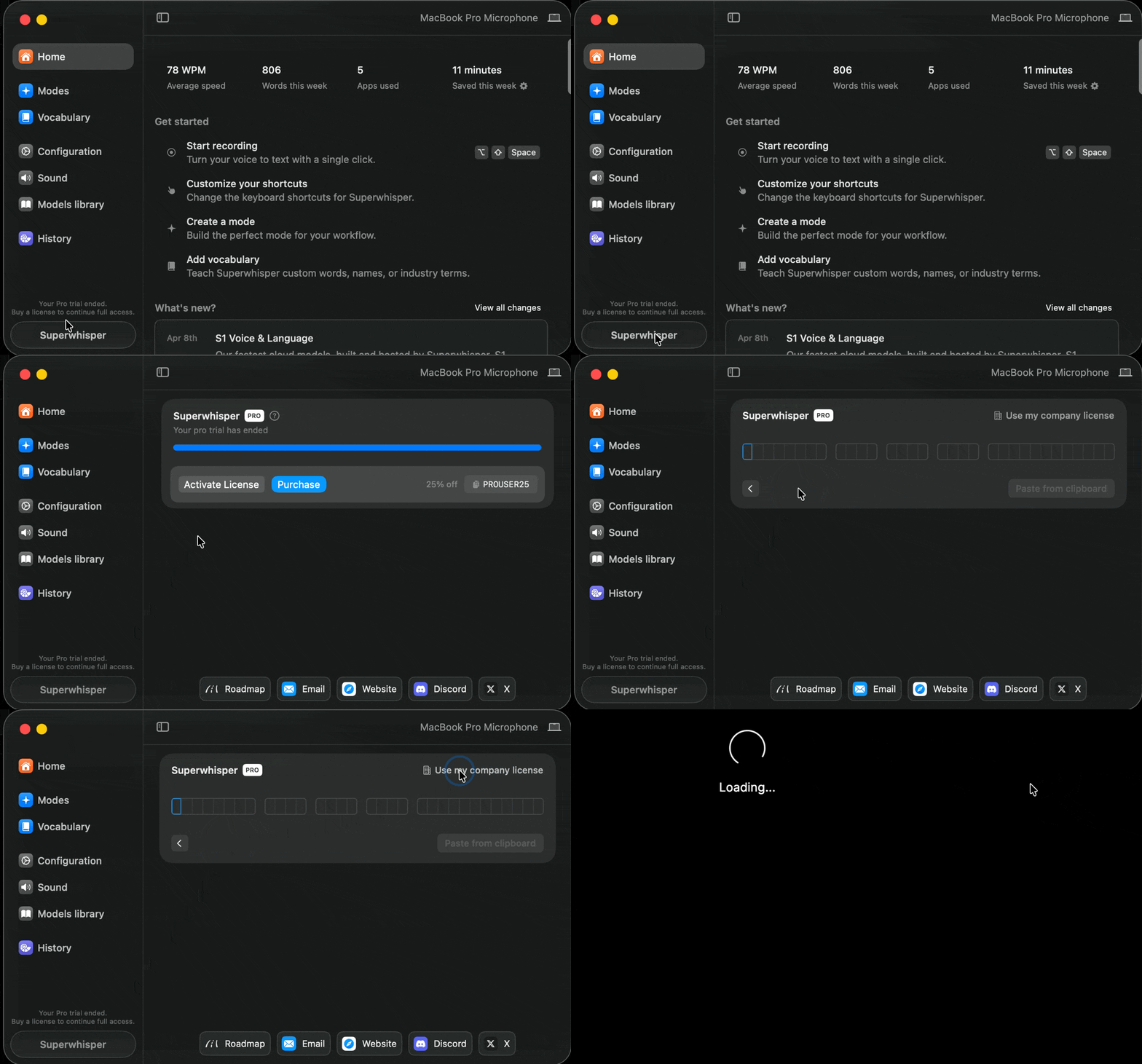
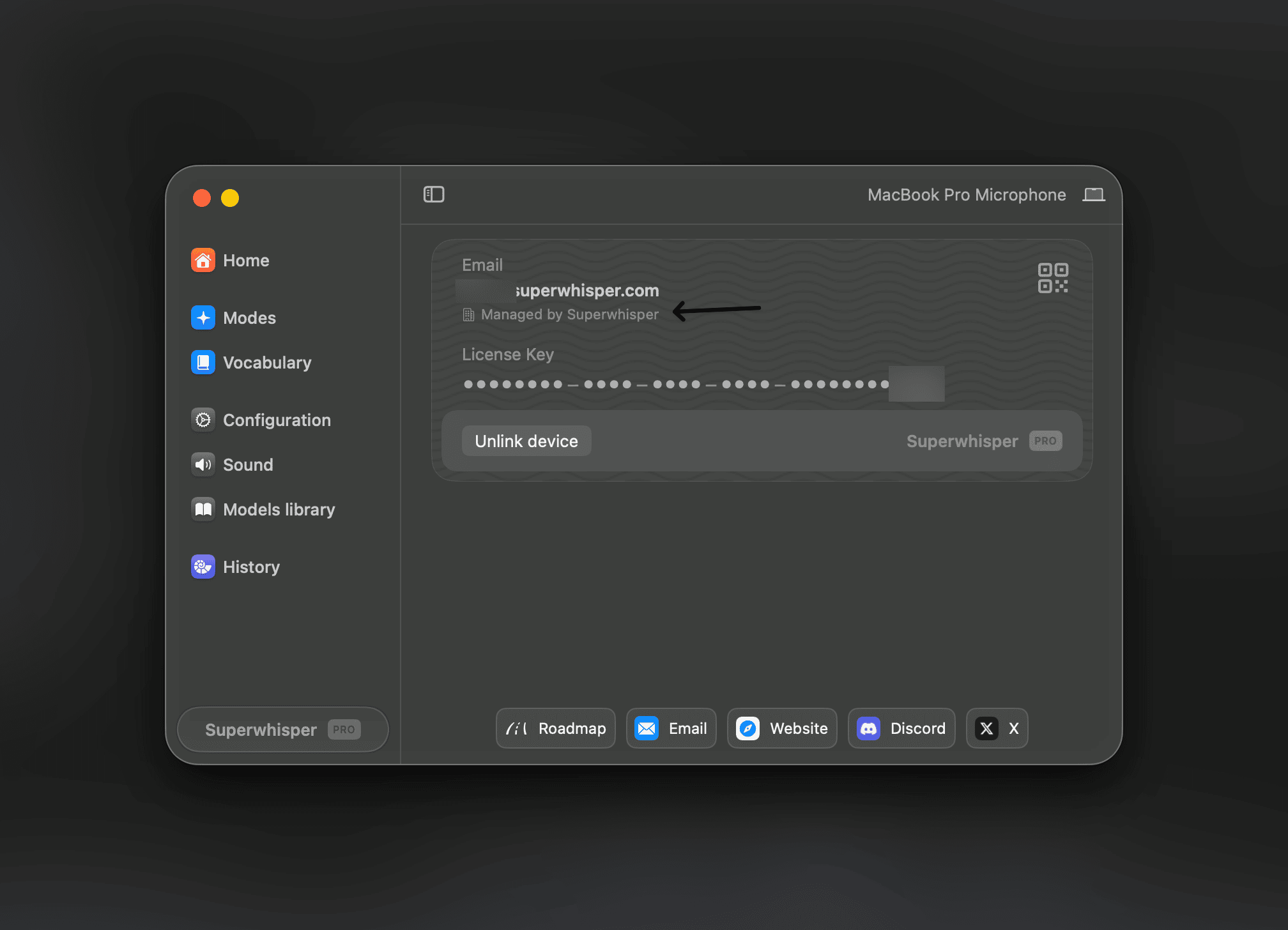
What your admin manages
Your company’s settings arrive automatically each time you launch the app:- Which AI models you can use: Superwhisper’s cloud models, company-approved providers, or local models only
- Whether system audio recording and speaker separation are available
- How long recordings stay on your device before the app deletes them
What your admin can see
Your admin never sees your transcripts or hears your audio. Dictation content stays between you and the models your company allows. If your company turns on usage analytics (off by default), your admin sees metadata only: how many dictations you make, which modes and models you use, and recording durations. It never includes content. See Usage analytics for the full list of what is and is not collected.If you leave the company
When your seat is removed, Superwhisper falls back to the Free tier on your next launch. Your local history, modes, and vocabulary stay on your device. You can keep using Superwhisper by buying an individual plan.Troubleshooting
- Invite link expired or wrong email: ask your admin to re-send the invite
- Sign-in loops or “no license found”: make sure you’re signing in with your work email, not a personal one
- App problems: email support@superwhisper.com with your platform and app version