

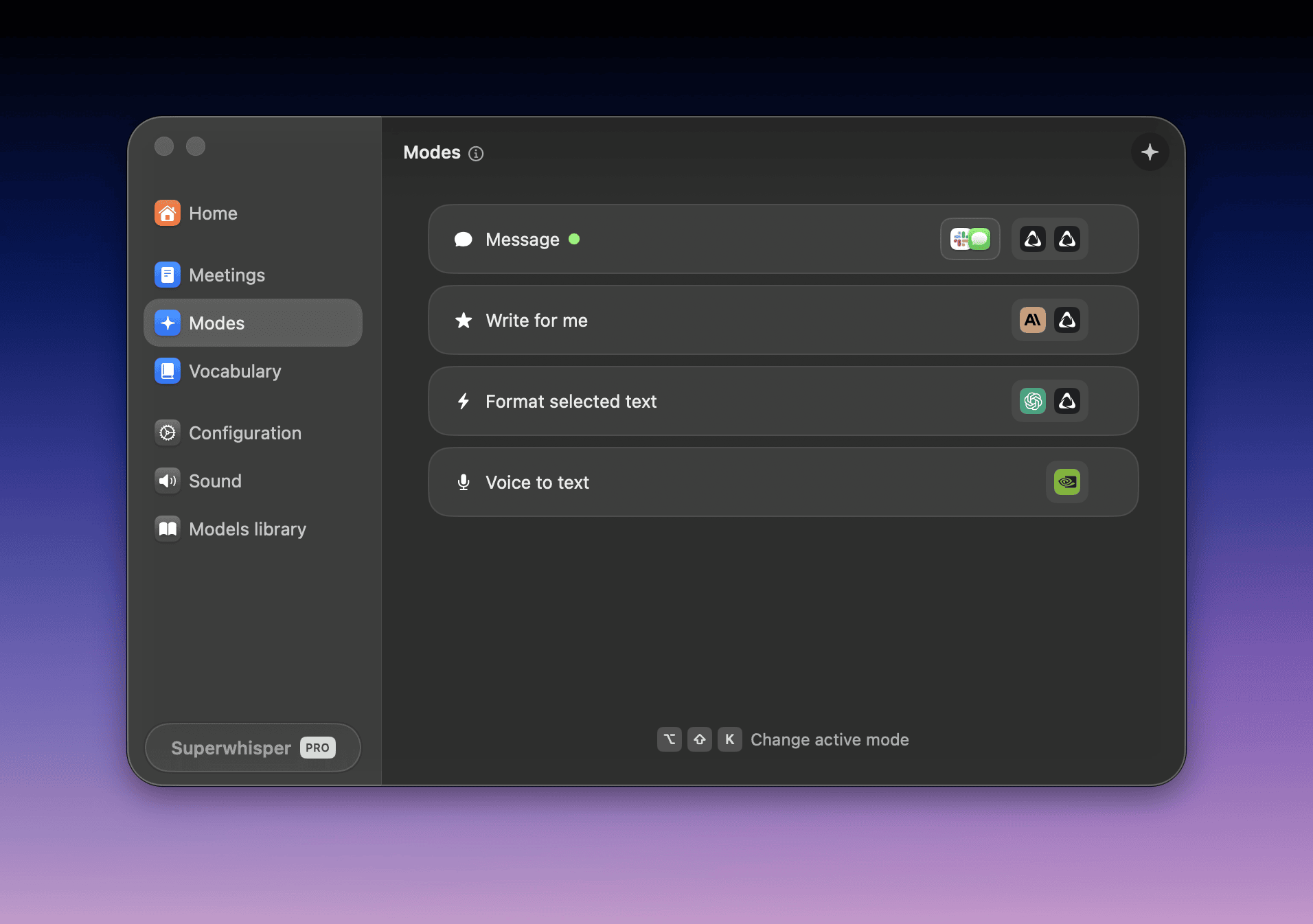
Per-mode settings
Voice processing
After you dictate, your audio first goes through voice processing for transcription.1
Set your language
- Supported languages vary by voice model
- Based on your chosen language and voice model, you may see an option to translate your dictation to English. For best results with this option, use a multilingual Whisper model like Whisper Medium or Whisper Large
If your voice model doesn’t support translation, or you need a language other than English, set up translation with AI processing in a Custom mode.
2
Pick your voice model
Every mode has a Voice Model dropdown in its editor. Pick a cloud or local model per mode. Browse, download, and remove models in Settings → Models library.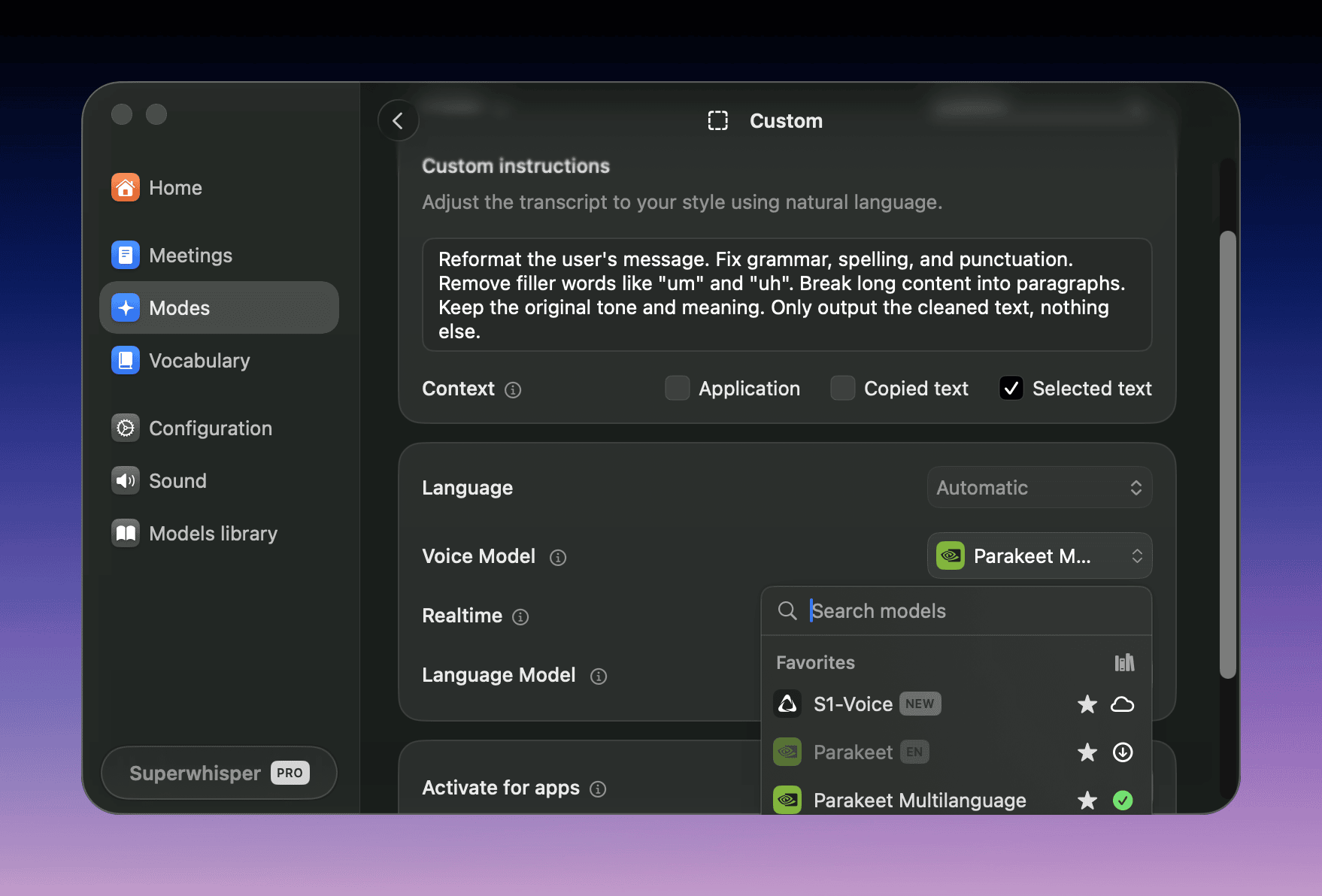
Auto-activation rules
Use Activate for apps in the mode editor (Add apps and sites) to switch to this mode automatically when you dictate in chosen apps and websites.Advanced settings
Open Advanced settings at the bottom of the mode editor to choose how your audio is handled during dictation: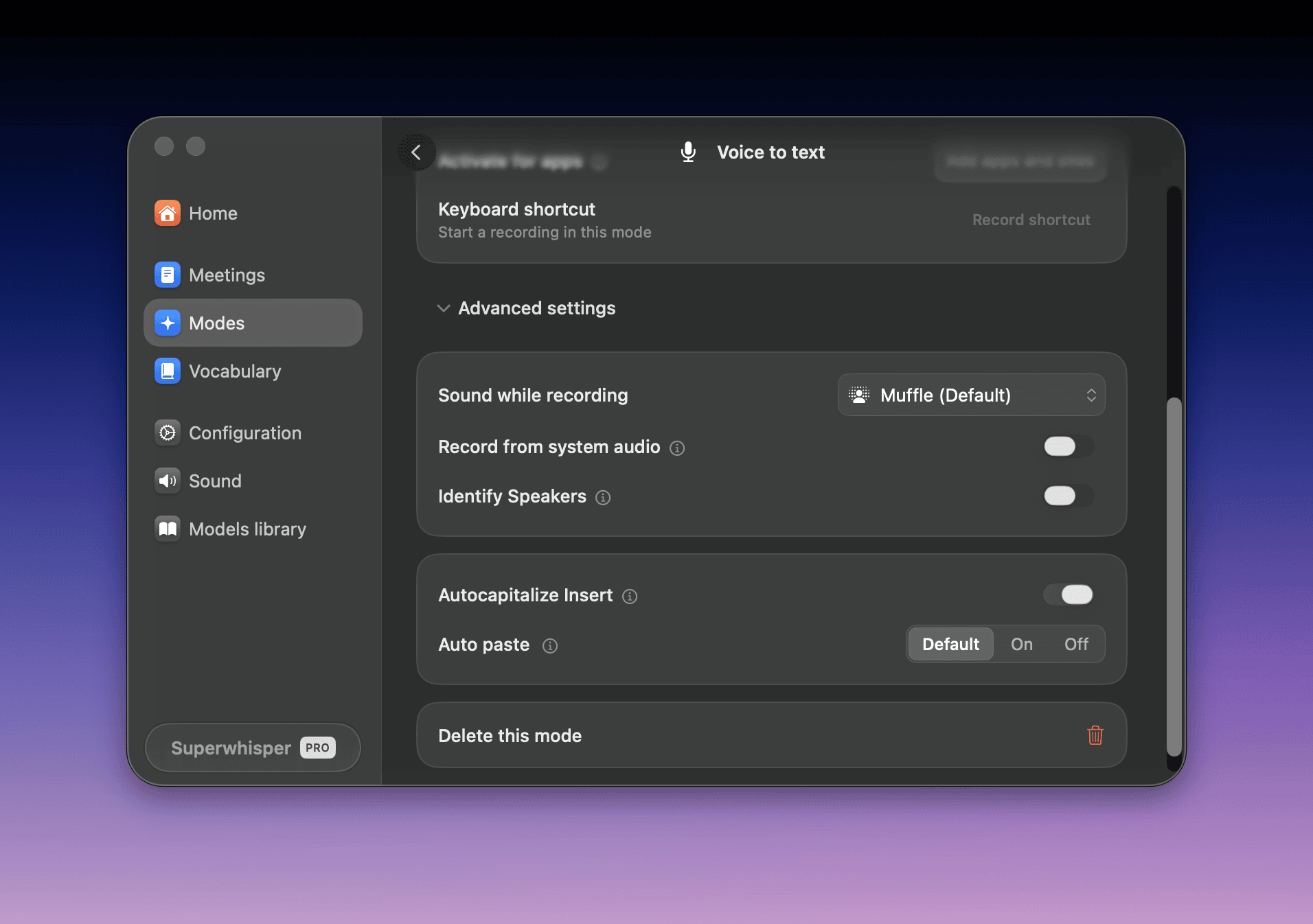
- Sound while recording: choose what happens to your music and video while you record. The options are Keep Playing, Pause, Mute, Lower, and Muffle, or the default you set for all modes. See Sound while recording. Superwhisper restores playback when recording ends
- Record from system audio (Pro)
- Identify Speakers (Pro)
- Useful for interviews and recorded files with more than one speaker
- Speaker labels appear in the Speakers view of the recording in History
Speaker-separated transcripts don’t go through AI processing in the same mode. To record a call with speaker labels and a summary on a Mac, use Meetings.
AI processing
After transcription, AI processing shapes your text based on the mode’s purpose.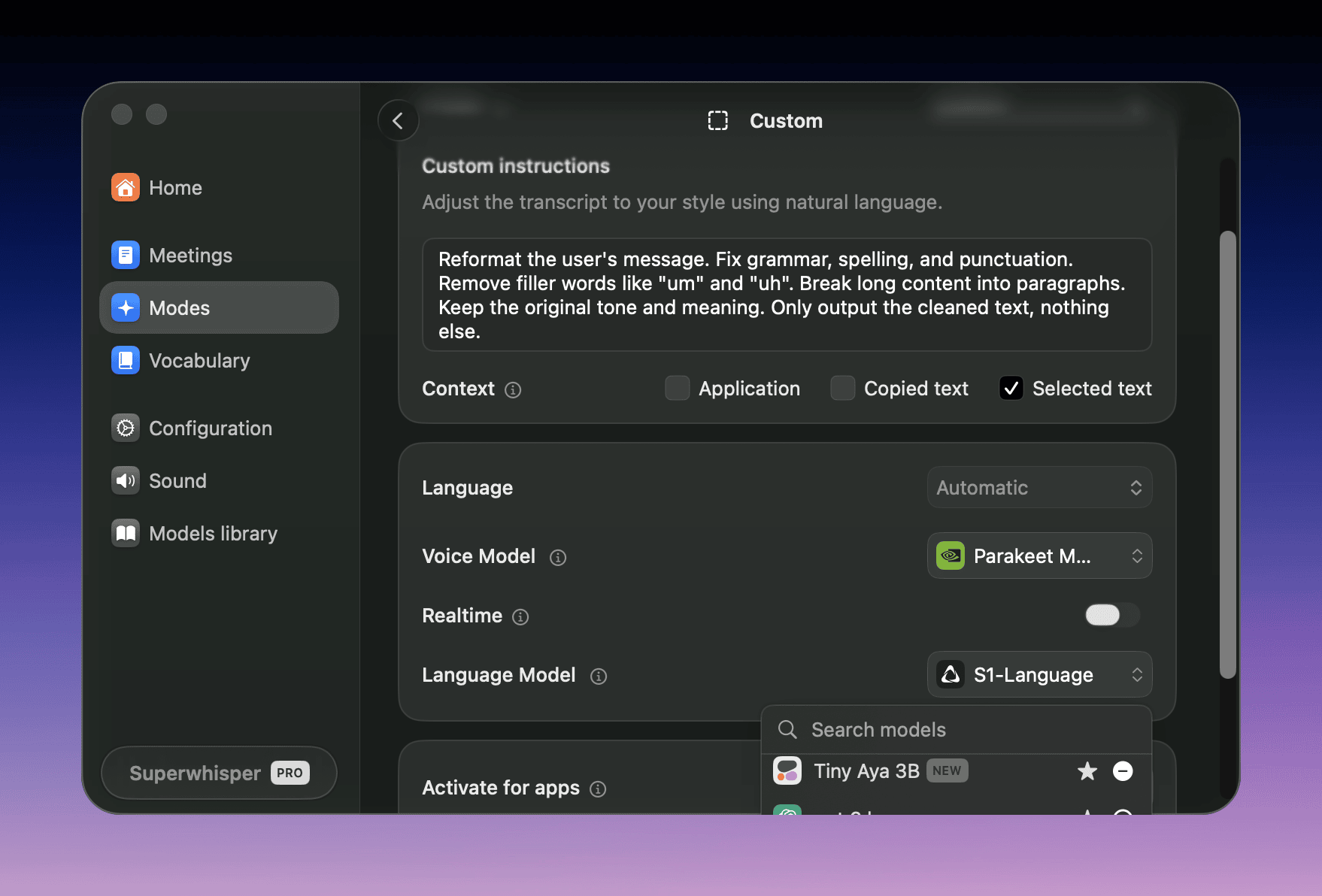
- Pick the AI model in the mode editor’s Language Model dropdown
Select a mode with AI processing to see this option.
- Built-in modes support multiple languages automatically
- Select the correct language in the voice processing settings
- The AI processes your dictation and responds in your chosen language
- Message, Mail, and Note modes have a Tone slider from Casual to Formal. It controls the formality of the cleaned transcript
- The context checkboxes (Application, Copied text, Selected text) need a Pro license
- AI processing varies by mode
- Voice to Text has no AI processing
- The built-in modes (Message, Mail, Note, Super) use instructions tuned for their purpose
- Custom Mode lets you write your own AI processing instructions
- Super and Custom modes add context awareness
Learn more
Switching Modes
Jump between modes with keyboard shortcuts, auto-activation rules, and deep links.
Customizing Modes
Copy a built-in mode’s instructions into a Custom Mode and adjust them.