

Enable error logging
Turn on Error logging in Settings → Configuration. It records diagnostic detail the support team can read. Do this before you reproduce any problem you plan to report.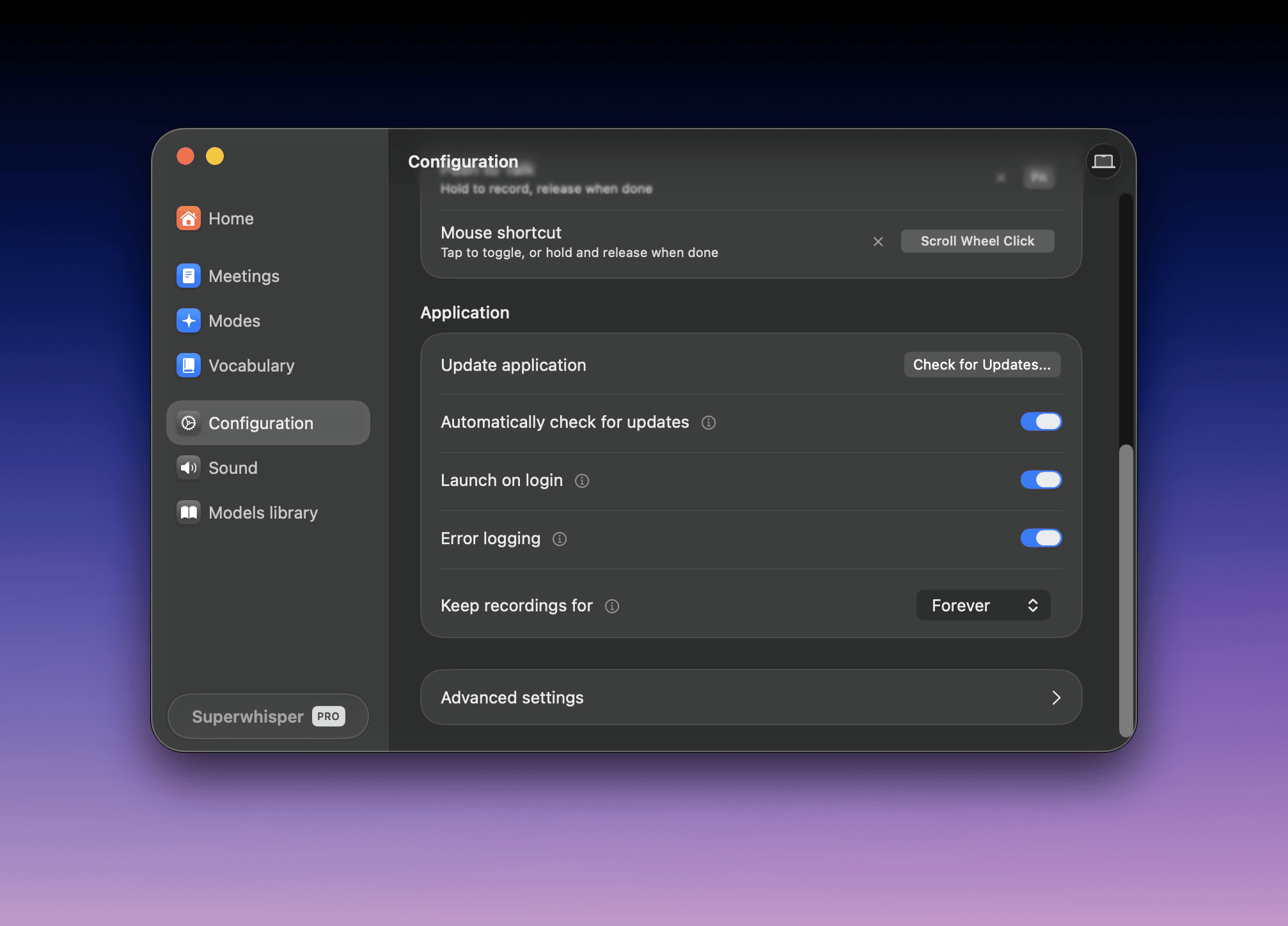
Where your files live
The folder holds your history, recordings, modes, vocabulary, and replacements. Back it up before switching machines.
Clean uninstall
macOS:- Quit Superwhisper (menu bar icon → Quit)
- Delete Superwhisper from Applications
- To remove your data too, delete the
~/superwhisperfolder (or your custom location). Skip this step to keep history and modes for a reinstall
- Uninstall Superwhisper from Settings → Apps
- To remove your data too, delete
%LOCALAPPDATA%\com.superwhisper.app. Skip this step to keep history and modes for a reinstall
Report a bug
For the fastest fix:- Enable Error logging and reproduce the problem once
- Follow Report an Issue from inside the app
- Include: your platform and app version, the mode and models involved, and what app you were dictating into